EBU R128 loudness
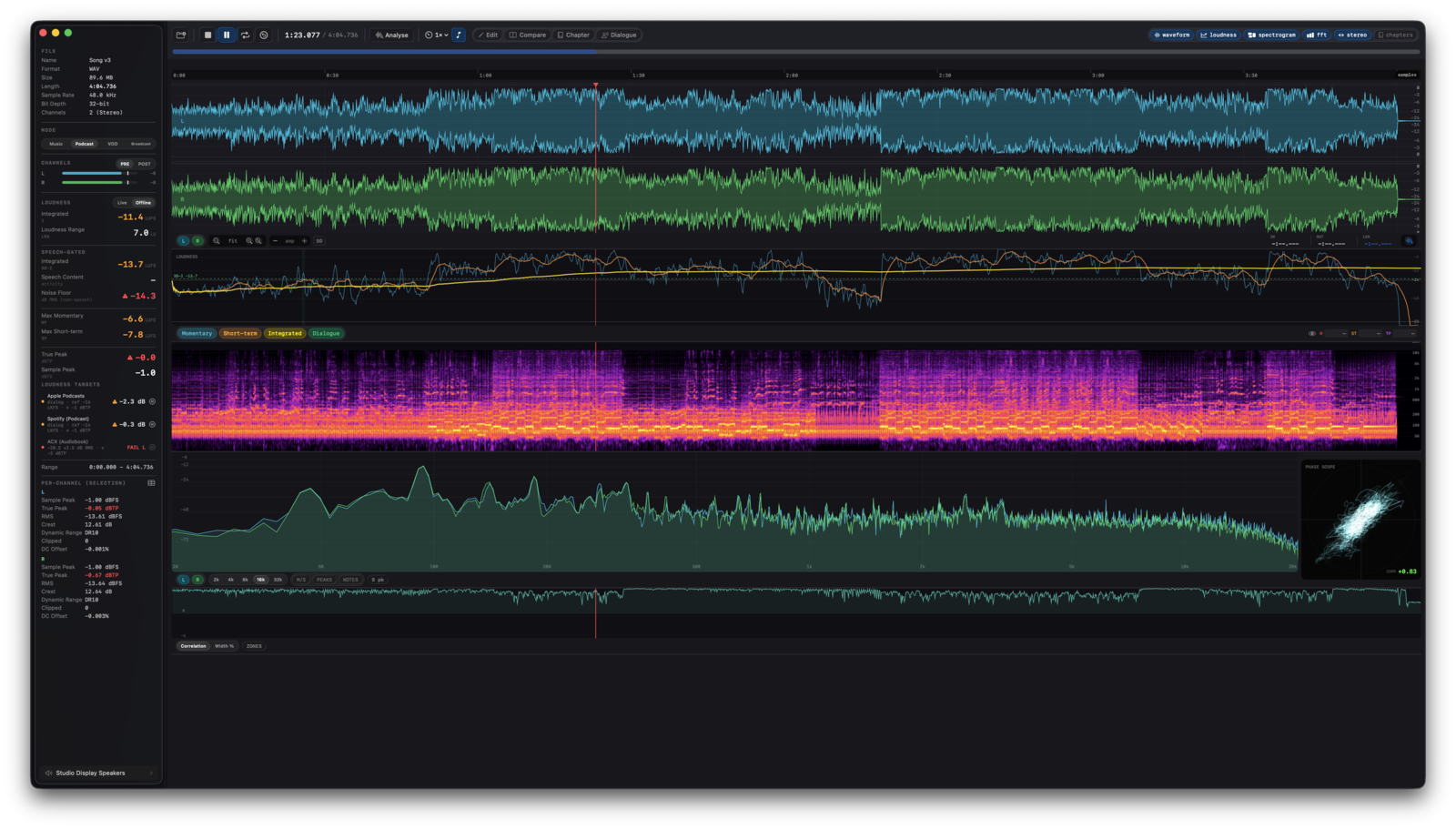
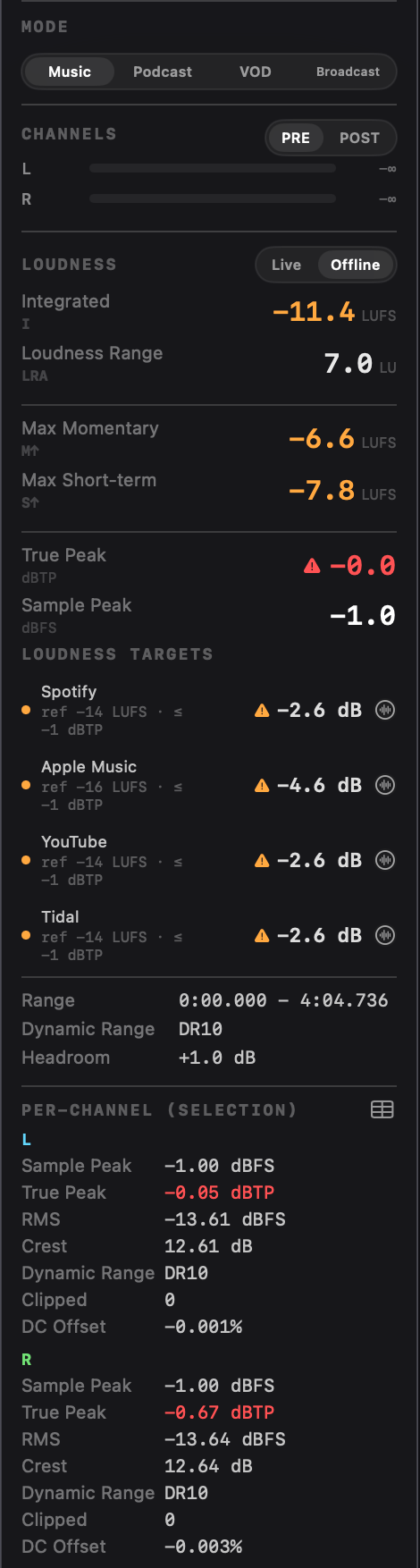
Full ITU-R BS.1770-4: K-weighting, 100 ms gating blocks, dual gating (−70 LUFS absolute, −10 LU relative), 4×-oversampled true peak. Momentary, Short-term, Integrated, LRA, and True Peak run live in the sidebar; offline integrated and LRA on any selection. Validated against the EBU R128 loudness test set (Tech 3341/3342).
Speech-gated LUFS
A neural Silero VAD runs on every loaded file, highlights speech blocks in teal on the waveform, and gates a parallel integrated measurement. Netflix's speech-gated target (−27 LKFS ± 2) becomes a number you read off the panel.
FFT spectrum
Real-time logarithmic spectrum with five window functions (Hann / Hamming / Blackman / Blackman-Harris / Flat Top), each tuned for a different job. Hover anywhere on the curve to read frequency, level, and the closest musical note with cents deviation.
Spectrogram
Four perceptually-distinct colormaps (Inferno / Turbo / Plasma / Viridis), logarithmic or mel frequency scale, configurable dB range, and five overlap settings from ~47 to ~750 columns per second at 48 kHz. Live and Offline stores stay separate, so playback never overwrites an Analyse result. While paused, clicking the waveform recomputes the FFT for that position.
M/S stereo & phase
A correlation curve (−1 to +1) plus a Lissajous phase scope. Zone colour mode tints the curve by stereo character, from mono to out-of-phase, with a plain-English hover label.
Music analysis (macOS 27)
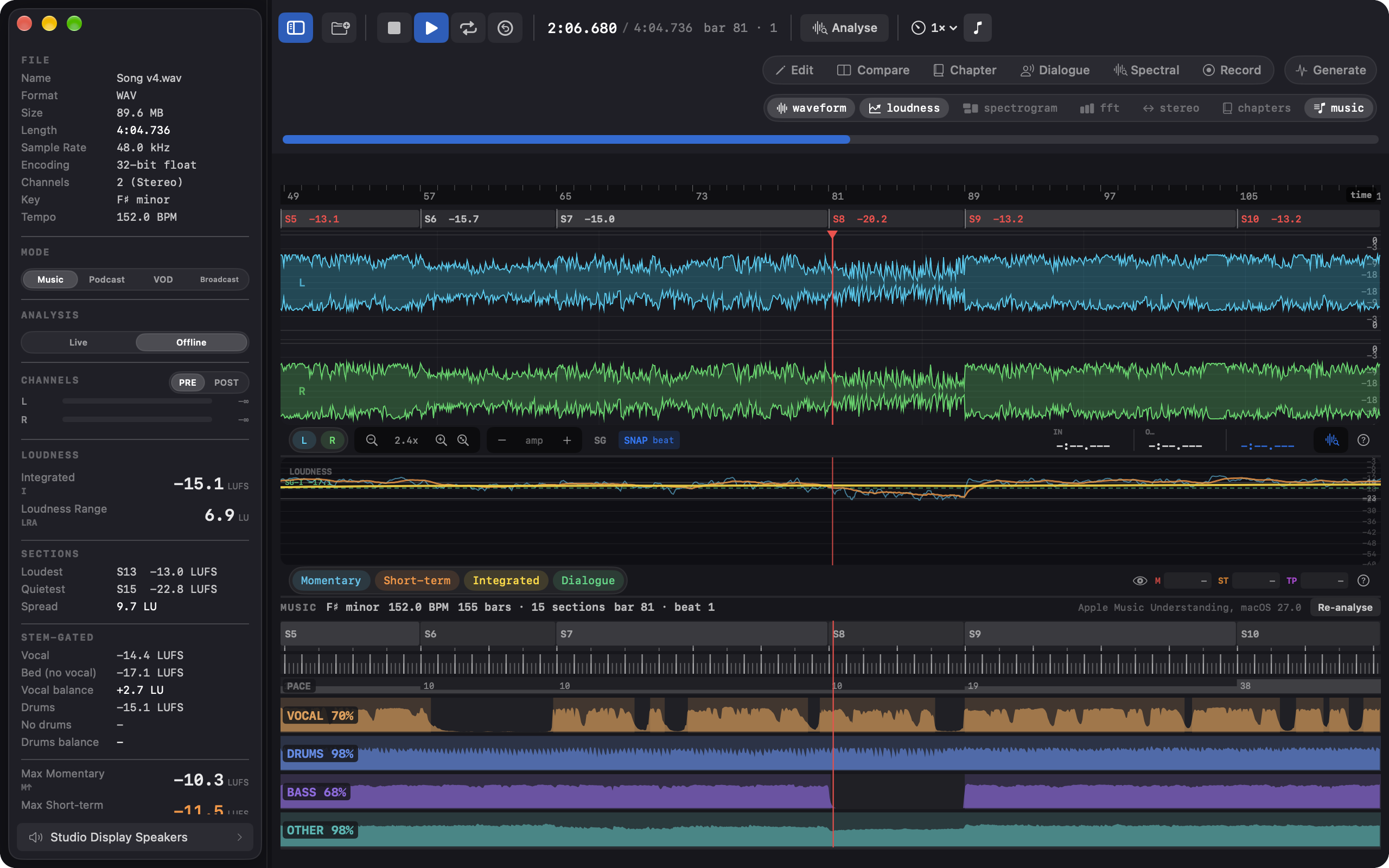
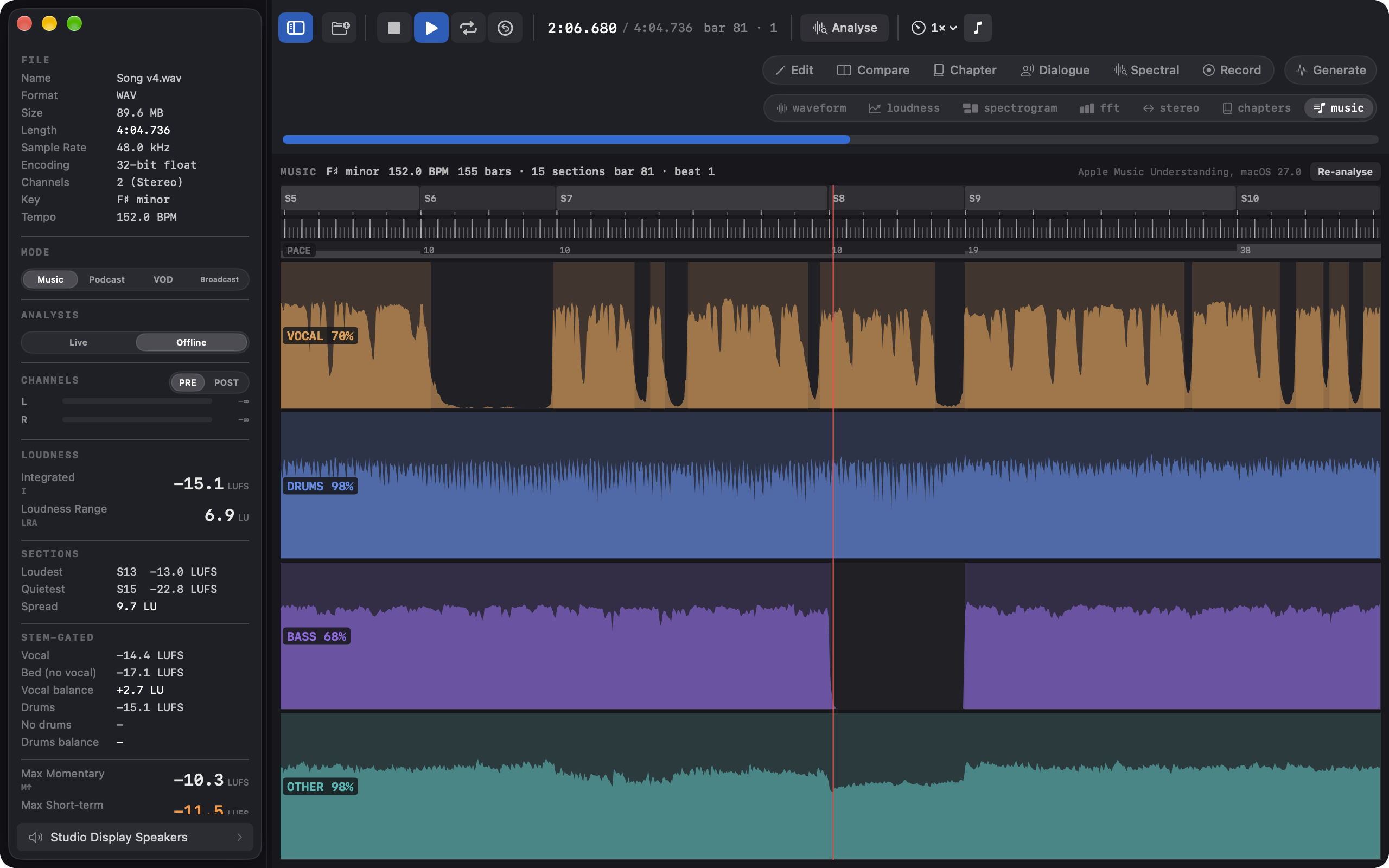
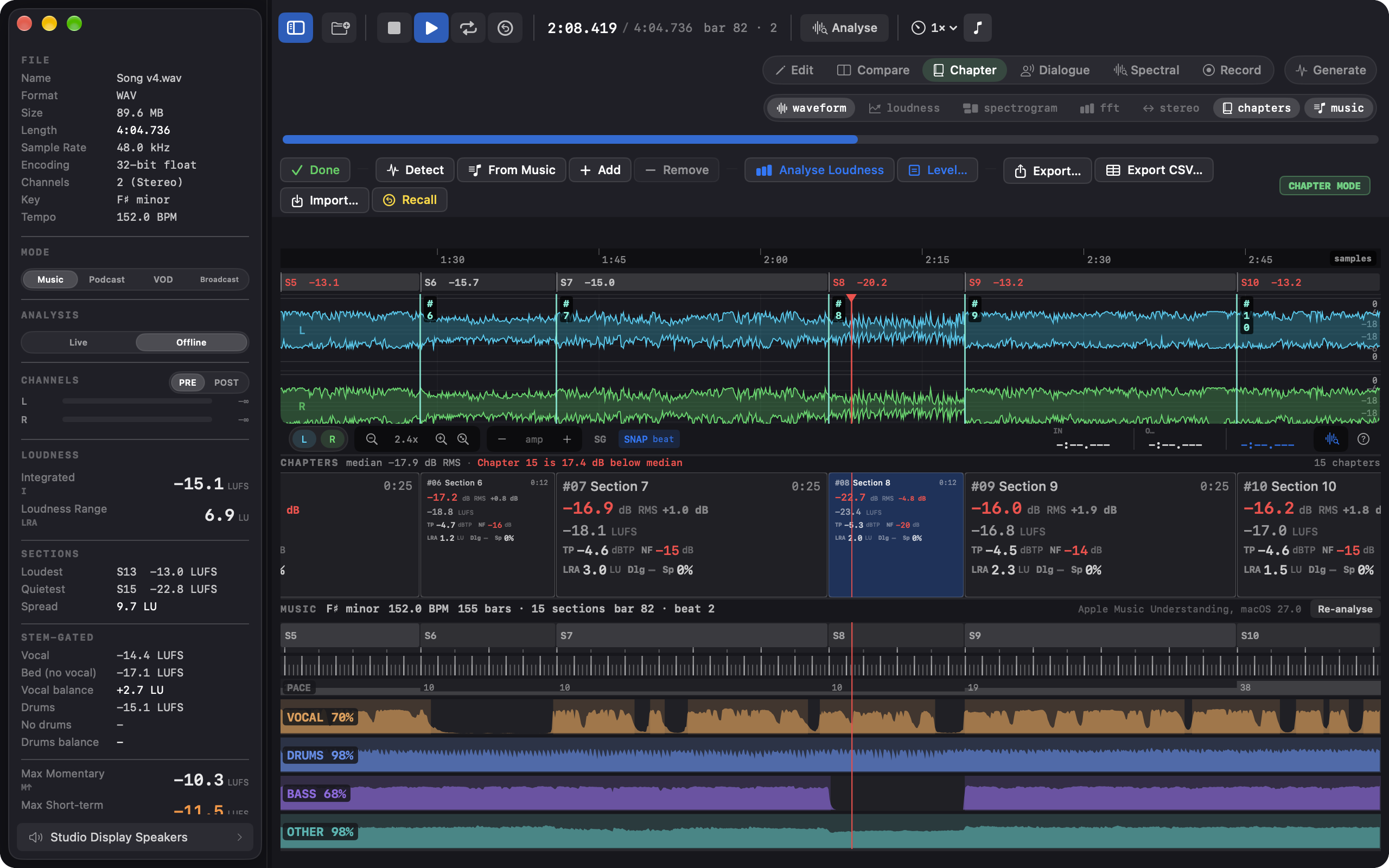
Apple's on-device music analysis of the loaded file, run in the background after a file loads. On the timeline: key and tempo in the sidebar, a band of the song's sections with each section's integrated LUFS under the ruler, a bars ruler, the bar and beat under the playhead, and a SNAP chip that lands selection edges on the nearest beat or bar. The Music module (⌃7) holds the detail: four stem lanes (Vocal, Drums, Bass, Other) with presence spans and activity over time, the beat and bar grid, sections, segments, and phrases, and Apple's pace figure per section. Chapter mode takes its chapters from the sections for a per-section loudness table, and a Stem-Gated block in the Loudness section reads integrated LUFS with the vocal present, without it, and the difference in LU. The JSON, PDF, HTML, and CSV reports carry it. Labelled as Apple's analysis throughout, while loudness stays Specula's own BS.1770-4 measurement.
Music analysis guide →Compare mode (⌘2)
Six slots (A-F), switched on bare 1-6 keys. One-click LUFS level matching, per-slot polarity invert, editable offset and gain fields, and two-pass cross-correlation auto-align that locks a slot to A at the exact sample. Listen to Diff (D) plays the cached A−X residual in place of the slot; ⌃⌘E exports it to WAV.
Edit mode (⌘1)
Trim, cut with crossfade joins, insert silence, gain, fades, phase invert, DC removal, channel swap or split to mono files. Normalize to a peak or LUFS target with a 5 ms lookahead limiter enforced against the oversampled inter-sample peak; Limit TP caps a true-peak overage on its own; Level Dialogue pulls room tone down between phrases. Normalize and Limit TP respect a time selection. 16-level undo; saves a new file by default, with an opt-in Save that writes over the original and keeps its format.
Chapter mode (⌘3)
Detect finds the silences and cuts the file into a chapter ribbon; Analyse Loudness runs the full metric set per chapter and flags every gate miss: the three ACX limits plus drift off the book's median. Level chapters brings every chapter to a common RMS or LUFS in one move. The chapter table lands in the PDF report with the same red-cell signalling.
Dialogue mode (⌘4)
Hand-correct what the VAD got wrong: drag, resize, split, add, and delete speech regions, with I/O marking and 50-step undo. The overlay tint says where regions came from: teal fresh from Silero, amber once you've edited, blue when loaded from a sidecar. Edits persist in a versioned .dlg.json sidecar and feed straight into the speech-gated loudness path.
Spectral mode (⌘5)
The canvas becomes a full-resolution, zoomable spectrogram where you select regions in time and frequency with a rectangle, a lasso, a brush, or a wand that grows across the connected region at a similar level.
Attenuate,
Erase to the surrounding noise floor, or
Repair by bridging from the clean audio either side. Solo the selection or hear the result before committing. Any channel count; multichannel beds edit one channel at a time.
Spectral repair workflow →Record mode (⌘6)
Captures from any input device straight into the app, and it is the one mode that works with nothing loaded. A new take, an append, an insert at the playhead, or a tape-style punch over the flubbed word, every join smoothed by an adjustable equal-power crossfade and each landing a single Undo away. Live meters run while armed, including a noise-floor readout for spoken-word specs. Takes stream to disk and open for analysis at Stop.
Audio Unit chain
Edit mode hosts your installed AUv2 and AUv3 effects. Chain several, tune them by ear while every meter tracks the processed sound, then Render bakes the chain in as an undoable, latency-compensated edit, or renders to a Compare slot to A/B against the source with real numbers. Plugins run out of process by default, so a third-party crash can't take the app down.
Signal generator (⌘G)
Builds test files from modules: band-limited tones, white, pink, and brown noise, impulses, and linear or logarithmic sweeps, stacked or sequenced per channel, with per-module fades, level sweeps, and burst gating. Writes WAV, AIFF, or CAF at 16 or 24-bit integer or 32-bit float, with a live waveform and spectrum preview. Also on the command line as specula generate.
Custom loudness targets
Your own delivery spec as a compliance target: a name, a mode, a measurement source (integrated, dialog-gated, or un-weighted RMS), a reference level, a tolerance band, and a true-peak ceiling. It joins its mode's list and works everywhere a built-in target does, including Match, Normalize to target, and the report exports.
Raw PCM input
Headerless audio under a format you declare: sample rate, channels, sample format from 8-bit unsigned to 64-bit float including packed 24-bit, byte order, interleaved or planar, an optional header skip. The import sheet ranks the byte formats that fit and previews the decode; the sample rate is never guessed. Declarations are remembered per file and savable as presets, and the same flags work on analyze, report, and edit.
Channel routing
A dedicated Output window (⌥⌘O) with an N→M matrix, per-route gain and phase, and mixdown presets following ITU-R BS.775. Metering reads PRE (the raw file) or POST (after routing), so you can verify a channel order or audition a downmix. Render to File… writes only the routed outputs, never over the source.
JSON & PDF reports
⇧⌘E writes JSON, ⌥⌘E writes PDF, both populated with the full metric grid the moment a file has loaded. The JSON schema is stable for archival and CI, and each loudness-target row carries an inline verdict object so a script can branch on pass/fail.
Format support
WAV, AIFF, FLAC, CAF, MP3, AAC, and anything else AVFoundation decodes. Mono and stereo through 3.0, quad, 5.1, 7.1, and arbitrary n-channel layouts.