A master can sound right on your monitors and still arrive wrong. Specula shows the gain each streaming service will apply to the file, alongside the true peak, loudness range, stereo width, and phase behind that number. When the readings look close, audition the master the way Spotify or Apple Music will actually play it.
macOSEBU R128True peakStereo & phasePer-platform gain
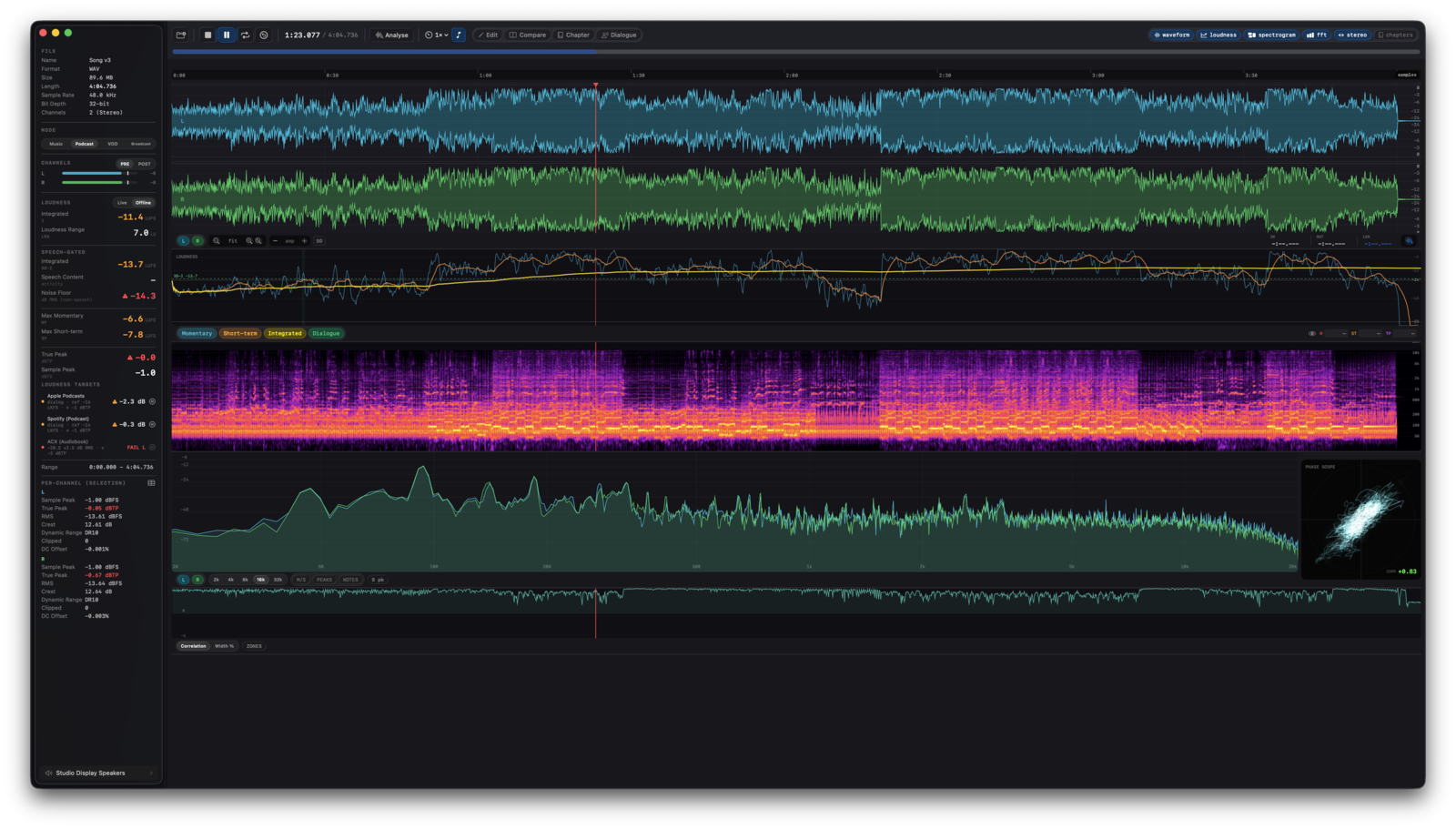
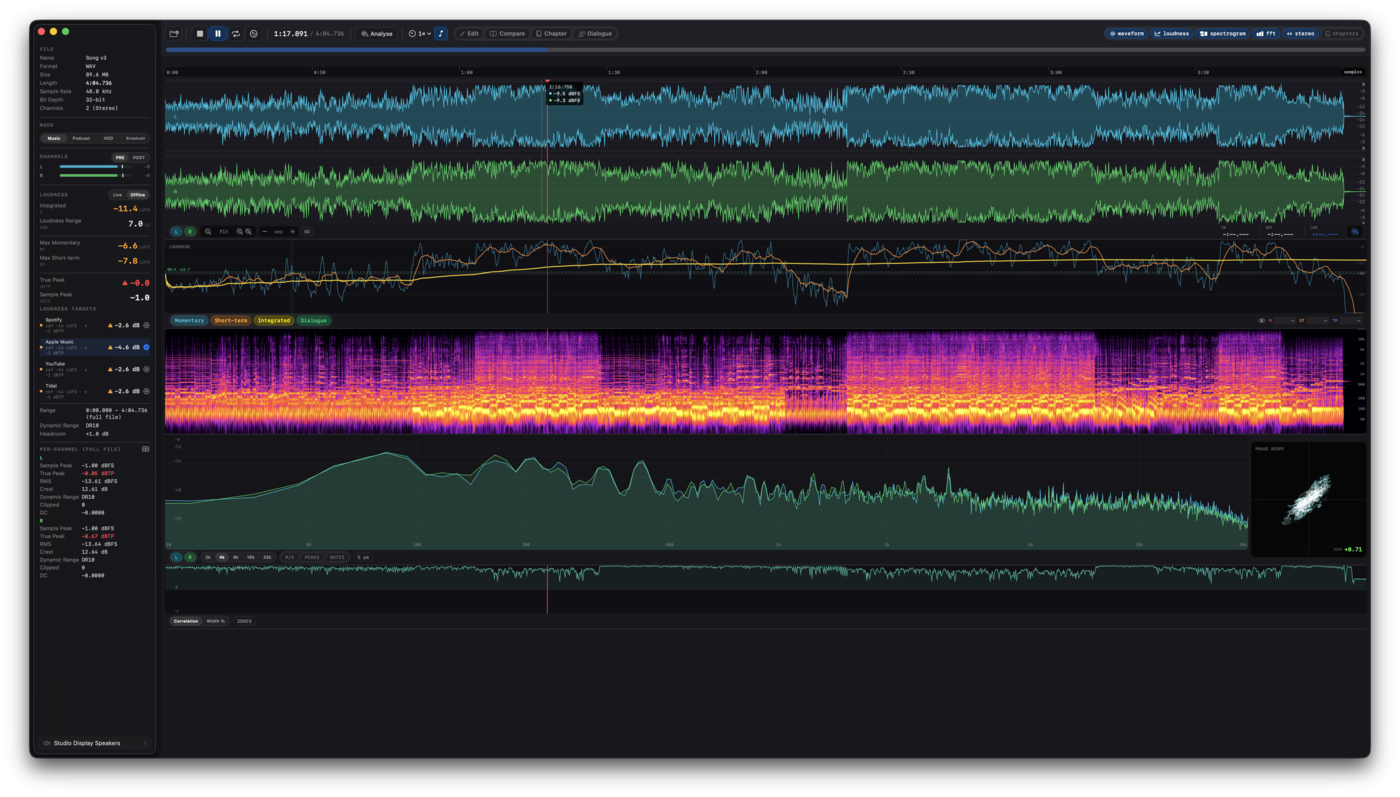
The whole readout at once. The master's waveform, spectrogram, loudness curve, FFT, and phase scope in one window.
Sounds right, fails at delivery
The master is finished. Whether it survives Spotify, Apple Music, and the rest is a separate question, one your DAW doesn't answer.
Three things go wrong between "done" and "uploaded," and none of them are audible on a quiet pass through your monitors. The integrated LUFS overshoots and Spotify turns the track down. The master is quieter than reference and Apple Music dims it, or leaves it exactly where it is, depending on the platform. And a "stereo" file is secretly mono on the verses or out of phase in the bridge, so it collapses on a phone speaker. Each of these is a number the file already contains. Specula reads them out before the file goes anywhere.
GainEach streaming platform applies its own gain to hit its reference. Specula shows the exact dB it will apply to your master, per platform.
PeakThe ceiling is the inter-sample peak, not the sample magnitude, read on the 4× oversampled true peak (dBTP), the value the platform actually limits against.
WhereSet the TP threshold to your delivery ceiling and every spot the master breaches it lights up on the waveform, so a single over-ceiling number becomes the exact moments to go fix.
PhaseThe left/right correlation curve and a Lissajous phase scope catch the mono-collapse and out-of-phase content a stereo monitor hides.
The delivery check
Open the master, read the platform rows, audition at the target, export the PDF.
1 · Load & read the platform gain
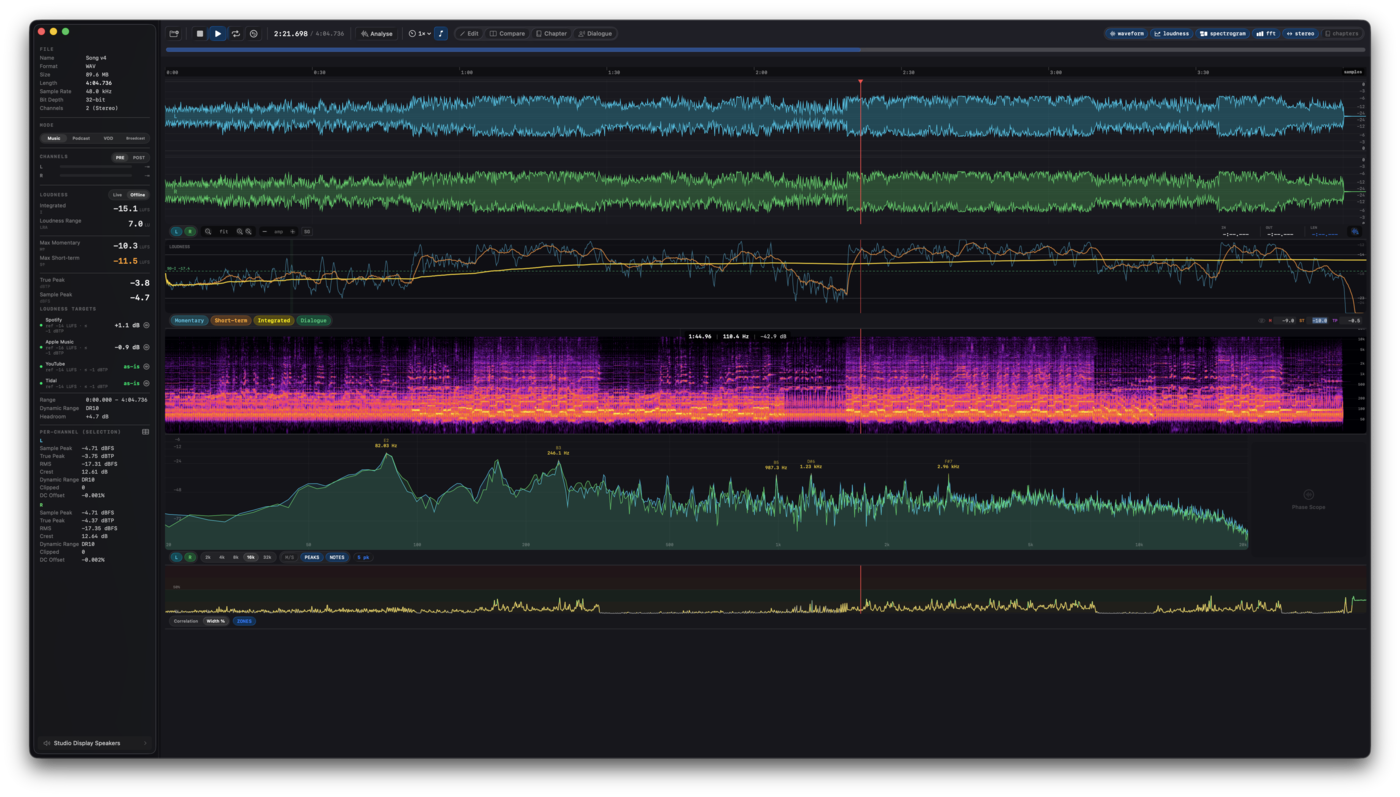
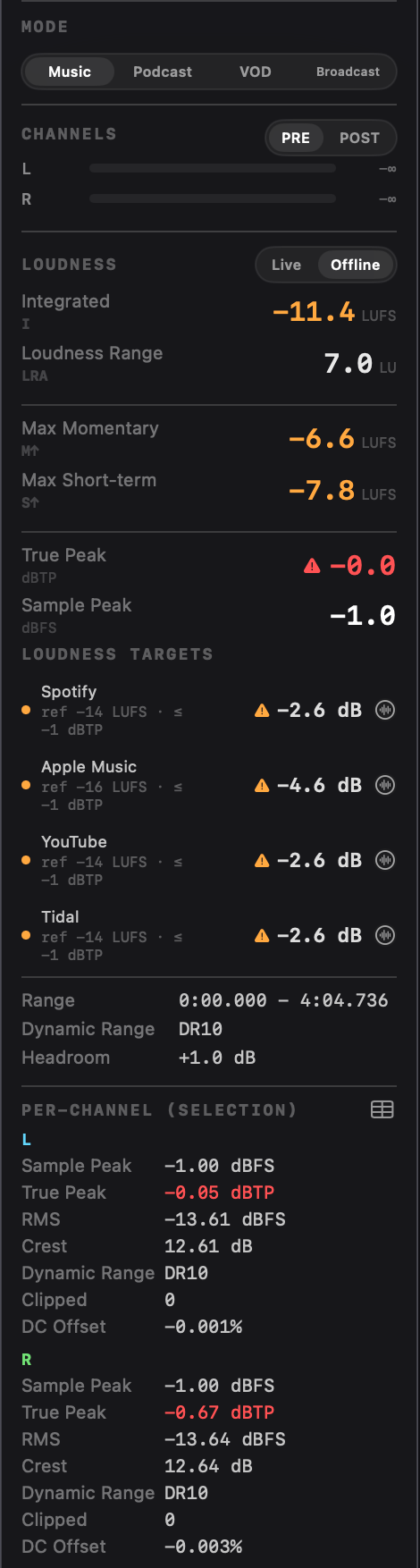
Open the master and set Mode to Music in the info panel. The Loudness Targets panel shows one row per platform with the gain it will apply: a mix at −9 LUFS reads Spotify −5 dB (the exact turn-down to its −14 LUFS reference), Apple Music −7 dB, YouTube −5 dB. The row's dot goes green inside ±1.5 dB, yellow inside ±4 dB, orange past that. Up to four targets per mode live in Settings → Targets.
2 · Check peak, range, stereo, phase
The Loudness sidebar carries integrated LUFS, true peak (4× oversampled dBTP, turns red above −1 dBTP), sample peak, and LRA live. The M/S section plots the left/right correlation (+1 mono, 0 natural stereo, −1 out of phase) with a plain-English hover label; the Lissajous phase scope shows out-of-phase content at a glance. A separate triangle on a target row warns when the true peak breaches that platform's ceiling.
3 · Audition at the target
Every target row has a waveform-circle toggle. Press it and Specula matches playback to that target: gain offset = target − source LUFS, with a 5 ms lookahead true-peak limiter at the target's dBTP ceiling (enforced on the 4× oversampled inter-sample peak, not just the sample magnitude). Hit play and hear the master the way the platform will play it. The loaded buffer is never modified; release the toggle to restore unity gain.
4 · Commit to the target (optional)
When you want to render the master at the platform reference rather than just hear it, integrated targets (music streaming, broadcast) and dialog-gated targets (VOD, streaming podcasts) carry a second Normalize button (the up-to-line icon next to the Match toggle). Press it and Specula opens Edit mode with the Normalize section pre-filled to that target. The panel states its Basis (Integrated LUFS for music and broadcast, Dialog-gated LKFS for VOD and podcast) so you know which loudness is targeted, with a Now / Target / Gain readout and the dBTP ceiling as the only editable field. Review, click Apply, and export: the whole file is shifted by one uniform gain, then a two-pass true-peak limiter holds the ceiling. It lands on the 16-level undo stack and writes a new file. When the level is already where you want it and only the peaks breach the ceiling, the row's Limit TP button clears the overage in one click while the loudness stays put, the same flow as Normalize but for inter-sample peaks only. And because Normalize and Limit TP both respect a time selection, a single hot passage can be tamed on its own while the rest of the master stays as rendered. Only the ACX RMS target stays compliance-only with no Normalize button, since a gain can't satisfy its noise-floor requirement. More in the guide.
5 · Export the report
Export the receipt: ⌥⌘E for PDF, ⇧⌘E for JSON. The full-file report populates the complete grid the moment the file loads: integrated LUFS, 4× oversampled true peak, sample peak, LRA, Max Momentary / Short-term, DR, and per-channel peak / RMS / crest. Each target row carries its verdict, so a client or label reads the per-platform numbers without opening Specula.
Not every platform boosts
The truth about quiet masters. Apple Music's Sound Check, YouTube, and Tidal only turn loud tracks down; they leave a quieter-than-reference track exactly where it is. So a master at −18 LUFS doesn't get pushed up to Apple Music's −16 reference, it plays at −18. On those three platforms Specula shows a quiet master as "as-is" in green.
The platforms that do boost. Spotify (in its default mode), Amazon Music, Deezer, and SoundCloud raise quiet tracks peak-limited to reach their reference, so for those rows the +X dB number is real and Specula shows it unchanged. The distinction matters because it changes what you do next: a master that reads "as-is" on Apple Music but "+3 dB" on Spotify is being treated as two different deliverables by two services, and only one of them is touching your level.
The Music catalog covers Spotify (−14 LUFS), Apple Music (−16), YouTube (−14), Tidal (−14), Amazon Music (−14, −2 dBTP ceiling), Deezer (−15), SoundCloud (−14), and the vendor-neutral AES TD1008 (−18). Each row's subtitle states whether it's symmetric or "turns down only," so the behaviour is on the row, not in your head. The live panel updates as the file plays; the full catalog with references, tolerances, and true-peak ceilings is in the user guide.
Not every platform boosts. Apple Music, YouTube, and Tidal leave a quiet master as-is (green); the platforms that do boost show the real gain.
Section by section
One number for the whole master hides the parts. A track that reads −10 LUFS integrated can still run a chorus 3 LU above its verses, or sit a vocal too far under the bed to survive a phone speaker. On macOS 27, Apple's Music Understanding framework reads the song's structure and its four stems, and Specula measures against them.
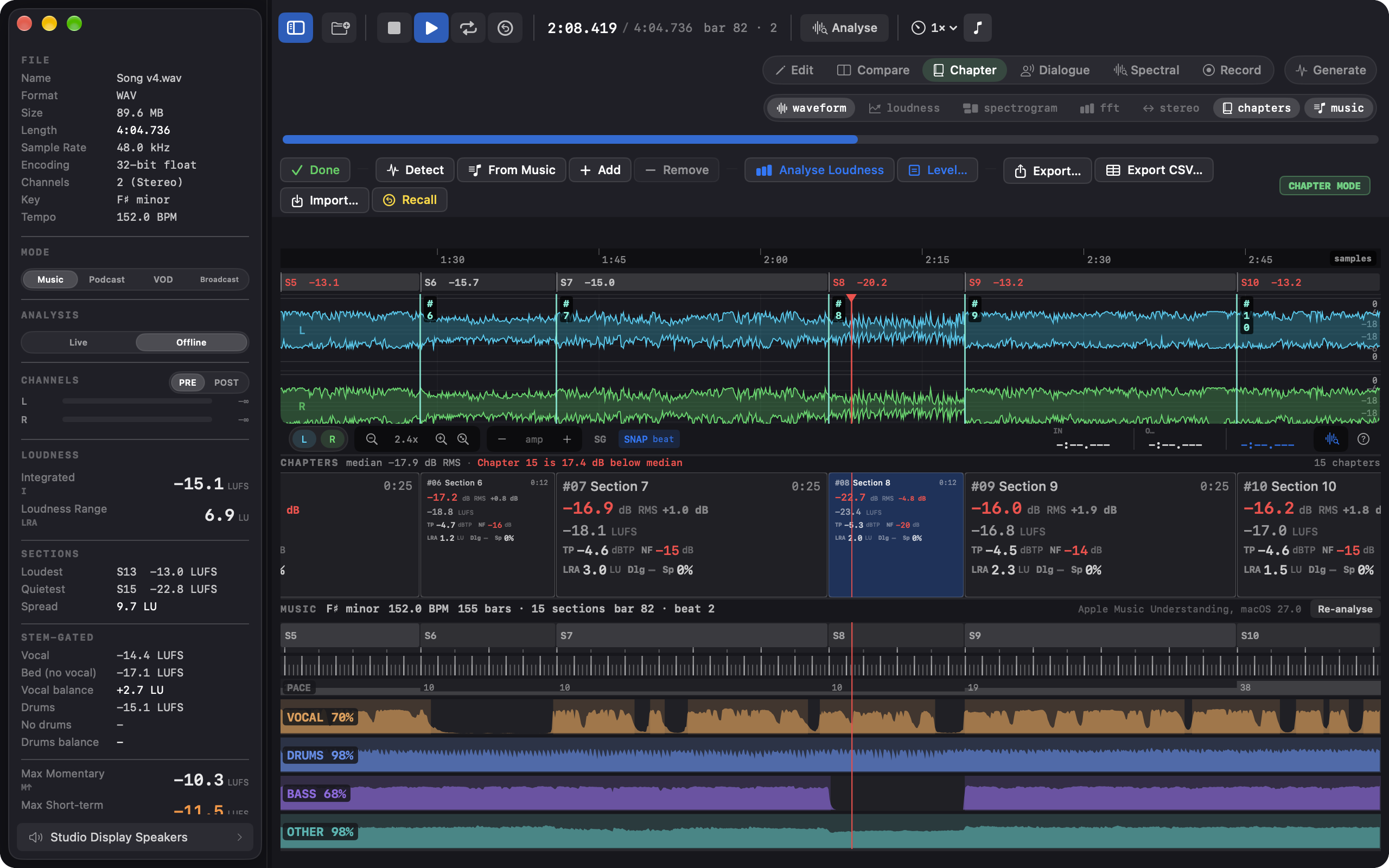
Per-section loudness. A band under the waveform's ruler carries each section's integrated LUFS, red where a section sits outside the deviation threshold from the song's own median, so a loud chorus or a buried intro shows on the timeline itself. Chapter mode takes its chapters from those sections for the full table: integrated LUFS, true peak, RMS, LRA, and deviation per section, in the PDF report and the CSV export. The sidebar lists the loudest section, the quietest, and their spread.
Vocal against the bed. The Stem-Gated block reads integrated LUFS over the blocks where the vocal is present, over the bed without it, and the difference in LU. The same three readings exist for drums. These are Specula's own BS.1770-4 integrated measurement, gated by Apple's stem presence spans, so the vocal-present figure is the Integrated reading over exactly those blocks.
Selecting in musical time. The ruler cycles to bar numbers, the transport reads the bar and beat under the playhead, and a SNAP chip lands selection edges on the nearest beat or bar, so a chorus measures over its own bars. Clicking a section in the band selects it.
The structure, the stems, the key, and the tempo are Apple's analysis and are labelled as such throughout. Every loudness figure stays Specula's own BS.1770-4 measurement. The analysis runs on the Mac and nothing is uploaded. It needs macOS 27; everything else on this page runs on macOS 14 and later. Music analysis guide →
Section loudness map. One chapter per section of the song, each slot carrying that section's integrated LUFS, true peak, RMS, LRA, and deviation from the song's median.
On screen
Audition at the target. Match playback to a platform's reference and true-peak ceiling. The loaded file is never modified.During playback. Integrated LUFS, LRA, and 4× oversampled true peak update as the file plays.Stereo image over time. The left/right correlation curve flags the mono-collapse and out-of-phase sections a stereo monitor hides.
Before the master ships
Nothing on this page masters the track for you. What Specula gives you is the state of the finished master: the exact gain each platform will apply, whether the true peak clears the ceiling, whether the stereo image holds up in mono, and a way to hear all of it before the first service touches the file.