Workflow · Batch QC & automation
Checking files one at a time in the app works until there are dozens of them. The specula CLI and eight App Intents run the exact measurement engine the app uses: same integrated LUFS, same 4× oversampled true peak, same speech-gated reading, so a script walking a directory produces numbers identical to the window. Output is pretty-printed JSON with sorted keys, so a diff across two runs shows what actually changed, not key reordering.
Why hand-checking doesn't scale
Opening, reading, and closing files by hand is fine for one master. For a folder of forty, you want the engine in a script.
The thing that makes the manual loop slow isn't the measurement, it's the file handling around it: open, wait, read off six numbers, note the failures, next file. Specula's answer is to expose the same loudness engine the window drives as a headless tool. The CLI, the App Intents, and the Finder Services all run one engine, so a batch pass and a hand check of the same file return the same integrated LUFS, true peak, and speech-gated reading. No second implementation to drift out of sync.
analyze / compare / edit / report, for shell scripts that walk a folder of files.The workflow
Install once, then put the same numbers in a loop.
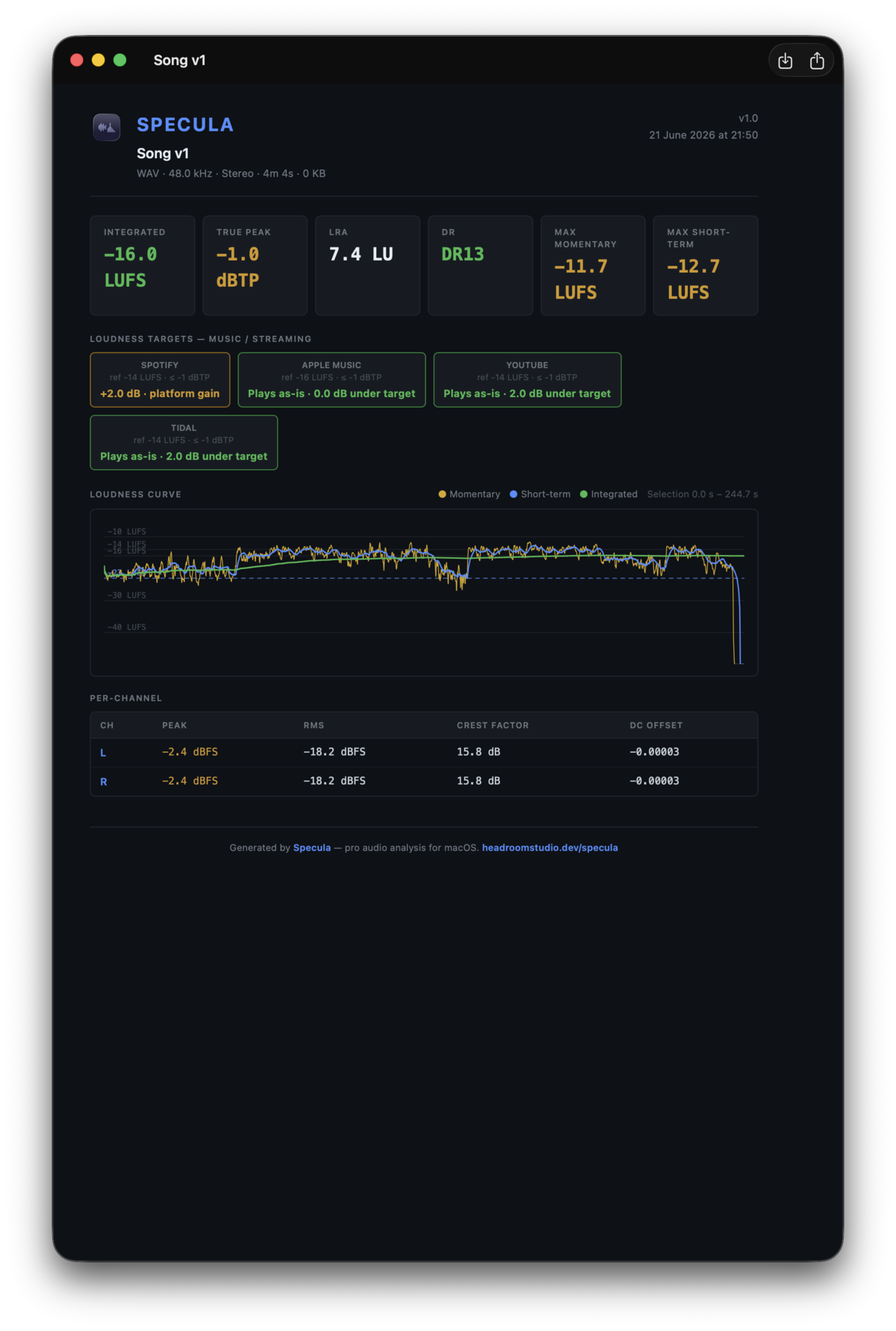
specula into /usr/local/bin (one admin prompt if that folder needs it); verify with specula --version. App updates keep the installed command current. The tool shares the app's license and trial: it runs through the 7-day trial and needs the license activated in the app after that. The four subcommands (analyze, compare, edit, report) run the same measurement engine the app uses, so the script gets the exact same numbers.specula analyze <FILE> emits the headline numbers: integrated LUFS, true peak, sample peak, loudness range, speech-gated LUFS, stereo correlation, as JSON. Pass --no-vad to skip Silero (faster) or --no-stereo to skip the per-block correlation pass. Walk the folder, parse one field, flag the misses.specula report <FILE> runs the full report through the headless pipeline. --format json|html|pdf|csv selects the shape (PDF is the same dark-themed report the app's preview renders; PDF requires --out; CSV emits the per-chapter table, or a flat metric,value table when the file has no chapters). --mode music|podcast|vod|broadcast picks which loudness-target catalog evaluates the file; --no-curve drops the per-100 ms loudness curve for smaller batch output.specula compare <A> <B> reports every metric side-by-side with B − A deltas. --match-loudness nets out the integrated-LUFS delta so the deltas surface spectral or shape differences instead of pure level drift; --out-diff <PATH> writes the A − gainB·B residual as a Float32 WAV and adds a residual block to the JSON. Sample rate and channel count must match, it refuses structural mismatches rather than resampling.A one-chapter report straight to PDF, the same shape the app prints:
specula report ch01.wav --mode podcast --format pdf --out ch01.pdf
Every subcommand emits pretty-printed JSON with sorted keys, so diffs across runs stay deterministic, a changed number is the only thing that shows up. Silence reads as "-inf" rather than blowing up the encoder. Full command reference in the CLI section of the user guide.
No shell? Use the App Intents
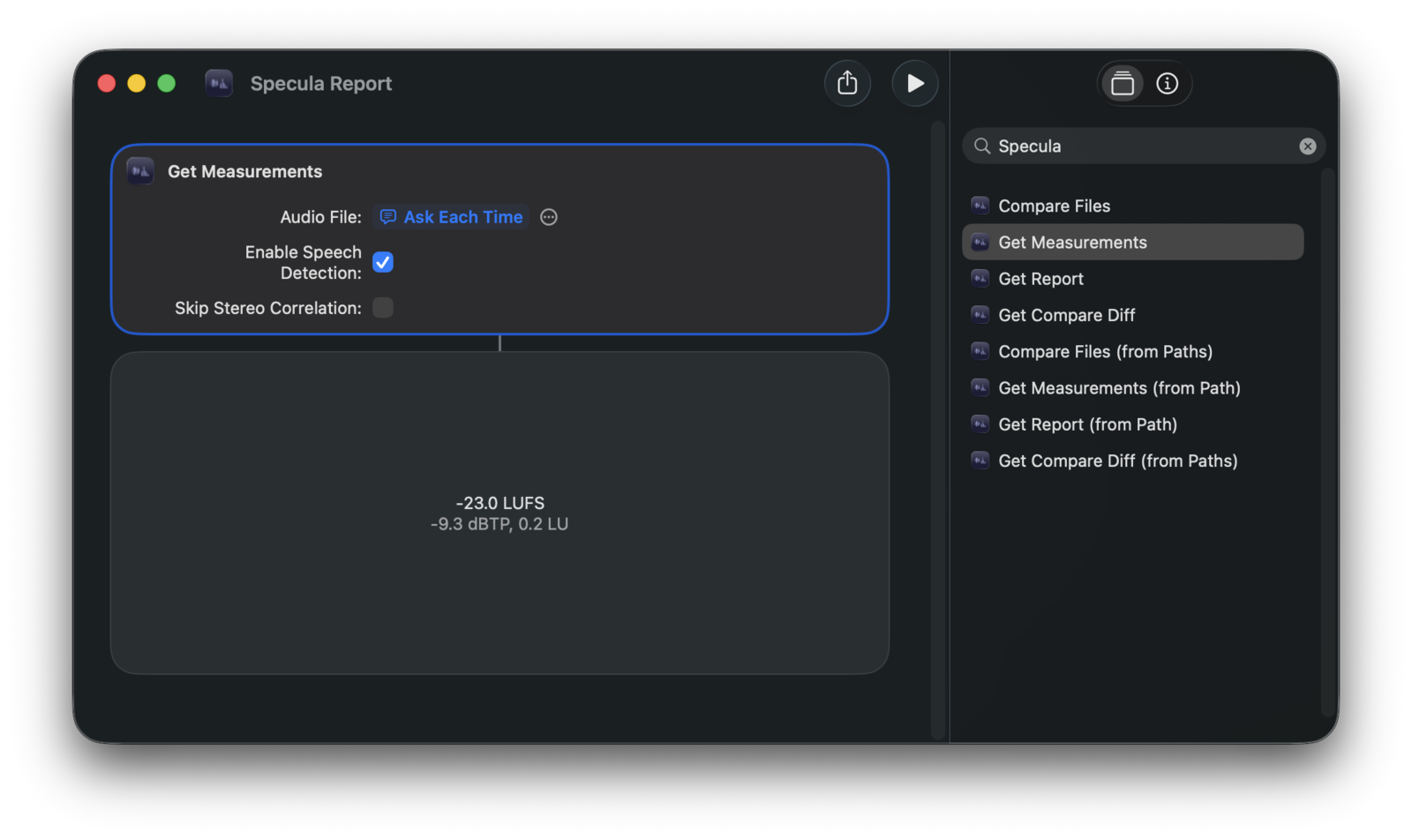
Eight App Intents let the system Shortcuts app and Siri call the same engine the CLI does, no file-handling shell glue, output is chainable. Four core actions ship in two variants each, a file-input and a path-input, so they fit whichever Shortcuts workflow shape you have: Get Measurements, Compare Files, Get Compare Diff, and Get Report.
The returns are structured Shortcuts output you chain on directly. Get Measurements exposes every numeric field as a Shortcuts variable, so a downstream step can branch ("if Integrated LUFS > -12 then…") without parsing JSON. Compare Files returns both sides plus the B − A deltas; Get Compare Diff returns the residual WAV; Get Report returns the JSON / HTML / PDF file you can pipe straight into AirDrop, Save File, or Mail.
The (from Path) variants take the audio file as a text string instead of a File, so a clipboard-driven shortcut is just Get Clipboard → Get Report (from Path). They accept bare paths, paths with spaces, tildes, shell quotes, curly quotes from Notes/Mail, and percent-encoded file:// URLs, quotes stripped, tilde expanded automatically.
Spotlight phrases trigger them too: "Measure with Specula", "Compare files in Specula", "Get diff with Specula", "Build a report with Specula" (and their path-input siblings). The six measurement, compare, and report intents default to speech detection off, flip the toggle in the Shortcut step when you need speech-gated metrics. The two Get Compare Diff intents return a pure residual, so they carry no speech step.
For a right-click pass with nothing to configure, three Finder Services install automatically: Analyze in Specula, Compare in Specula, and Get Report from Specula. The report service runs headlessly: it analyses the file, builds the PDF, and drops it next to the source (falling back to ~/Downloads if the source directory isn't writable), then reveals it in Finder without ever popping a window.
One gotcha on the CLI side: negative numerics need the --option=value form. The CLI reads a bare leading - as an option name, so --gain -3 is rejected, write --gain=-3 (likewise --normalize-lufs=-14, --lufs-ceiling=-1). Positive numbers work in either form.
See it in Specula
Put the same engine in your pipeline
Specula is the same measurement engine whether you're reading one file in the window or scoring a folder from a Folder Action. The CLI both flags the misses and fixes the fixable ones in the same pass: specula edit in.wav --normalize-lufs=-16 --lufs-ceiling=-1 --out out.wav normalizes and caps a file unattended, so a Folder Action can correct what it flagged instead of handing you a list. What a gain can't fix it leaves alone: a noisy capture or a bad mix is still your job, with numbers you can diff across runs. See the editing workflow →