Audita · User Guide
The Audita reference.
Audita is a menu bar SPL meter and NIOSH hearing-dose tracker for macOS. If a feature isn't on this page, Audita doesn't have it. The audita:// URL scheme has its own page.
1. What Audita does #
Audita is a macOS menu bar app that protects the hearing of audio professionals. It continuously measures the sound pressure level (SPL) reaching a microphone at your listening position and calculates how much of your safe daily hearing budget has been used, using the NIOSH Recommended Exposure Limit (85 dBA reference, 3 dB exchange rate, 80 dBA threshold). It runs passively alongside any DAW, with no conscious interaction required.
One measurement chain feeds two jobs:
- Hearing protection. A-weighted SPL (IEC 61672-1) accumulates into a cumulative dose percentage. Color-coded thresholds, NIOSH-aligned notifications, EU 2003/10/EC peak monitoring on a parallel C-weighted path.
- Monitoring Discipline. A separate, optional layer that pins your monitoring level to a calibrated reference (K-14 / K-12 / K-20 / mastering / custom) and warns when your level drifts or sits off-target for too long.
Safe duration at different levels
The NIOSH formula gives you a budget that halves every 3 dB. Below 80 dBA no dose accumulates at all. This table is the canonical reference cited from the landing page and FAQ.
| Level | Safe duration | |
|---|---|---|
| 80 dBA | Threshold | No dose accumulates below this |
| 85 dBA | 8 hours | NIOSH criterion |
| 88 dBA | 4 hours | |
| 91 dBA | 2 hours | |
| 94 dBA | 1 hour | |
| 97 dBA | 30 minutes | |
| 100 dBA | 15 minutes |
The dose resets at midnight.
Audita is $19.99, one-time purchase, with a 7-day free trial. macOS 14 (Sonoma) or later.
2. First launch #
On first launch:
- macOS asks for microphone access. Click OK. Audita needs microphone access to measure SPL; the measurement microphone you pick (see below) is the only audio source it reads.
- The Audita icon appears in the menu bar. Click it to open the menu bar window.
- Open Settings → Devices and select your measurement microphone from the input device picker. Defaults to the system default input. Any mic works (built-in, talkback, anything CoreAudio sees); for the most accurate readings we recommend a small condenser or omnidirectional measurement mic permanently mounted near the listening position.
- Work through Settings → Calibration: the mic correction, the level, the monitor level, then the self-check. Without calibration, the SPL numbers Audita displays are not in real-world dB.
Audita is agent-only. It never appears in the Dock or the ⌘-Tab switcher. All interaction happens through the menu bar.
DAW auto-detection
Audita watches for known DAWs to launch and quit, and automatically starts and ends sessions accordingly. Out of the box, 15 DAWs are tracked by bundle ID: Logic Pro, GarageBand, Pro Tools, LUNA, Ableton Live, REAPER, Cubase, Nuendo, Studio One, FL Studio, Bitwig Studio, Audacity, Adobe Audition, Final Cut Pro, DaVinci Resolve.
When the first tracked DAW launches, an Audita session starts. When the last one quits, the session ends and a recap notification fires. Multiple simultaneous DAWs are handled correctly - only the first launch and last quit trigger transitions.
To add a DAW that isn't in the built-in list, open Settings → DAWs → Add Custom DAW and enter its bundle ID and display name. Custom DAWs persist across launches and survive Auris imports.
Pressure Bloom states (menu bar, menu bar window, pinned panel)
The menu bar glyph is the Pressure Bloom, the same arcs-and-dot shape as the Audita app icon. The number of arcs reflects live SPL; the colour reflects today's NIOSH dose tier. So a single glyph tells you "loud right now" and "how much of today's hearing budget has been spent" at the same time. The same state machine drives the larger Bloom beside today's dose in the menu bar window and at the left of the pinned panel.
| Condition | Glyph | Colour |
|---|---|---|
| No session running | Full bloom (3 arcs + dot) | Neutral (system foreground) |
| Session, < 35 dBA | Dot only | Dose tier |
| Session, 35-55 dBA | 1 arc + dot | Dose tier |
| Session, 55-80 dBA | 2 arcs + dot | Dose tier |
| Session, ≥ 80 dBA | 3 arcs + dot (full bloom) | Dose tier |
The 80 dBA arc-count maximum lines up with the NIOSH dose accrual threshold (Constants.thresholdDBA): the moment your listening starts counting against today's budget is the moment the glyph reaches its full shape. Higher-dB cues come through the dose-tier colour, not extra arcs.
The dose-tier colour is unchanged from v1.1: safe 0-40 % is green, caution 40-70 % is yellow, warning 70-90 % is orange, danger 90 %+ is red. Today's dose is saved continuously so a quit/relaunch doesn't lose progress. Accumulated dose is stamped with the calendar date and discarded if the date has changed since last launch - each day starts clean at midnight.
The no-session state is deliberately distinct: a full bloom with no dose tint reads as "Audita is present, just not measuring".
4. The menu bar window #
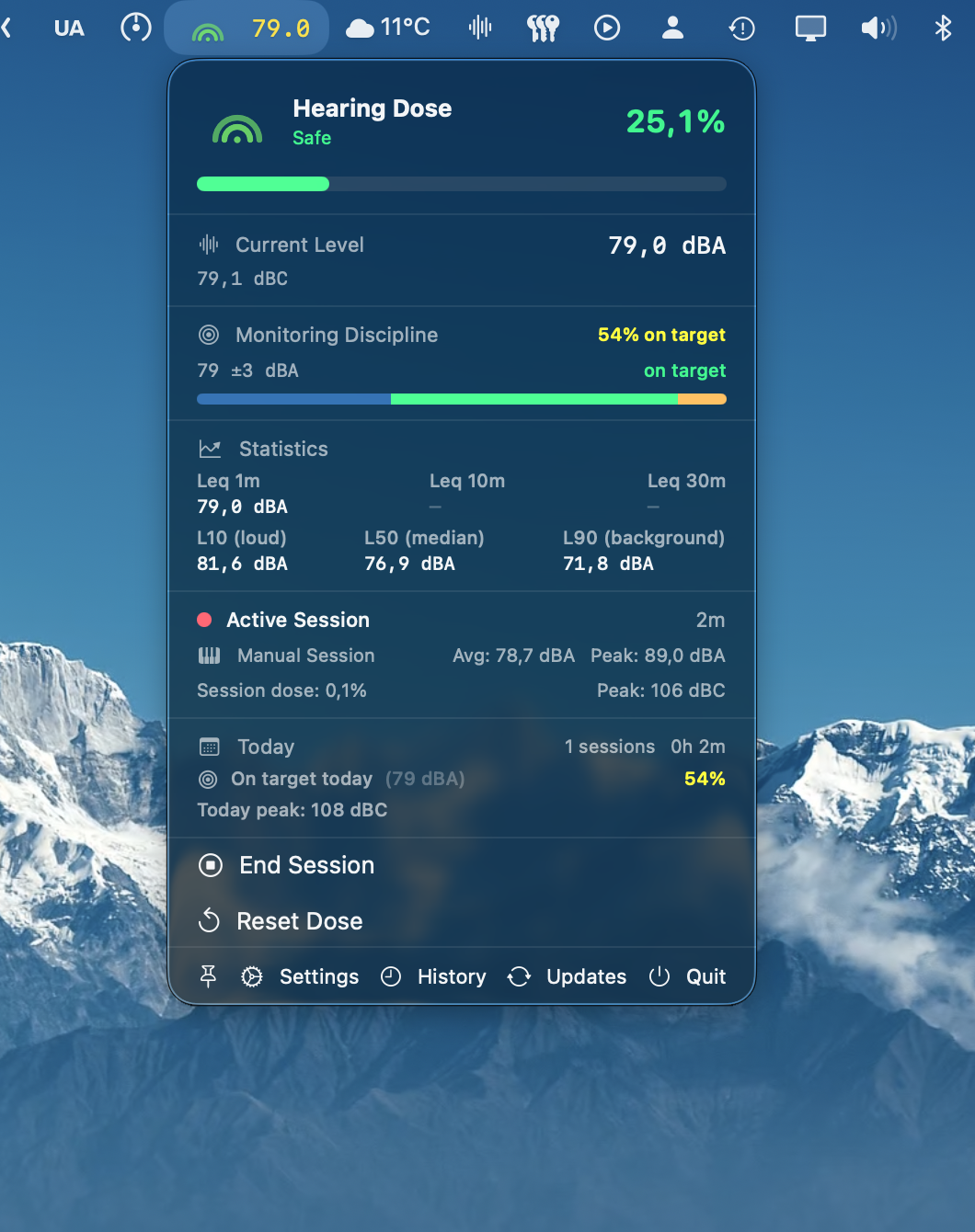
Click the menu bar icon and the window opens on two questions, then the level. Every fact in the first glance appears once; the rest sits under Details.
Today's dose
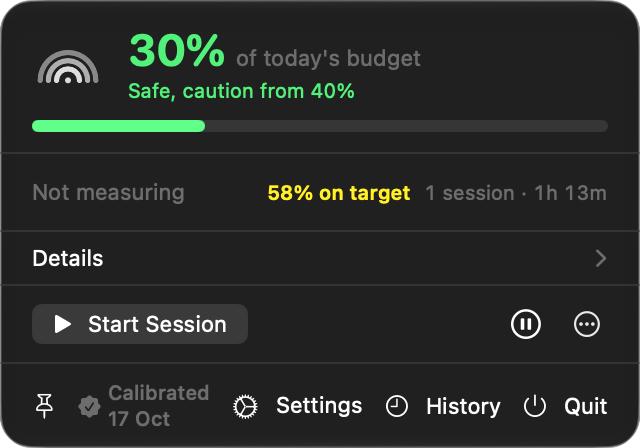
The share of the daily NIOSH budget used so far, as a whole percent, with the state and the next threshold in words ("Safe, caution from 40%") and a bar. The Bloom beside it follows the live level during a session and takes the dose colour; see Pressure Bloom states. The dose resets at midnight.
The reference
Shown when Monitoring Discipline is on: the share of the session on target at headline size, coloured by one ladder (green from 75%, yellow from 50%, orange below), the band and the preset ("on 79 ±3 dBA · K-14"), the live deviation as a chip, and the under / on / over bar with its legend. Until 30 seconds of non-silent monitoring have accrued it reads "Warming up". See Monitoring Discipline for the mechanic.
The level
One number in dBA, smoothed for display only; dose, Leq and the session statistics use the energy average of each 100 ms measurement interval, so every sample contributes its acoustic energy and short bursts count at full weight. The C-weighted reading appears as an LF chip beside the level only when the dBC to dBA gap passes 6 dB (orange from 10 dB), flagging low-frequency content that A-weighting alone underreports. When a UMIK calibration is compensating a lowered input volume, the compensation is a chip here too. A peak flashes as a red chip for two seconds.
The peak chip
One chip under the level, only when a limit was passed today: the day's peak dBC and the counts over 140 dBC (or 135 dBC) and 115 dBA. A day with no such peak shows no chip; its peak dBC is under Details.
Details
A disclosure that stays open or closed as you leave it. Open, it holds Leq over 1, 10 and 30 minutes, the L10 / L50 / L90 percentiles, the session's average and peaks, today's peak, and a note when conservative dose mode is on.
The session row and the actions
The actions are menu rows. A running session is one row, "Logic Pro · 1h 12m · +2.4%" (the DAW, the elapsed time, the dose this session added), with End Session at its end; without a session the row reads Start Session. Manual sessions cover work outside a tracked DAW (iZotope RX, Spotify, a reference track in QuickTime); they record like an auto-detected one, labelled Manual. Then Pause Monitoring, which reads Resume Monitoring while paused (see Pause & resume), and More, which holds Share Last Session… and Reset Dose…. Reset asks before it zeroes the day.
License row
During the trial a row names the trial with the days left, or reads "Trial expired" in red, with Manage or Activate alongside. Once licensed, the row is gone.
The footer
The pin opens or closes the pinned panel (an outline pin when closed, a filled accent-tinted pin when open), then Settings, History (the History window) and Quit. Once the rig has passed its self-check on the current input and output, the footer reads Calibrated with the day. Check for Updates lives in Settings → General.
The calibration banner
A calibration that needs attention is a banner at the top of the window, naming the item, with a Fix button that opens Settings → Calibration, where the verdict line and the pills name it. A healthy or merely unverified chain draws nothing there.
At rest
With the engine stopped the window says "Not measuring" with today's session count and time, and the day's on-target share aggregated across today's sessions. The dose headline stays.
Settings…
Opens the Settings window: a sidebar with seven pages, 820 by 600 points and resizable. General (menu bar display, launch at login, notifications, storage, updates, Auris import), Devices (input and channel, output, mic location, the engine's state), Calibration (the chain, section 6), Reference (target dBA, tolerance, alerts), Safety (conservative dose, peak monitoring), DAWs (custom bundle IDs) and About (version, developer and contact details, license).
5. The pinned panel #
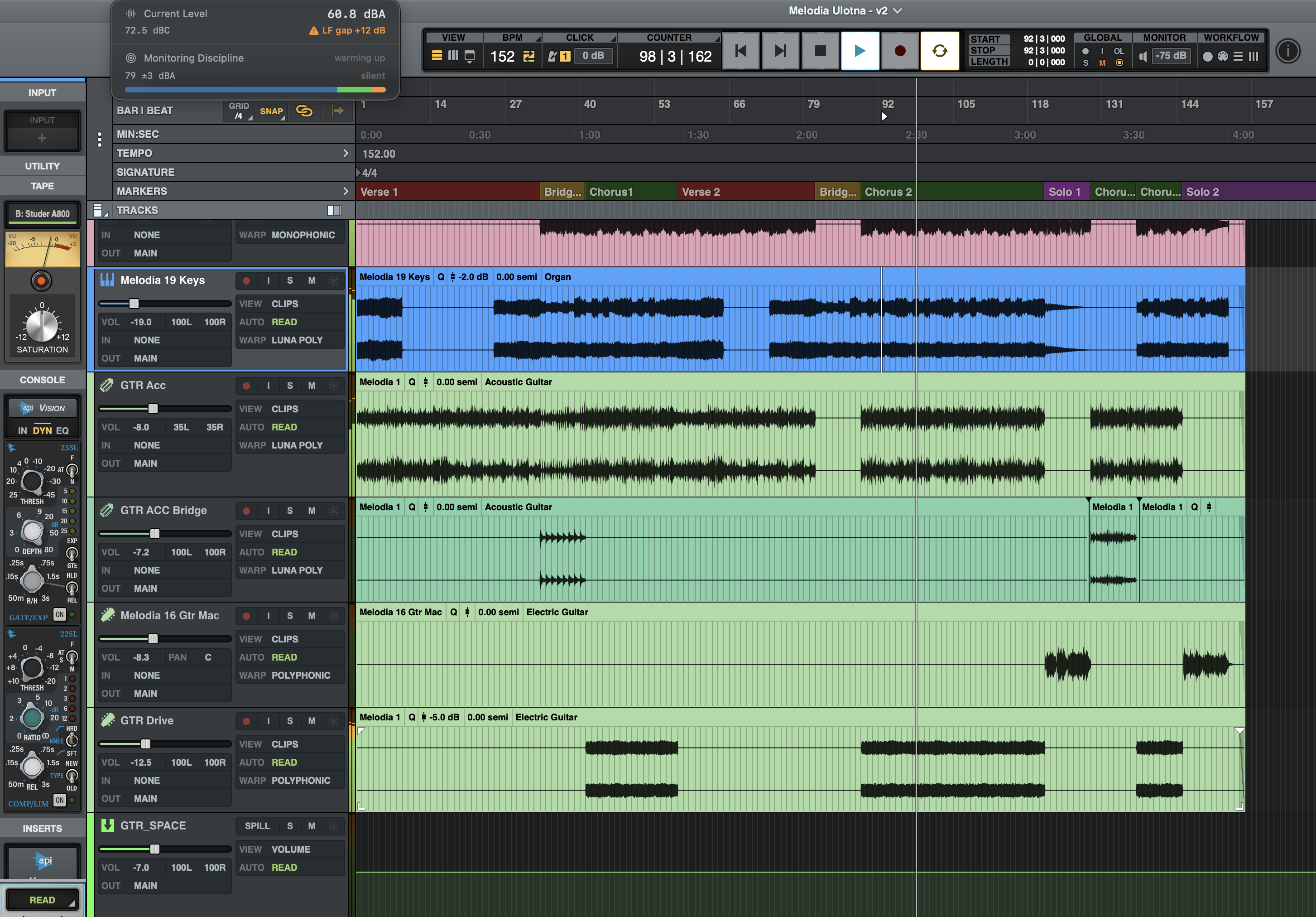
The pin in the menu bar window's footer opens the same numbers as a strip that stays above your DAW. The pin closes it.
The strip
One row: the Bloom, the level now in dBA, the discipline verdict in words ("On target", "2 dB over", "Silent"), today's dose as a share of the budget in its colour, and a chevron. Between sessions the level reads "Not measuring". A peak flashes as a red chip for two seconds, as in the menu bar window.
Expanded
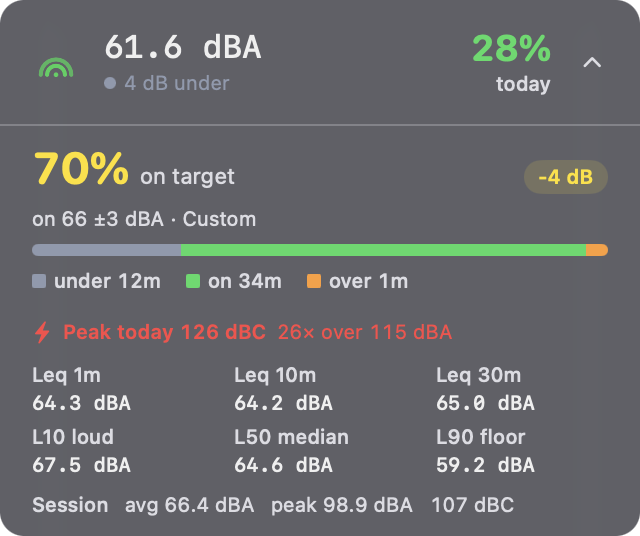
The chevron, or a double-click anywhere on the panel, expands it in place: a calibration that needs attention and a pause show as banners, then the reference, Leq and Ln, the session's readings and today's peak, the menu bar window's Details rows. The same chevron or double-click collapses it, and the panel remembers which size you left it at. There is nothing to configure.
Behaviour
- Always on top. Floats above other windows, including a DAW in full-screen mode, on every Space and on a secondary display.
- Borderless and translucent. No title bar, no traffic lights. Liquid Glass on macOS 26 and later, which takes the colour of whatever is behind it; a flat translucent material on macOS 14 and 15.
- Drag anywhere. Click any part of the panel and drag. The position and the size are remembered between launches.
6. Calibration #
Audita's measurement chain is only as accurate as its calibration. Settings → Calibration is one page: a verdict line and four status pills at the top, the rig under them, then four cards in the order the chain depends on them: Mic correction, Level, Monitor level and Self-check. The level only means something once the correction has flattened the mic, and the monitor level only once the level is reliable. Each card holds its pill, one line of fact, its actions and a How it works disclosure; the wizards run inside their card.
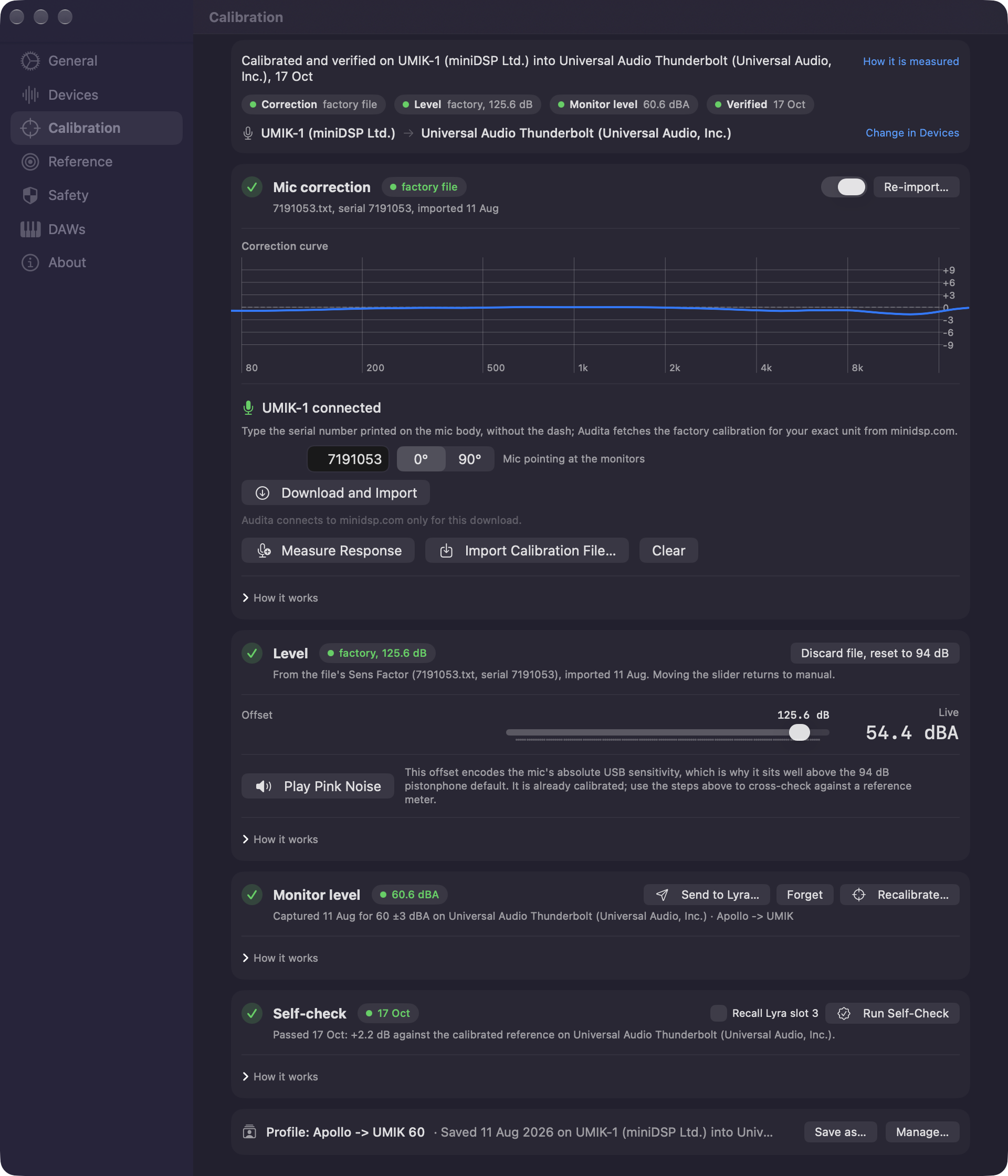
TL;DR. Measure or import the mic correction once per mic. Set the level every time you move the mic or change the gain - unless a UMIK-1 file set it, which makes it a cross-check rather than a procedure. Capture the monitor level once per output device. Run the self-check whenever you want to know the chain still holds.
The verdict and the pills
The line at the top says where the chain stands: the first caution in words, or Calibrated and verified on UMIK-1 into Apollo Twin X, 12 Oct. Under it, four pills, one per card, each with a tint and a word or two:
- Correction. Where the mic correction came from (factory file, measured with the day), off, none, or needs attention: a correction that belongs to another microphone, or a measured one the audio engine's sample rate is bypassing (a measured filter is only valid at the rate it was measured at; a correction from a calibration file re-designs itself instead).
- Level. Where the offset came from - factory for a UMIK-1 file, from file for a sensitivity header, manual for your own hand-set number - with the offset, and whether it belongs to the input you currently have selected.
- Monitor level. The dBA captured for the selected output, not yet before a capture, aging once the record is older than 90 days, and old target when the Reference target has moved since: the knob position then means a level that is no longer the target.
- Verified. The day this mic-and-monitor pair last passed a self-check, failed with the day, never, or not on this rig when the check you ran belongs to another pair.
Each pill carries its own tint, and the verdict line takes the worst of the four, so a stale or silently bypassed calibration does not look identical to a healthy one. A caution anywhere also shows as a dot on the sidebar's Calibration item, and the menu bar window and the pinned panel lead with a banner naming it, with a Fix button that opens this page. A healthy chain, or one not yet checked, shows no banner. Once the rig has passed its self-check, the menu bar window's footer reads Calibrated with the day.
The rig line under the pills names the input and the output; Change in Devices opens the Devices page, which holds the input and output pickers, the input channel and the free-text Mic Location field. Use the location field to record the physical setup ("Earthworks M30 at LP, 1.2 m behind monitors, 38 cm above desk, gain at unity"); it is stored alongside the calibration so you can reproduce or cross-check it weeks later.
1. Mic correction (optional)
Most desk-mounted measurement mics, talkback channels on audio interfaces, and onboard laptop mics have non-flat frequency responses that bias dBA readings by 1-5 dB depending on programme content. The Mic correction card measures your mic's actual frequency response with pink noise and an FFT, then derives a corrective FIR filter that flattens the input chain before the A and C weighting filters run.
- Place the measurement mic at your normal listening position - where your head sits during a session.
- Turn your monitors to a normal listening level - loud enough to dominate room noise, not so loud the mic clips.
- Settings → Calibration → Mic correction → Measure Response.
- Pink noise plays for ~4 seconds. The mic captures the response. The FIR is computed and saved automatically.
- The card's pill reads measured with the day, and the correction curve draws under it.
Re-run when: you change the measurement mic, move it to a meaningfully different position, or change room treatment in the listening area.
Coming from an earlier version? Corrections measured before 1.4 are disabled on first launch and Settings asks for one new Measure run. The filter those versions stored was derived from the wrong segment of the impulse response, so it never matched the curve Settings displayed. The measurement itself was fine; the stored filter was not. Importing a calibration file clears the request just as well.
Import the manufacturer's calibration file
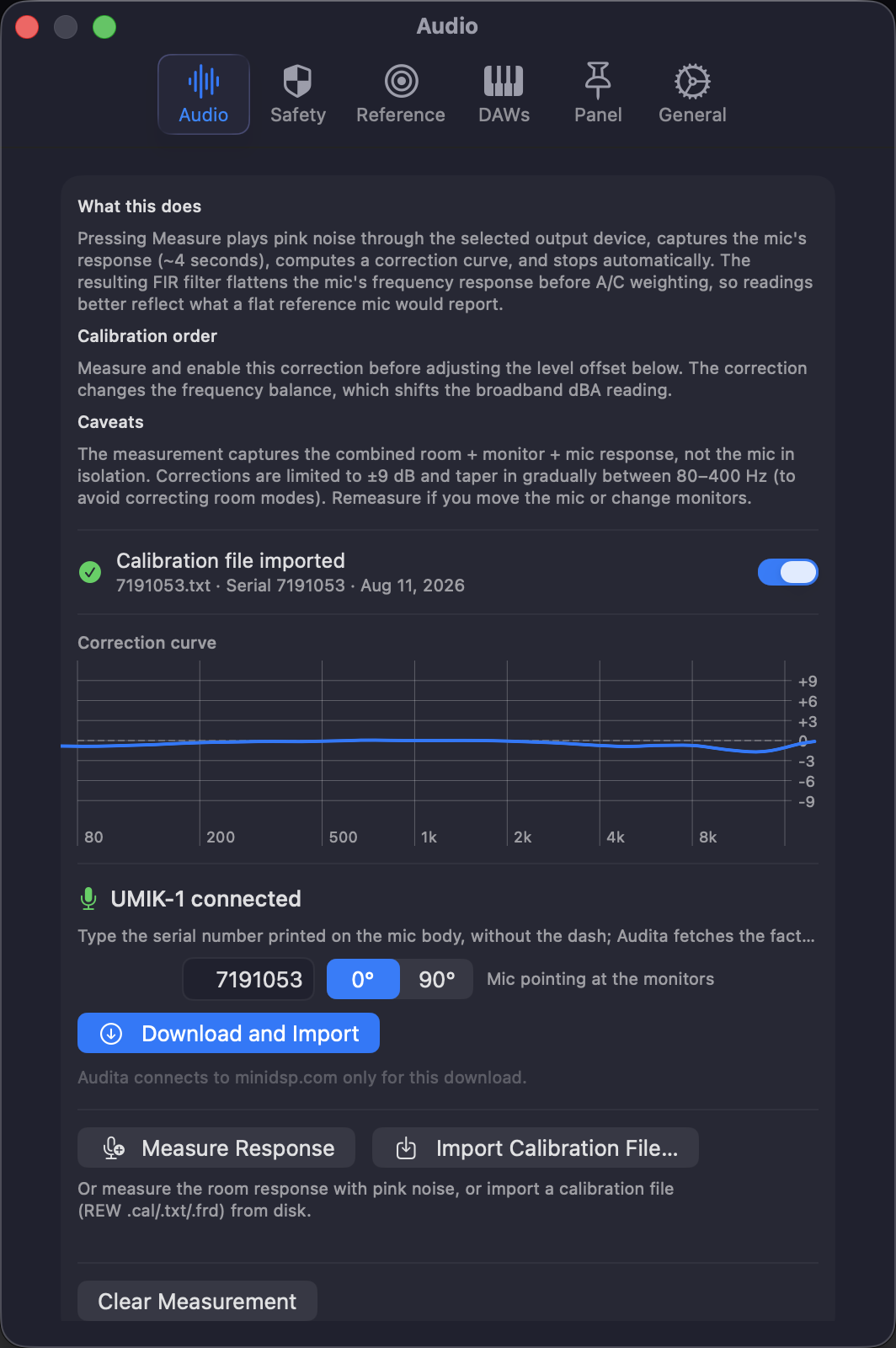
Most measurement mics ship with a calibration file: a text file of frequency and gain pairs describing that exact unit's deviation from flat. Audita reads the REW-style formats (.cal, .txt, .frd) that miniDSP, Dayton, and most vendors publish. If you have one, you can skip the pink noise measurement.
- Settings → Calibration → Mic correction → Import Calibration File…
- Pick the file. Audita shows what it found: the number of data points, the frequency span, the serial number, and, for USB mics, the sensitivity figure.
- Click Apply. The correction is derived from the manufacturer curve, limited to ±9 dB, and enabled.
The two paths describe different things, and both are valid. The manufacturer curve is anechoic data for the microphone alone, so it corrects the capsule without folding in your room and monitors. The pink noise measurement captures the combined room, monitor, and mic response. The file is the better description of the microphone itself, and it survives a sample-rate change: a file-based correction re-designs itself for whatever rate the device runs at.
miniDSP ships two files per serial number: 0 degree for a mic pointing at the monitors and 90 degree for a mic pointing up (grazing incidence). Import the one matching how yours is mounted. Audita flags 90 degree files so you can check.
After importing, the Mic correction card names the file and serial number it is using, so the number on screen is always attributable, and the Level pill reads factory or from file when the offset came from it; moving the slider by hand returns to manual calibration.
UMIK-1: absolute SPL straight from the file
A UMIK cal file's header carries a per-unit sensitivity line (Sens Factor). The UMIK-1 is a USB mic with fixed internal gain, so that number maps digital level to real dB SPL directly, with nothing left to measure. When a UMIK-1 is the selected input, the import sheet offers Set level calibration from the file: Audita sets the level offset from the sensitivity figure and records where it came from. The conversion accounts for the digital gain miniDSP's figure assumes but macOS never engages, and it has been checked against the NIOSH SLM app.
Three conditions apply, all handled in the sheet:
- The input device must be the UMIK itself. Through an audio interface the preamp gain is unknown, so an analog mic's file corrects frequency response only.
- The mic must be selected by name in the input picker. With the picker on System Default the sheet asks you to select it first - one click when a UMIK-1 is connected. A level set from a file always belongs to one specific device.
- Input volume. The sensitivity is defined at full input volume, so the sheet offers a one-click Set to 100%. If the control sits lower anyway, Audita adds the shortfall back in real time and shows the compensation in Settings and the menu bar. 100% still gives the most headroom.
Expect the resulting offset to sit well above the 94 dB default. That is correct: it encodes the mic's absolute USB sensitivity rather than a pistonphone reference. To verify, play pink noise and compare Audita against the NIOSH SLM app at the listening position; they should agree within about 2 dB.
UMIK-2 files import the same way for frequency correction, but the automatic level conversion is calibrated for the UMIK-1, so set the level by hand there.
Download a UMIK-1 file by serial number
With a UMIK-1 connected, the Mic correction card leads with the download instead of the measurement. Type the serial printed on the mic body, pick the 0 or 90 degree variant, and Audita fetches the factory calibration for that exact unit and opens the same import sheet.
The label prints the serial with a dash; type it without. This download is the only time Audita connects to minidsp.com, it sends nothing but the serial and the variant you picked, and it is the app's only outbound request besides license validation and update checks. See the privacy policy.
Analog mics through an interface
An ECM8000, EMM-6, or similar analog measurement mic takes its frequency correction from the cal file exactly like a USB mic. The level offset still comes from the Level card, because the file cannot know what gain your preamp was set to.
Some analog files carry a Sensitivity -12.34 dBFS line: the level the mic produced at 94 dB SPL at whatever interface gain was used when the file was made. Audita can use it as the level reference, off by default, and both the import sheet and Settings say what it depends on. It holds only while your gain matches that measurement state, and the file cannot tell you what that state was. Treat it as a starting point and cross-check against a reference meter on the Level card.
2. Level (the main one)
This is the single number that maps 20·log₁₀(digital RMS) to real-world dB SPL. The default 94 dB matches the IEC 60942 pistonphone standard - a calibrator that produces a 1 kHz tone at exactly 94 dB SPL. If you have a pistonphone, place it on the mic and adjust the offset until the live reading shows 94 dBA. For everyone else, calibrate against an iPhone running the free NIOSH SLM app (independently validated to ±2 dB):
- Install NIOSH SLM on iPhone.
- Place the iPhone at your listening position - where your head would be - not next to the measurement mic.
- Open Settings → Calibration → Level. Click Play Pink Noise and let your monitors settle at a typical listening level. The live SPL reading sits beside the offset slider.
- Note the difference: NIOSH reads
XdBA, Audita readsYdBA. - Adjust the offset slider by
(X − Y). So if NIOSH says 78 and Audita says 72, increase the offset by 6. - Repeat until both meters agree to within 1-2 dB. Click Stop Pink Noise when you're done.
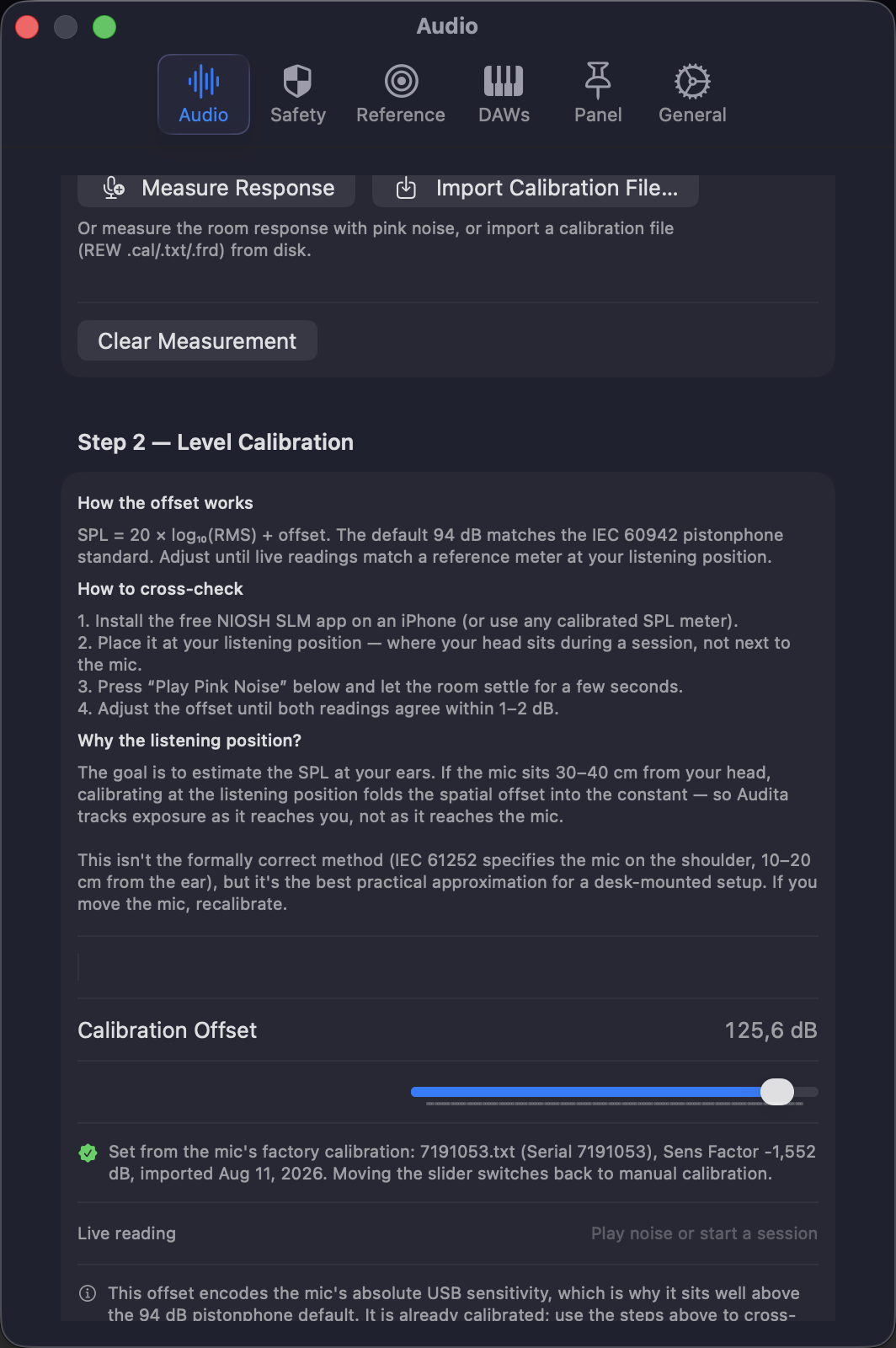
UMIK-1 owner? If you applied the sensitivity figure when importing the cal file, this card is already done: its pill reads factory with the offset, and the fact line names the Sens Factor it came from. The procedure above is for every other mic, or for cross-checking. Moving the slider by hand replaces the factory number with a manual one.
Why the listening position, not next to the mic? The goal of dose tracking is to estimate the SPL at your ears, not at an arbitrary point in the room. Your measurement mic is a proxy for your ears - if it sits 30-40 cm away from where your head actually is, there will be a small but real difference in level due to distance and room reflections. Calibrating with the iPhone at the listening position folds that spatial offset into the calibration constant. This is not the formally correct method (IEC 61252 specifies the mic on the shoulder, 10-20 cm from the ear), but it's the closest practical approximation for a desk-mounted setup. If you move the mic, recalibrate.
3. Monitor level (per output device)
The correction and the level establish that what Audita measures matches reality. The Monitor level card captures which physical knob position on your monitor controller produces your target reference level - and stores that record per output device UID, so each monitor pair carries its own calibration.
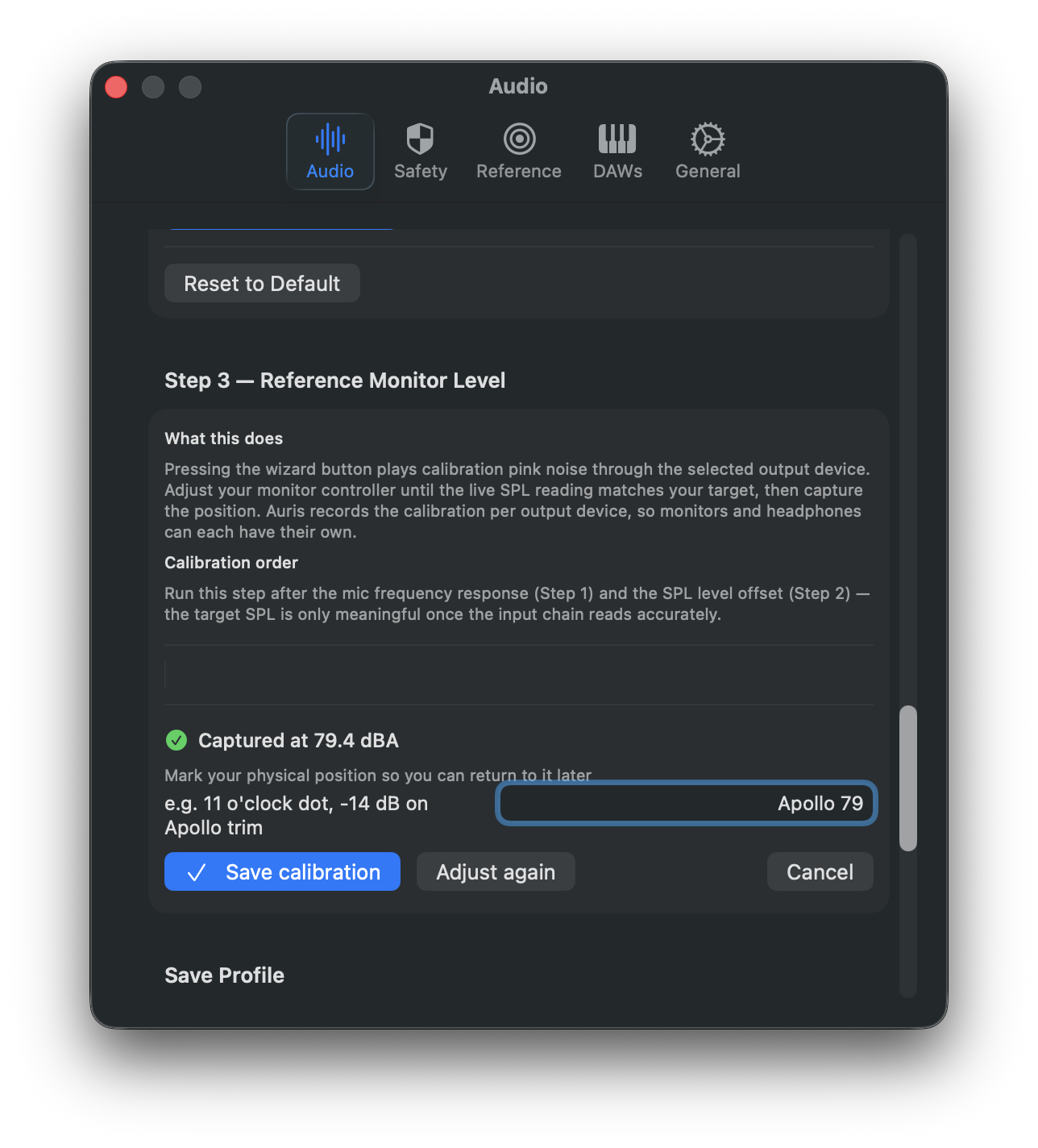
- Settings → Calibration → Monitor level → Calibrate… (Recalibrate… once a record exists). The wizard runs inside the card.
- Pink noise starts playing through the selected output device. The live SPL is shown alongside your target dBA (set in Settings → Reference, defaulting to 79 dBA / K-14).
- Adjust your physical monitor controller until the live SPL matches the target. Take your time - this is the moment that defines what "K-14" means on your rig.
- Click Capture position. Pink noise stops; the measured value is held so you can check it before saving.
- Type a short note describing the controller position (e.g. "Apollo knob at 11 o'clock, monitors L+R at 0 dB on the desk panel").
- Click Save. The record is persisted; the pill reads the captured dBA in green.
Audita stores the captured measuredDBA alongside the target for honesty - if you aimed for 79 but the closest knob detent gave 80.4, that's recorded. The discrepancy is on the card's fact line so you can decide whether to live with it or fine-tune.
Re-run when: you switched monitor pairs or selected a different output device, you moved a knob and forgot to put it back, you changed monitor placement or room treatment, or you added/removed a hardware level pad.
4. Self-check
The three cards above make the chain accurate on the day you run them. Run Self-Check tells you whether it still is. Audita plays pink noise through the selected output at your calibrated reference, measures it back through the mic for a few seconds, and compares the result with what it measured when you captured the monitor level.
- Set your monitor controller to the calibrated position. The card's fact line repeats the note you typed when you captured it. On an Apollo or Volt output with Lyra installed, Audita can recall the matching reference slot for you so the level is right before the noise starts.
- Click Run Self-Check. Pink noise plays while the measurement settles.
- Audita reports the measured level, the expected level, and the delta, with a pass or fail against the tolerance band you calibrated with (±2 / ±3 / ±5 dB).
A failed check means something in the chain moved: the knob, the mic position, the preamp gain, the input device, or the room. Every run is logged with a timestamp and feeds the Verified pill. Checks age out after 90 days, the same interval after which the Monitor level pill reads aging.
A check verifies one chain: this mic into these monitors. Switch either end and the Verified pill reads not on this rig, because nothing on the new path has been measured. Each pair keeps its own result, so switching back to a rig you already verified reads verified again without re-running.
Calibration profiles
If you work in multiple physical setups - studio desk, mobile rig with its own measurement mic, second room - saving a named profile lets you restore one in a click. The footer of the Calibration page has Save as… and Manage…, which lists the saved profiles with Apply and Delete.
A profile is your microphone's calibration: the mic correction, the level offset, and the calibration file behind them. All three describe the input chain, so none of them changes when you switch monitors. The output-dependent parts live elsewhere: the monitor level is stored per output device, and a self-check result belongs to the input and output pair it measured. So switching monitors keeps your mic calibration and asks for a fresh verification.
Audita offers the profile back
Select a microphone you have saved a profile for and the Calibration page's footer offers it: Apply when a single profile fits, Choose… when several do. Nothing is applied without you asking.
Each profile records where it was captured, so the row and the chooser can say "saved 11 Aug on UMIK-1 into Apollo Twin X" when you are deciding which one you want. That is there to help you recognise the sitting a profile came from; it does not restrict when the profile applies. Profiles saved before Audita recorded outputs, including anything imported from Auris, show no output.
When a saved profile is already in effect, the footer names it - Profile: Desk, Apollo 40% - with where and when it was captured. So the calibration on screen is always attributable, whether you just applied it or it was already loaded.
A profile saved while a calibration file was setting your level carries that file's proof with it: file name, serial, and Sens Factor. Apply it with the same microphone selected and the level returns as factory calibration, so the Correction and Level pills read exactly as they did after the import. Apply it with a different mic selected and only the number is restored, as a manual offset: a UMIK's factory figure is a claim about that one microphone and says nothing about another.
7. Monitoring Discipline #
A separate, optional layer on top of dose tracking that helps you mix and master at a stable, calibrated reference level - and warns you when you've drifted off it.
Hearing protection (the dose calculation) tells you how dangerous today's listening was. Monitoring Discipline tells you how disciplined today's listening was. Different questions, different answers. A 12-hour day at 70 dBA produces zero NIOSH dose but is also zero K-14 mixing time.
Reference targets
Audita ships with four presets in Settings → Reference, plus a Custom option:
| Standard | Target | Where it's used |
|---|---|---|
| Mastering | ~73 dBA | Critical listening, low-level detail work |
| K-14 | 79 dBA | Bob Katz mixing reference (default) |
| K-12 | 83 dBA | Broadcast / loudness-targeted mixing |
| K-20 / Dolby / SMPTE | 85 dBA | Film, theatrical, reference-loudness mix stages |
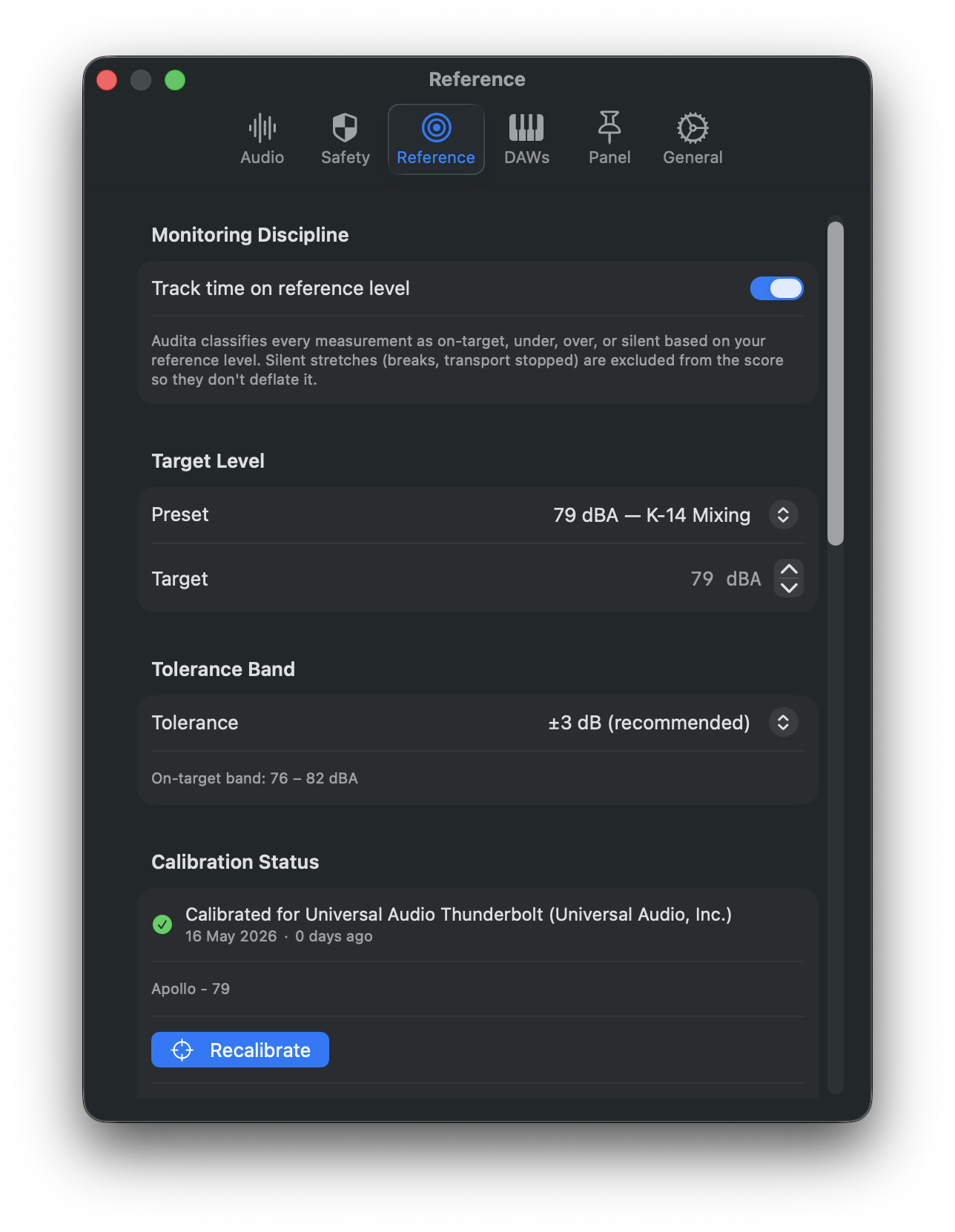
The Reference page shows the monitor level captured for the selected output as one pill that opens the Calibration page, so the target and the knob position that produces it sit together. The standards and the preset explanations fold under Reference levels explained, with the controls first; the Safety page does the same with its thresholds.
On-target percentage
Every SPL tick (10 Hz) is classified into one of four zones:
| Zone | Condition |
|---|---|
| Silent | dBA < 50 OR dBA < (target − 30) - nothing meaningful is playing |
| Under | (silent floor) ≤ dBA < (target − tolerance) |
| On-target | (target − tolerance) ≤ dBA ≤ (target + tolerance) |
| Over | dBA > (target + tolerance) |
The on-target % in the menu bar window's reference headline is:
on_target % = on_target_seconds / (under + on_target + over) × 100Silent time is excluded from the denominator - breaks don't penalise your discipline score. A session where you mixed for 90 minutes (80 % on target) and then took a 30-minute break still reports 80 %. The metric is suppressed (the headline reads "Warming up") until at least 30 seconds of non-silent monitoring time has been recorded. It is coloured by one ladder everywhere: green from 75%, yellow from 50%, orange below.
The drift detector
Drift is the slow, unconscious creep of monitoring level upward over a long session. Your ears adapt, you compensate, you get louder, the cycle continues. Audita catches this in the background.
- Ten minutes after the session begins, Audita snapshots the current rolling 30-minute Leq as the session baseline.
- From then on, the rolling 30-min Leq is compared against that baseline on every 1 Hz tick.
- When the rolling Leq exceeds the baseline by ≥3 dB, a stopwatch starts.
- If the elevated condition persists for ≥5 continuous minutes, the alert fires.
- The alert is one-shot per session - once you've been told you're drifting, you won't be told again until the next session starts. The 30-min snooze action defers any future drift warnings.
The off-target detector
Drift is about change. Off-target is about intent. You can be totally stable for 30 minutes and still be 5 dB below your stated target the whole time. The off-target detector asks: was that intentional?
- Every 1 Hz tick, the current dBA is classified against the alert tolerance band (separate from, and wider than, the on-target tolerance - default ±5 dB vs ±3 dB).
- Classifications fill a rolling buffer trimmed to the user-configured window (default 15 minutes).
- The alert fires when the window is full, and at least 50 % of it was active monitoring (we don't ping you on a break), and at least 90 % of that active time was off-target (the deviation has to be persistent).
- The notification reports the dominant direction: below target or above target.
- One-shot per session, with a 30-min snooze.
Configurable in Settings → Reference → Alerts
- Drift alert - on/off.
- Off-target alert - on/off, plus window (5 / 10 / 15 / 30 / 60 min), tolerance (±3 / ±5 / ±10 dB), and direction (under-only, over-only, both).
Snooze is routed by category
Snoozing a drift alert silences future drift alerts only - dose alerts still fire. Snoozing an off-target alert silences future off-target alerts only. Snoozing a dose / peak / sustained-SPL alert silences those collectively but leaves drift and off-target alone. A user who's mid-mastering at a level intentionally below K-14 can silence off-target alerts without losing the safety net of dose alerts.
When Monitoring Discipline is meaningful
When you're working at a roughly stable level (mixing, mastering, music creation) on a calibrated output. If you're tracking, A/B-ing across levels, or the output device has changed since its monitor level was captured, disable Monitoring Discipline in Settings → Reference.
8. Sessions & the History window #
A session is a contiguous span of recorded measurement. Each session captures start and end time, the DAW that triggered it, average dBA, peak dBA and dBC, peak impulse counts, the dose accumulated during that session only, and sparse SPL readings taken every 10 seconds for the session chart.
How sessions start and end
- Auto. The first tracked DAW launch starts a session. The last tracked DAW quit ends it. Multiple simultaneous DAWs are correctly handled (only the first/last transitions trigger).
- Manual. Menu → Start Session and End Session. Use when you're working outside a tracked DAW.
- URL.
audita://session/startandaudita://session/end. See the URL scheme reference.
Session recap notification
When a session ends, Audita fires a recap notification: "This session used X.X% of your daily dose. Running total: Y.Y% - Z.Z% remaining today." Sessions with < 0.1 % dose (mic wasn't meaningfully active) are skipped. No action buttons - informational only.
Session history
Sessions persist to ~/Library/Containers/com.headroom.Audita/Data/Library/Application Support/Audita/sessions.json. Retention is configurable in Settings → General → Storage - default is 90 days for full session records and 14 days for the detailed time-series within each session. See Session reports & sharing for the full retention model.
The History window
Open it from the History button in the menu bar window's footer. It is a standard macOS window, resizable and independent of the menu bar window: a calendar on the left, three answers for the selected range, a day chart, and the log of sessions.
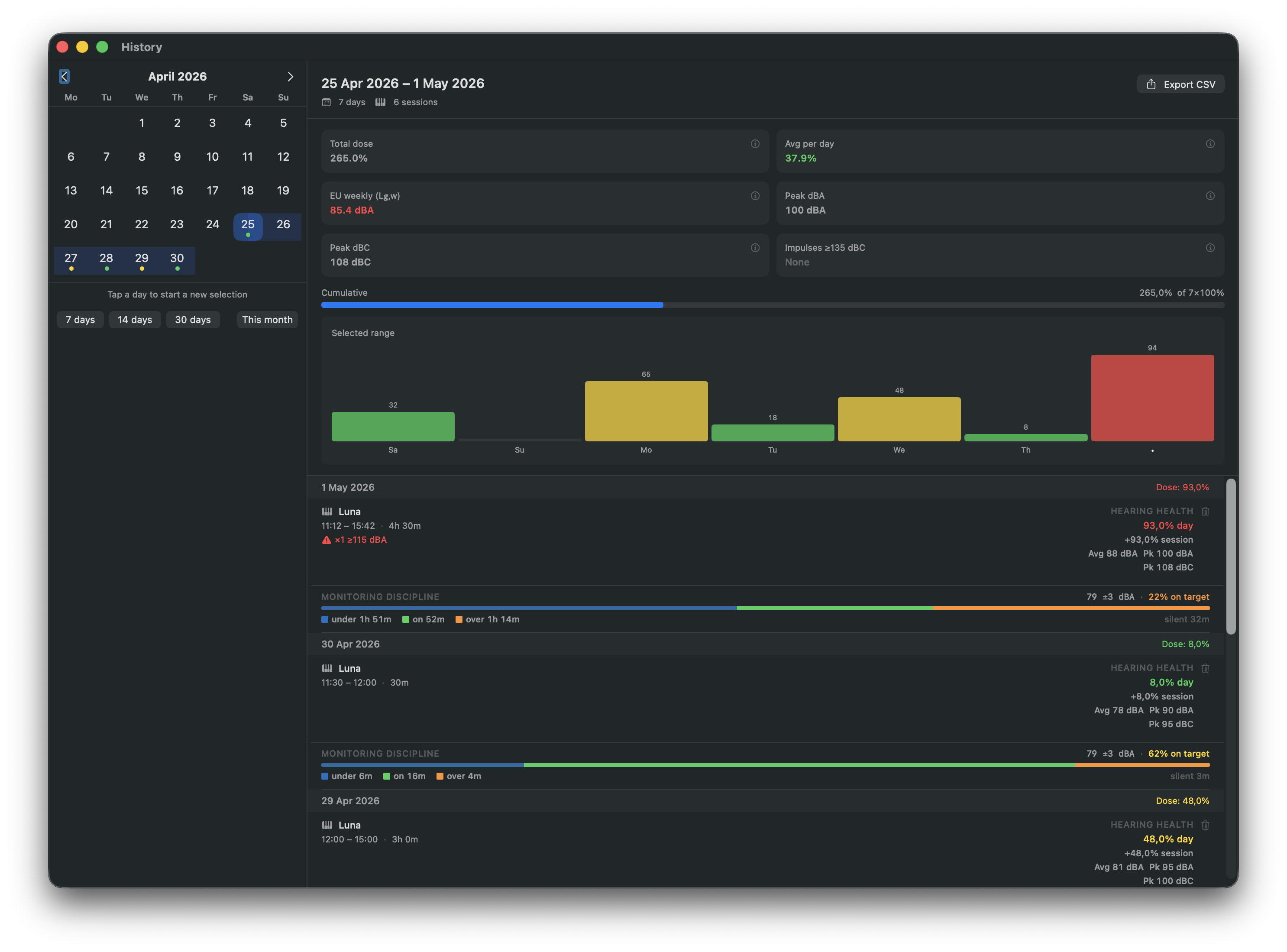
Calendar and range. Days with sessions carry a dot in the day's dose colour. Click a day to start a range and a second day to complete it, or drag across days. A segmented control under the grid picks the last 7, 14 or 30 days, or this month. The first open shows the last 7 days.
Three answers.
| Tile | What it shows | How to read it |
|---|---|---|
| Dose per day | The average daily dose over the range, with its band word and the total ("226% over 7 days") | Compare to 100%, the daily NIOSH limit; coloured by dose level. Under it, the EU weekly level L_EX,w (ISO 9612 / 2003/10/EC) in dBA with its verdict in words, shown only once five days of the range have sessions, because the formula averages a working week: under 80 dBA is under the lower action value, 80 to 85 is over it, 85 and up is over the limit. |
| On target | The time-weighted share of the range's monitoring inside your reference band, with the monitored time, the band (when one band was used throughout) and the under and over shares | Green from 75%, yellow from 50%, orange below. Silent breaks are excluded. Needs 30 seconds of monitoring in the range. |
| Loudest | The highest A-weighted measurement-interval level and the highest C-weighted peak in the range, the counts over 140 dBC (or 135 dBC) and 115 dBA, and the day they happened | Peak dBC is coloured against the EU values: orange from 135 dBC (action value), red from 140 dBC (limit). "No peaks over the limits" otherwise. |
The How these are measured link in the header opens this guide. Export CSV sits beside it; see CSV export.
The day chart. One bar per day of the range (the last 7 days when the range is longer than 14), oldest on the left, Today on the right, each bar scaled to the highest day and coloured by that day's dose band, with the legend under it. Click a bar to select its day. A range with no sessions says so instead of drawing empty columns.
Session rows. Sessions are grouped by day, newest day first; each day's header carries the day's dose, the session count and the total time. Each session is one line:
- DAW and time: the application that triggered the session (or Manual Session), the start and end clock time and the length ("00:27 to 01:08 · 41m"). Length is wall-clock time, not filtered for silences.
- Sparkline: the session's A-weighted level over time, shaded by zone: green on target, grey under the band, orange over it; silent stretches stay unshaded. The same colours the session report uses.
- +X.X%: the dose this session added, coloured by the day's running total after it, so a +15% session that pushed the day to 120% reads red.
- On-target chip: the session's on-target share, coloured by the one ladder. Absent when the session has no discipline data.
- Peak chip: only when a limit was passed, naming the highest one (140 dBC, 135 dBC or 115 dBA).
The chevron opens the session report, where the averages, the peaks, Leq and the Ln percentiles live. Right-click a row, or use its menu, for Open, Save, Share and Delete.
Peak monitoring (EU 2003/10/EC)
Beyond cumulative dose, Audita monitors for dangerous peak impulses on the C-weighted path. Three thresholds per EU Directive 2003/10/EC:
| Threshold | EU action level | Meaning |
|---|---|---|
| 135 dBC | Lower action value | Hearing protection must be available |
| 137 dBC | Upper action value | Hearing protection must be worn |
| 140 dBC | Absolute ceiling | No exposure permitted - immediate damage risk |
Notifications fire when an impulse exceeds 135 dBC, rate-limited to one per 30 seconds. Every audio buffer feeds peak detection, and the counters count exceedance events: one count when the level first crosses a threshold, re-armed once it falls about 2 dB below it again. A sustained loud passage is one event; a snare hit every half second counts every hit. Counts are tracked per session and per day. EU Directive 2003/10/EC also defines a maximum 115 dBA instantaneous A-weighted level - a separate limit from the C-weighted thresholds. Whenever a limit was passed, the counts appear as the peak chip in the menu bar window and on the session's row in the History window. Even a count of 1 indicates a level capable of immediate mechanical hair-cell damage.
Conservative dose mode
Standard dose calculation uses A-weighted levels only. For bass-heavy work (sub-bass mixing, kick tracking, live sound with subwoofers), Settings → Safety → Conservative dose mode uses max(dBA, dBC) for dose accumulation. Each tick, whichever weighting gives the higher reading is used. For mid-range content (speech, acoustic instruments), dBA ≈ dBC and behaviour is unchanged. There is no formal NIOSH or OSHA standard for this approach - it's a maximum-protection option.
9. Session reports & sharing (v1.2+) #
Every session Audita records can be opened as a one-page Session Report and shared as a PDF through the standard macOS Share menu - AirDrop to a phone, attach to a Mail draft for a producer, drop into a Messages thread, or save to disk for an archive. The Session Report is also a self-contained brief for anyone who hasn't seen Audita before: chart, stats, and a footer link to the product.
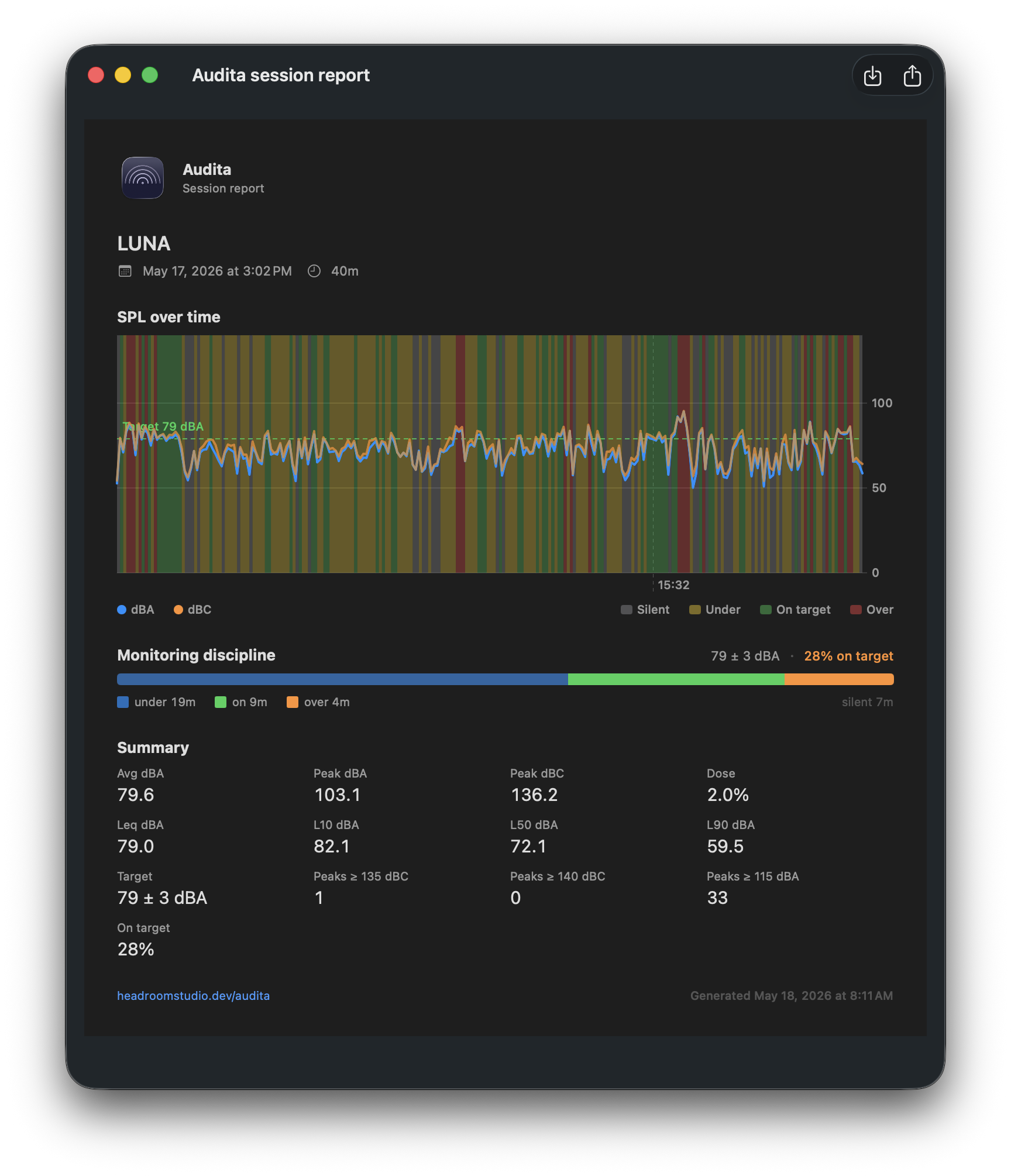
What the report contains
A single-page layout, top to bottom:
- Brand strip - Audita mark and the session's DAW + date + duration.
- SPL chart - dBA (and dBC) plotted across the session's duration. The chart's background is shaded by monitoring-discipline zone: silent, under, on-target, over. The shaded bands make it easy to see at a glance how much of the session was spent at reference and how much drifted off. The level axis follows the readings rather than a fixed 0 to 140 dB, so a quiet session has a shape.
- Stats grid - average SPL, peak SPL, session dose %, EU peak-impulse counters (135 / 137 / 140 dBC and 115 dBA; when no peak passed a limit the three read as one line), elapsed time, on-target % for the session.
Behind the scenes the time-series sample rate was bumped from one reading per minute (in v1.1) to one reading every 10 seconds in v1.2, so the chart has enough density to read. Older v1.1 sessions still render - they just plot at the lower density they were captured at.
Three ways to open it
- A session row in the History window. The chevron at the end of the row opens the report. Right-click the row, or use its menu, for Open Report, Save Report, Share Report… and Delete.
- The menu bar window. Share Last Session… sits under More: one click on the most recent finished session.
- Session-recap notification action. When a session ends, the recap notification carries a Share Report… action button. Use it right after a session if you want to send the report to someone without opening Audita.
PDF format and the Share menu
Hit Share in the report window (or the Share Report… entry on any of the three entry points above) and Audita renders the report to a temporary PDF, then opens the standard macOS Share menu. From there: AirDrop to another device, Mail to attach to a draft, Messages to a thread, Save As to drop the file anywhere on disk, or any third-party share extension you've installed (Slack, Things, Drafts, Reminders, your password manager - whatever you have).
The generated PDF lives temporarily at ~/Library/Caches/Audita Reports/. Caches are macOS-managed - the system handles cleanup on its own schedule, and you can safely empty the folder by hand any time.
CSV export (the analyst's companion)
The PDF is the per-session narrative. For broader-time analysis, the History window's Export CSV button drops the selected date range into a spreadsheet-friendly file. Two blocks per file: one row per session, then a per-day summary block.
Per-session columns: Date, DAW, Start, End, Start ISO (sortable), Duration (min), Avg dBA, Peak dBA, Peak dBC, Leq dBA, L10 dBA, L50 dBA, L90 dBA, Target dBA, Tolerance dBA, Time under (s), Time on target (s), Time over (s), Time silent (s), On-target %, Impulses ≥135 dBC, Impulses ≥140 dBC, Peaks ≥115 dBA, Dose %.
Daily summary columns: Date, Sessions, Total dose %, Peak dBA, Peak dBC, Impulses ≥135 dBC, Impulses ≥140 dBC, Peaks ≥115 dBA.
Leq is the legally-cited metric in ISO 9612 and EU Directive 2003/10/EC; the CSV is the place to extract it for compliance logs. Sessions that pre-date a feature (e.g. v1.1 sessions, which had no Monitoring Discipline buckets) leave those cells empty.
Retention settings
Old sessions take up disk space, mainly through the per-session SPL time-series. Settings → General → Storage exposes two sliders that let you tune the trade-off between archive depth and disk footprint:
- Keep detailed time-series for [N] days (default 14). After the threshold passes, that session's chart downsamples to one sample per 100 seconds - still legible in the report chart, roughly 10x smaller on disk. The report still opens, the chart still draws, you just lose the fine grain.
- Keep sessions for [N] days (default 90). Sessions older than this are deleted entirely. Replaces the v1.1 hard-coded 30-day prune, so by default you keep three times as much history as before.
A live preview caption under the sliders shows how the current settings will affect existing data. If a slider drag would drop existing sessions, the caption turns orange and reads, for example, "7 sessions older than 60 days will be deleted on next launch" - so you can see what you're about to commit to.
Slider drag is non-destructive. Retention deletion runs at next launch only, never on slider drag. If you change a slider and then change your mind, just quit Audita without restarting - or move the slider back. The deletion pipeline never runs mid-session, so a session in progress is never affected by retention changes.
10. Pause & resume monitoring (v1.2+) #
There are days when you don't want Audita to count what's playing - you're auditioning loud reference tracks, running a sweep, testing a speaker, or rehearsing in the room and don't want the rehearsal to spend your hearing budget for the working day. Pause halts dose accumulation without ending the active session.
Three ways to pause and resume:
- Menu bar window. The Pause Monitoring row sits under the session row and reads Resume Monitoring while paused. Indefinite pause only from this surface; for timed pauses use the URL scheme or a Shortcut.
- URL scheme -
audita://monitoring/pausefor an indefinite pause,audita://monitoring/pause?duration=900for a 15-minute timed pause.audita://monitoring/resumeends it. See the URL scheme reference. - App Intents (Shortcuts / Siri / Spotlight) - the Pause Monitoring intent takes a required
durationMinutesvalue. Enter0for an indefinite pause; any positive number gives you a timed pause that auto-resumes. Spotlight prompts for the value when you run the action without one. The Resume Monitoring intent takes no parameters. See the App Intents reference.
While paused, the SPL feed still runs (the menu bar readout keeps updating) but the dose calculator skips accumulation on every tick. The pause state is checked at 10 Hz, so dose stops accruing within ~100 ms of the pause being requested. A timed pause auto-resumes at the configured deadline.
Visual indicators. Three surfaces reflect pause state so the gated pipeline is never silent:
- The menu bar Pressure Bloom and live SPL number desaturate to neutral grey while paused; they spring back to colour the moment monitoring resumes.
- The menu bar window shows an orange "Monitoring paused" banner at the top, with the resume time appended for timed pauses (e.g. "Resumes 14:32.").
- The pinned panel shows the same banner when expanded.
11. Send to Lyra - write a calibrated level into a Lyra reference slot #
Lyra is the Headroom menu bar app that controls the monitor volume of Universal Audio Apollo and Volt Gen 2 interfaces. Lyra has three Reference Level slots (Ctrl+F10 / F11 / F12). Audita can write the calibrated dB SPL value and the live Apollo or Volt monitor position into one of those slots so the slot recalls the exact level you just calibrated.
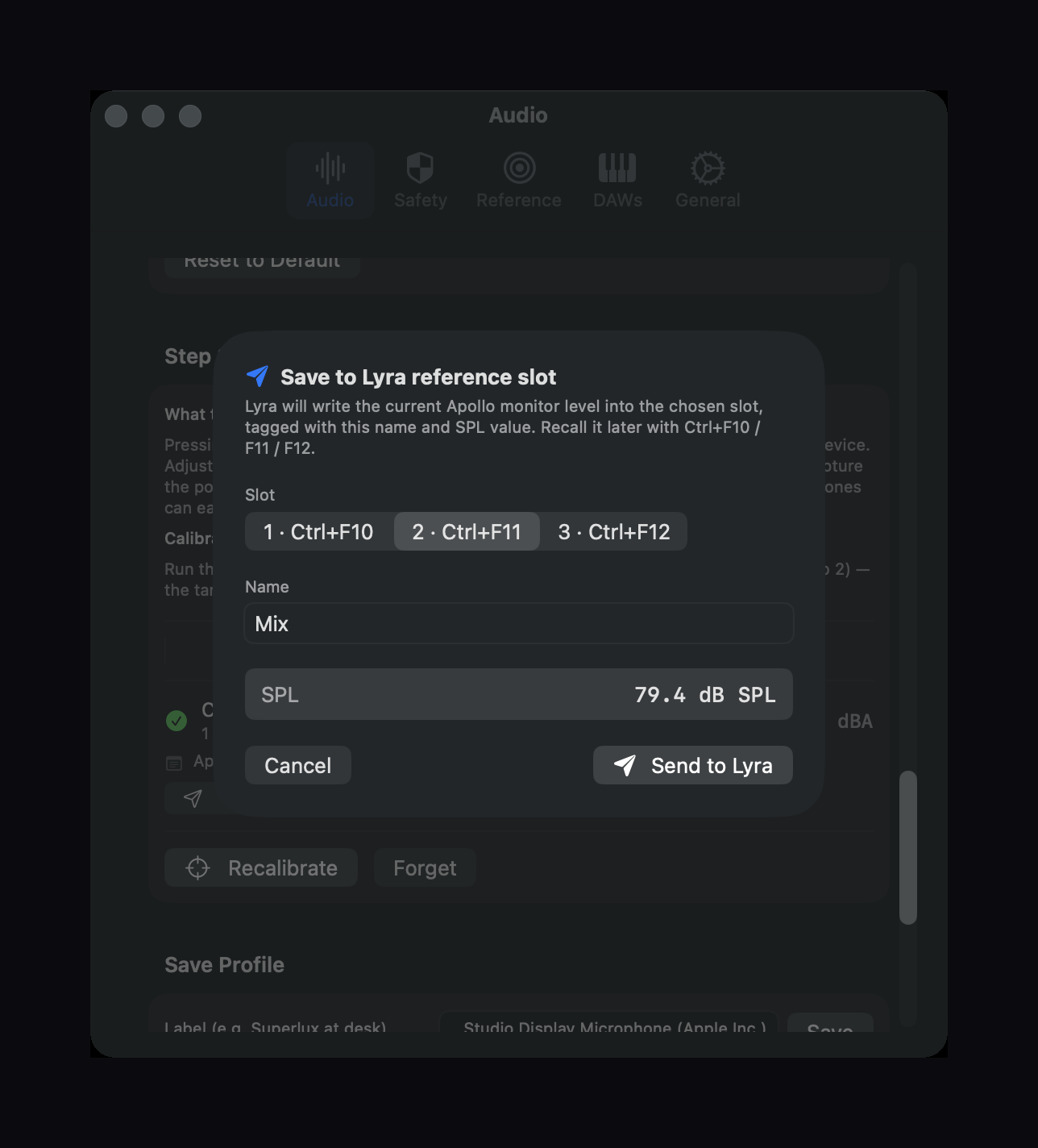
How to use it
Once a monitor level is captured on an Apollo or Volt output device, the Monitor level card in Settings → Calibration grows a Send to Lyra… button. Click it to open the sheet:
- Slot picker - 1, 2, or 3 (Ctrl+F10 / F11 / F12 respectively).
- Name - defaults from your K-System target (73 dBA → "Mastering", 79 → "K-14", 83 → "K-12", 85 → "K-20"). Edit freely.
- SPL readout - read-only, the calibrated value about to be stored.
When you confirm, Audita fires lyra://reference/{n}/save?name=…&dBSPL=… and Lyra:
- Reads the live monitor level of the interface it is controlling (so the slot reflects exactly what Audita just measured against).
- Stores tapered + name + dBSPL together.
- Pops the labeled HUD as confirmation - e.g.
Mix - 85 dB SPL.
Audita does not send the tapered position itself. Lyra reads it directly from the interface when receiving the URL, which is exactly the position the user just calibrated against. Audita contributes only name and dBSPL as metadata that Lyra surfaces in its menu and HUD.
Don't have Lyra? The Send to Lyra button is hidden when Lyra isn't installed; a subtle hint links to the Lyra product page instead. Audita works fully without Lyra - it's a cross-app convenience for users who own both. Requires Lyra 1.4 or later on an Apollo, Lyra 1.9 or later on a Volt Gen 2.
12. URL scheme & automation #
Audita registers a custom audita:// URL scheme so any tool that can fire a URL can read its state or drive its sessions and pause - Shortcuts, Stream Deck, Keyboard Maestro, Hammerspoon, BetterTouchTool, AppleScript, open from the shell, other apps.
A brief overview:
| URL | What it does |
|---|---|
audita://spl | Read live SPL (dBA, dBC, peak dBA) |
audita://dose | Read today's NIOSH dose and peak counters |
audita://session | Read the active session payload |
audita://state | Aggregated payload (spl + dose + session + pause) |
audita://session/start | Start a manual session (optional ?daw=…) |
audita://session/end | End the current session |
audita://monitoring/pause | Pause dose accumulation (optional ?duration=<seconds>) |
audita://monitoring/resume | Resume monitoring |
All endpoints accept the standard x-callback-url parameters (x-success, x-error) so you can chain Audita into a wider workflow. Read endpoints require an x-success URL to deliver their payload; write endpoints treat both callbacks as optional. Responses use flat snake_case query parameters in plain ASCII - no JSON parsing required on the consumer side.
Audita also ships a bundle of App Intents for the Shortcuts app, Siri, and Focus Filters - seven intents covering the same reads, sessions, and pause/resume that the URL scheme exposes. If you live inside the Shortcuts ecosystem, the intents are the smoother path; the URL scheme is the lowest-common-denominator surface for everything else (Stream Deck, Keyboard Maestro, Hammerspoon, AppleScript, shell). For sharing a report of a finished session, the Session Report window below covers every export case better than a Shortcut step.
The cross-app studio-on ritual is a three-step Shortcut that chains both apps: open your DAW, start an Audita session, switch Lyra to a reference monitor level.
The full automation reference - every intent, every URL endpoint, every return field, error vocabulary, and the worked studio-on ritual example - lives on the API reference page.
13. Importing from Auris #
Audita is the successor to Auris, which was sunset on 2026-05-08. Auris 1.3 shipped with a Move to Audita export modal; Audita 1.0 and later include a first-launch import wizard that reads the exported JSON and brings your data over.
What's imported:
- Session history (up to 30 days).
- Today's accumulated dose.
- Calibration profiles (the mic correction and the level offset).
- Monitor level records, keyed by output device UID.
- Custom DAW bundle IDs.
- Mic frequency response correction filters.
The wizard runs once on first launch. It can be re-run later from Settings → General → Migration → Import from Auris if you want to bring data over from a second Mac.
Your existing Auris license key and trial state carry across automatically. Reinstalling Audita on a machine that previously had Auris finds the same trial countdown and license credentials. Existing Auris users do not need to re-pay.
14. Trial & licensing #
Audita is $19.99, one-time purchase, via Lemon Squeezy.
Trial
The first launch starts a 7-day free trial with full functionality - every feature, no nags, no watermarks. The trial start date persists across reinstalls. After 7 days Audita shows a hard-lock window on launch and refuses to run until you activate a license.
Buying
Click Buy Audita in the menu (or the Buy button on the website). Lemon Squeezy emails you the license key after checkout.
Activating
Menu → Activate (or Manage if already licensed) opens the license window. Paste your key and click Activate. Activation requires an internet connection. Once activated, Audita works fully offline.
Two-machine limit
Each license can be active on up to two Macs. To free a slot, open Audita on the machine you want to release, Menu → Manage License → Deactivate, then activate on the new Mac.
Lost your key?
Check the Lemon Squeezy confirmation email. If you can't find it, email hello@headroomstudio.dev with the address you used at checkout.
Validation
Audita silently re-validates your license on each launch. If activation has been revoked (refund, deactivation, abuse), the local credentials are cleared and the app drops to trial / expired state. Network failures are silently ignored - the offline case is benefit-of-the-doubt.
15. Updates #
Audita checks for new versions automatically. When one's available you'll see an update prompt at the next launch. To check on demand: Settings → General → Check for Updates…, with the automatic check's toggle beside it.
Release notes: headroomstudio.dev/audita/releases.html.
16. Troubleshooting #
No SPL reading - the menu bar shows a dash
- Microphone permission. Open System Settings → Privacy & Security → Microphone and verify Audita is in the list and toggled on.
- Input device selected. Open Settings → Devices and confirm the measurement microphone is selected. If you previously selected a device that has since been unplugged, Audita stops measuring gracefully - re-select an available device or plug the original back in.
- Audio engine status. The dash means the audio engine isn't running. After granting microphone permission for the first time, quit and relaunch Audita to re-initialise the engine.
Readings are wildly off (off by 20+ dB)
Audita measures relative to the digital full-scale level of your microphone. Without a level calibration, the displayed dB is not in real-world SPL - it's a digital level offset by the default 94 dB pistonphone constant. Set the level against an iPhone running NIOSH SLM to map the digital scale to real-world dB SPL. On a UMIK-1, importing the mic's calibration file with Set level calibration from the file does the same job in one step.
If the offset was set from a UMIK file and readings still look low, check the Level pill first: a caution there names the device the level belongs to, so a mic swap or a switch to System Default shows up there. Then check the input volume - Audita compensates for a lowered control automatically and says when it is doing so, but a value it cannot read is a value it cannot correct.
dBA and dBC differ by > 10 dB on broadband content
On broadband pink noise, dBA and dBC should be within ~3 dB. A larger gap means your mic has significant low-frequency response that A-weighting alone underreports. Measure the mic correction to flatten the mic, then re-verify against pink noise. If the gap persists with the correction on, the mic itself may be the issue (check the cable, preamp, and gain staging).
Settings says the mic correction is bypassed at this sample rate
A measured correction is a filter designed for the rate the audio device was running at when you measured it. Start the engine at a different rate and the filter cannot be applied, so the Correction pill reports it as bypassed. Either set the device back to the rate you measured at (Audio MIDI Setup), re-run Measure at the current rate, or import the mic's calibration file - a file-based correction re-designs itself for whatever rate the device runs at.
The UMIK-1 download can't find my serial
The label prints the serial with a dash; type it without. If the number is right and the download still fails, minidsp.com may not have a file for that unit; download it from their site in a browser and use Import Calibration File instead.
The self-check fails but the level sounds right
The check compares what the mic hears now against what it heard when you captured the monitor level, so any change on either side of the chain shows up as a delta: the monitor knob (set it to the position in your note first), the mic's position, the preamp gain, a different input or output device, or room changes. Work through the three cards in order, then re-run. If the level really is where it should be and only the mic moved, redoing the level and the monitor level is the fix.
The reference headline stays at "Warming up"
The on-target share is suppressed until at least 30 seconds of non-silent monitoring time has been recorded. If you've been monitoring for longer and it still says "Warming up", check that the dBA is above the silent floor (50 dBA, or target − 30 dBA, whichever is higher).
Drift alert never fires
The drift detector needs 10 minutes of baseline plus 5 minutes of sustained elevation. A 20-minute session is the earliest it can fire. If you're in a longer session and expected an alert, check that Settings → Reference → Alerts → Drift alert is enabled.
Auris import skipped or didn't find data
Re-run from Settings → General → Migration → Import from Auris. Make sure the Auris export JSON is on the same machine; the wizard expects the file at the path produced by Auris 1.3's "Move to Audita" modal. If you've moved Macs, copy the export file across first.
Trial says expired but I just installed
The trial start date persists across reinstalls and across a prior Auris install on the same Mac, so a reinstall won't reset it. If you genuinely just installed Audita for the first time and it's reading as expired, email hello@headroomstudio.dev.
License says invalid even though I just bought it
Wait 30 seconds and try again - Lemon Squeezy occasionally needs a moment to propagate. If it still fails, double-check that there's no leading/trailing whitespace in the key you pasted. Otherwise email hello@headroomstudio.dev with the key and order number.
Notifications don't appear
Open System Settings → Notifications → Audita and confirm notifications are allowed. For Focus-breaking alerts (warning/danger dose, peak alerts, 115 dBA ceiling, sustained-SPL), enable Settings → General → Notifications → Time Sensitive notifications in Audita and confirm Time Sensitive is allowed in the system Notifications pane.
Sparkle won't show an update prompt
Reset Sparkle's "already checked / already skipped" state:
defaults delete com.headroom.AuditaRelaunch, then Settings → General → Check for Updates… to force a fresh check. This also resets other preferences (menu bar display, today's dose, etc.) to factory defaults.
17. Reporting bugs & feedback #
Email hello@headroomstudio.dev with what happened, what you expected, and ideally what's in the Console.app logs filtered by Audita.
18. Widgets (v1.3+) #
Audita ships six desktop widgets so both sides of Audita are visible at a glance, without opening the app: how closely you are holding your monitoring level, and how much of your hearing budget the day has used. To add one, right-click the desktop (or open Notification Center and choose Edit Widgets) and find Audita. They run on macOS 14 (Sonoma) and later, and need Audita to have run at least once so it can publish its current state.
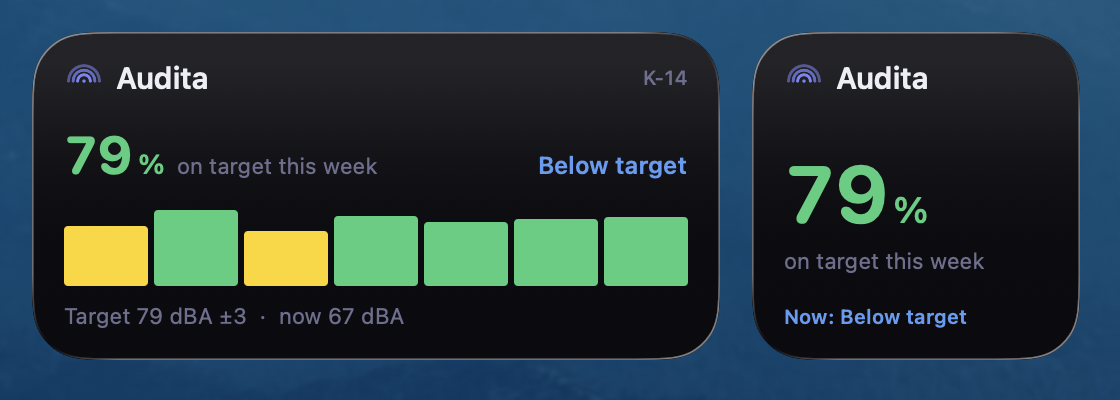
On Target (small, medium). How much of your monitoring this week was at your calibrated reference level, as a time-weighted percentage, with a 7-day chart on the medium size. When a session is running it also shows the live state (on target, below, or above). This is the Monitoring Discipline use case on the desktop, and it stays useful when you are not monitoring. The same figure also appears as an On target tile in the History window.
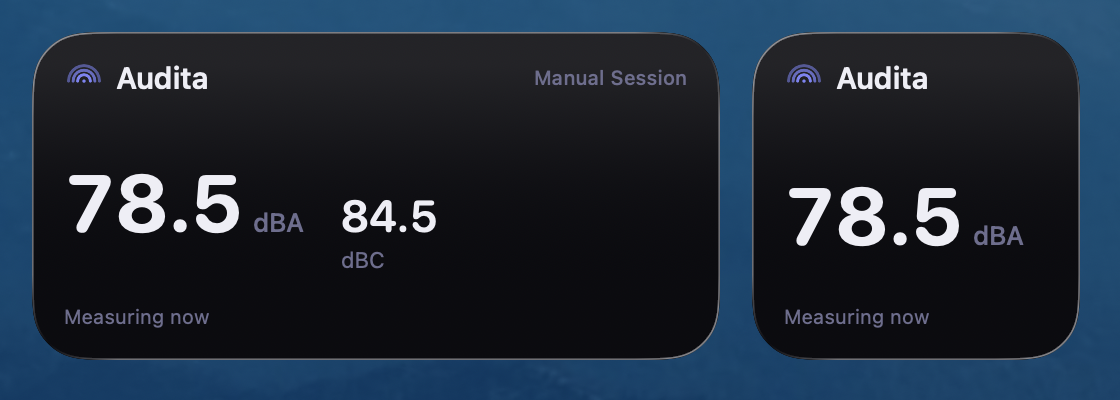
Latest SPL (small, medium). The most recent A-weighted level Audita measured, with dBC on the medium size. Widgets cannot listen to your audio the way the app does, so this is the last reading, with the time it was taken. When Audita is not measuring it reads Idle rather than showing 0 dBA.
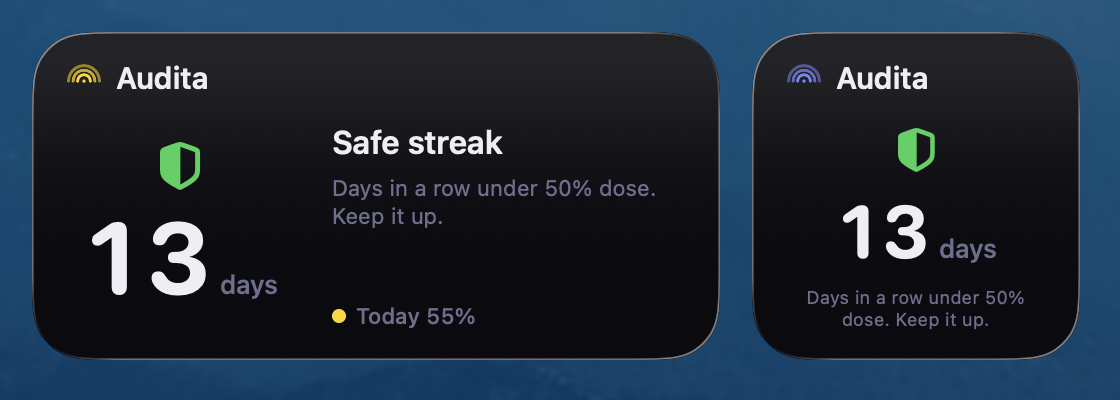
Safe Streak (small, medium). Consecutive days, up to yesterday, your dose stayed under 50% of the daily limit. The same streak Audita reports through Shortcuts and Siri.
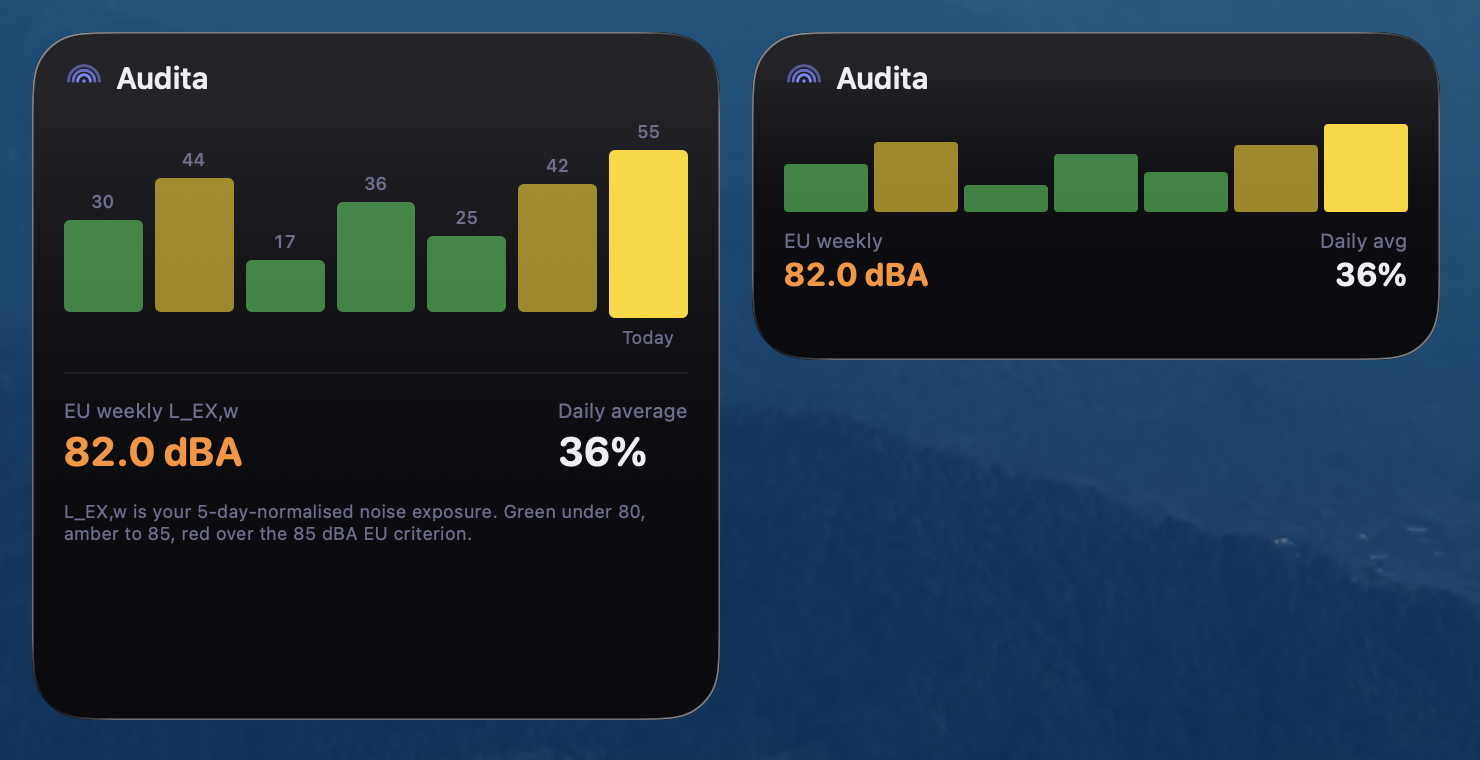
Weekly Exposure (medium, large). Your last 7 days of dose as a bar chart, with the EU weekly exposure level (L_EX,w, ISO 9612) against the 85 dBA criterion. The same figures as the in-app weekly chart.
Today's Dose (small, medium) shows your accumulated NIOSH dose as a ring that fills and changes colour from green to red; the medium size adds your safe streak and EU weekly level. Overview (large) puts today's dose, latest SPL, your on-target state, your streak, and the weekly chart in one tile.
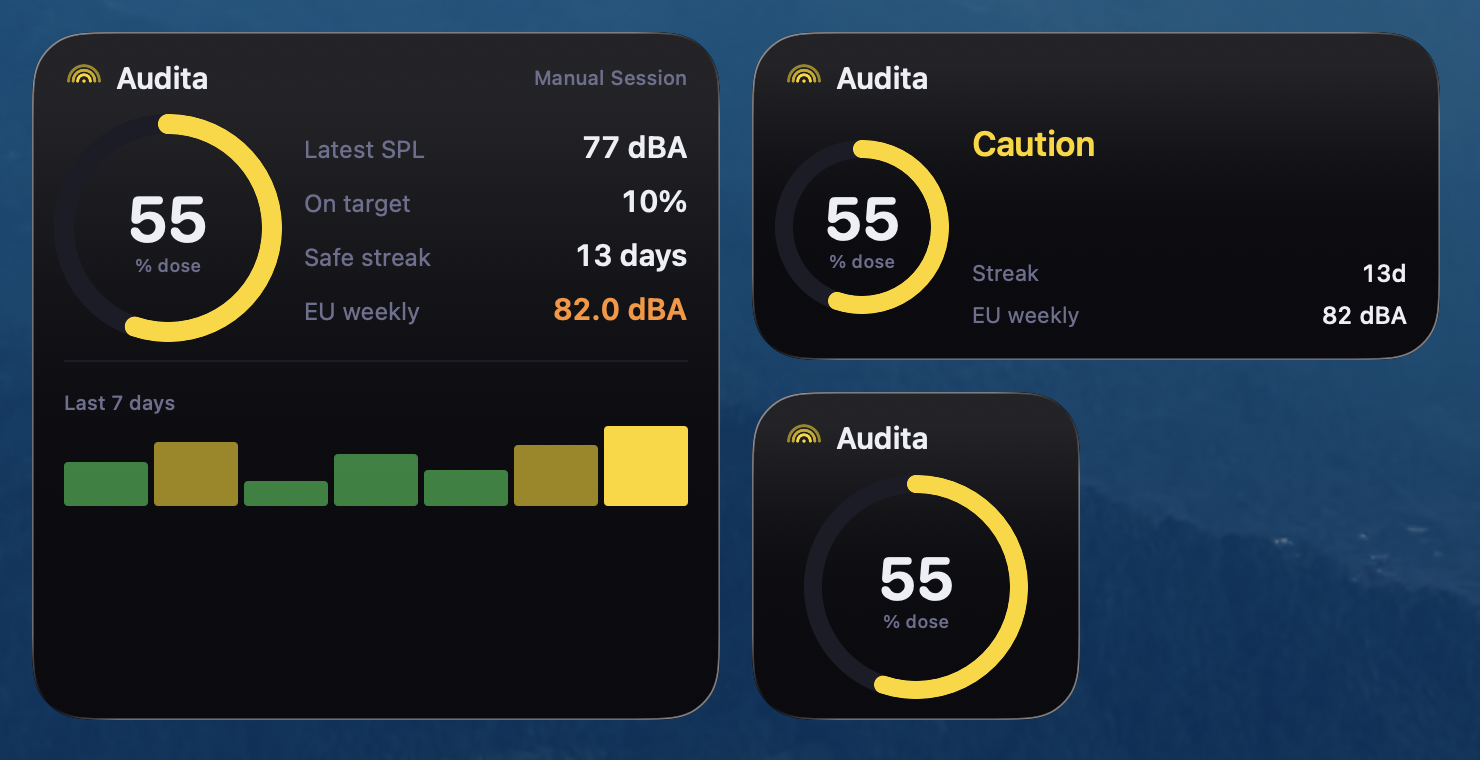
Widgets refresh when your dose tier changes colour, when a session starts or ends, at midnight, and on a light schedule while you are measuring. The system limits how often a widget can redraw, so the numbers move about once a minute rather than in real time. For a live reading, use the menu bar or the pinned panel.