The basics
What does Audita actually measure?
Audita reads audio from a microphone at your listening position and converts the signal to A-weighted sound pressure level (dBA) using a filter that models human hearing sensitivity. It samples 10 times per second. That single measurement chain feeds two things: a Monitoring Discipline tracker that classifies every reading against a target listening level you've calibrated to, and a NIOSH hearing dose counter that accumulates your daily exposure. At 85 dBA you have 8 hours of safe exposure; every 3 dB increase halves that time.
Audita also tracks C-weighted SPL in parallel for impulse peak monitoring. See A-weighting & C-weighting below for why.
Does Audita work with headphones?
No. Audita is a monitor-room tool. It measures the SPL arriving at a microphone placed at your listening position, which works for speakers but not for headphones.
What does the dose percentage mean in practice?
The dose percentage is how much of your safe daily hearing budget has been spent. The four states map to NIOSH dose thresholds:
| Dose | State | What to do |
|---|---|---|
| 0-40% | Safe | Well within limits - keep working |
| 40-70% | Caution | Consider turning down a few dB |
| 70-90% | Warning | Take a break or reduce level significantly |
| 90%+ | Over-exposed | Daily limit approaching - continued exposure risks permanent damage |
The dose resets at midnight.
My dose is stuck at 0%. Why?
No dose accumulates below 80 dBA - that's the NIOSH threshold below which continuous exposure isn't considered harmful. If you're working at a level below 80 dBA at your mic position, you're in the safe zone. Try speaking directly into the mic to confirm the measurement is working. If you're seeing readings consistently lower than expected, your calibration offset may need adjusting - see the Calibration section below.
How long can I safely work at different levels?
Every 3 dB increase halves your safe time. At 85 dBA you have 8 hours; below 80 dBA no dose accumulates at all. Most studio monitoring sits between 75 and 90 dBA - seemingly moderate, but over a 10-hour session the dose can accumulate faster than you'd expect. Full safe-duration table in the guide →
Is Audita a native Mac app?
Yes: Swift end to end. SwiftUI draws the views, AVAudioEngine runs the 10 Hz measurement chain, and the integrations are the system's own - seven App Intents, a Focus Filter, six desktop widgets, and the audita:// URL scheme.
Setup & Permissions
Why does Audita need Microphone permission?
Audita measures sound pressure level by reading audio from your chosen input device. macOS requires Microphone access for any app that reads from an audio input. The audio is processed entirely on-device in real time and is never recorded to disk or transmitted anywhere - only the derived numeric SPL values are retained.
How do I grant Microphone permission?
If Audita doesn't appear in the Microphone list, launch the app first - it will request permission on its own. If the prompt doesn't appear, add Audita manually with the + button in System Settings.
Which input device should I use?
For meaningful measurements, use a microphone positioned near your listening position - ideally 30-60 cm from where your ears sit while working. A small measurement mic or a decent USB condenser gives more reliable results than the built-in Mac microphone, though the built-in mic is fine for getting a rough sense of levels.
Select your preferred input in Settings → Audio. Audita remembers the selection by device UID, so it reconnects to the right mic automatically even after unplugging and replugging.
Which sample rates does Audita support?
Whatever the input device is set to. Audita opens the input at the device's current rate and rebuilds its A and C weighting filters for that rate, so 44.1, 48, 88.2, 96, 176.4, and 192 kHz all measure. Change the rate in Audio MIDI Setup or your interface's control panel while Audita is running and it picks up the new rate on its own. There is no maximum imposed by the app.
Audita 1.5 and earlier measured nothing at 88.2 kHz and above. Update to 1.5.1 or later.
Does Audita connect to the internet?
Three times, all of them on your initiative or on a schedule you can turn off: license validation with Lemon Squeezy, update checks against the Audita appcast, and the UMIK-1 calibration download when you type a serial number and press the button. Nothing else leaves your Mac. Audio is analysed in real time and never recorded, and no measurement, session, or dose figure is ever uploaded. Full privacy policy →
Calibration
Why does frequency response calibration matter?
A-weighted SPL is computed by applying a standardised filter to the incoming signal. That filter assumes the measurement chain - microphone, preamp, and analogue-to-digital converter - is frequency-neutral. In practice, no microphone is perfectly flat, and the deviation matters most at the extremes of the audible range. A capsule that rolls off at 100 Hz will underreport bass energy; one that has a presence peak at 10 kHz will read high-frequency content as louder than it is.
For occupational dose tracking, errors in the A-weighted reading translate directly into errors in the dose calculation. A systematic 3 dB underread means your reported dose could be half of the real value. Frequency response calibration applies a correction curve to the signal before A-weighting is computed, making the virtual measurement chain effectively flat. It should be done before level calibration - a correct level offset on top of a distorted frequency response still produces inaccurate readings.
How do I calibrate the frequency response?
Place the measurement mic at your listening position, then run Settings → Audio → Step 1 → Measure. Audita plays pink noise for ~4 seconds, captures the spectral shape, and derives a corrective FIR filter automatically. Full walkthrough in the guide →
A dedicated measurement mic (Behringer ECM8000, Superlux ECM999) gives the most accurate results. The built-in MacBook mic still benefits from correction but varies a lot between units.
My mic came with a calibration file. Can Audita use it?
Yes. Settings → Audio → Step 1 → Import Calibration File reads REW-style .cal, .txt, and .frd files, which is what miniDSP, Dayton, and most measurement-mic vendors ship. Audita shows what it found (data points, frequency span, serial number, sensitivity figure), then inverts the curve, limits it to ±9 dB, and applies it ahead of the A and C weighting filters. That replaces the pink-noise measurement.
The two paths describe different things. The manufacturer curve is anechoic data for the microphone alone, so it corrects the capsule. The pink-noise measurement captures your room, monitors, and mic together. Both are valid; the file is the better description of the microphone. A file-based correction also re-designs itself when your device runs at a different sample rate, where a measured one is only valid at the rate it was measured at.
I have a miniDSP UMIK-1. What's the fastest way to calibrate?
Plug it in and select it as the input. Step 1 then leads with the download: type the serial printed on the mic body (without the dash the label prints), pick the 0 degree variant if the mic points at your monitors, and Audita fetches that unit's factory file and opens the import sheet. Tick Set level calibration from the file and both Step 1 and Step 2 are done.
This works because the UMIK-1 is a USB mic with fixed gain: the Sens Factor line in its file maps digital level to real dB SPL with nothing left to measure. Expect the offset to sit well above the 94 dB default; that is correct. The conversion has been checked against the NIOSH SLM app. Keep the input volume at 100% for maximum headroom - if it sits lower, Audita adds the shortfall back in real time and shows the compensation.
Does that work with a UMIK-2, or an ECM8000 through my interface?
For frequency correction, yes: any of those cal files import the same way. For the absolute level, no. The automatic conversion is calibrated for the UMIK-1, so on a UMIK-2 set the level with Step 2. An analog mic runs through your interface's preamp, and the file has no way to know what gain you used, so Step 2 stays the level procedure there too.
Some analog files carry a Sensitivity X dBFS header, the level the mic produced at 94 dB SPL at whatever gain the file was measured at. Audita can use it as a starting point (off by default, and the sheet says why), but cross-check it against Step 2.
What does the calibration health card tell me?
It sits at the top of Settings → Audio and answers three questions: where your level calibration came from and which device it belongs to, whether the mic correction is really active (a measured correction can be silently bypassed when the engine runs at a different sample rate), and when the rig last passed a self-check. The same state appears as one line in the menu bar popover. A stale or broken calibration shows an orange warning instead of looking identical to a healthy one.
What is the rig self-check?
Settings → Audio → Run Self-Check plays pink noise through the selected output at your calibrated reference, measures it back through the mic, and reports the measured-versus-expected delta with a pass or fail against your calibration tolerance. Set the monitor to the calibrated knob position first; the card shows your note. On an Apollo output with Lyra installed, Audita can recall the matching reference slot for you before the noise starts.
A check verifies one chain: this mic into these monitors. Switch either end and the verification line reads unverified until you check that path too, and switching back to a rig you already verified reads verified again without re-running. Results age out after 90 days.
Why did my mic correction turn itself off after updating to 1.4?
The filter Step 1 derived was built from the wrong segment of the impulse response, so what got applied never matched the curve Settings displayed. The construction is fixed in 1.4 and now regression-tested against the displayed curve, but the filters stored by earlier versions cannot be salvaged, so they are disabled and Settings asks for one new Measure run. Your original measurement was valid; the stored filter was not. If your mic has a calibration file, importing it also clears the request.
My dose readings are higher since 1.4. Did something break?
The opposite. Dose used to accumulate from a display-smoothed level; it now uses the energy average of every sample captured between ticks, so loud transients contribute their real energy. Steady tones read the same as before. Real programme material with level swings was under-counted by roughly 20 to 35%, so a busier session now reads higher, and correct. Your calibration is unaffected, and past sessions keep the numbers they were recorded with.
Can I save a calibration and reuse it later?
Yes - Settings → Audio → Calibration Profiles saves the FIR correction + level offset as a named profile you can switch between in one click. Useful when you alternate between rigs (studio desk / mobile rig / second room). The Step 3 reference monitor record is keyed separately by output-device UID and isn't part of profiles. Detailed coverage in the guide →
Why is there a calibration offset?
Audita computes SPL from the digital signal level of your microphone. That digital level depends on two things: the microphone's sensitivity, and the input gain set on your interface or in System Settings → Sound. Both vary between setups, so the raw reading isn't tied to a real-world SPL value without calibration. The offset bridges that gap.
The default value of 94 dB corresponds to the IEC 60942 pistonphone standard - a calibration device that produces a known 94 dB tone at 1 kHz. In practice, virtually every setup will need a different offset, because your input gain almost certainly isn't set to match that reference. Treat the default as a starting point, not a correct value.
I don't have a pistonphone. How do I calibrate?
Use the free NIOSH Sound Level Meter on an iPhone as the reference. Place the iPhone at your listening position, play pink noise, and adjust Audita's calibration offset until the two readings agree to within 1-2 dB. NIOSH validate the app to ±2 dBA, which is plenty for setting a working offset. Step-by-step procedure in the guide →
Monitoring Discipline
What is Monitoring Discipline?
It's a measure of how consistently you actually monitor at your chosen reference level. Set a target (e.g. 79 dBA for K-14) and a tolerance band (e.g. ±3 dB), and Audita classifies every reading at 10 Hz as under, on-target, or over. The menu bar shows a live on-target % chip - green above 80%, yellow 60-80%, orange below - plus a three-segment under/on/over bar so you can see which way the room is leaning. Today's Summary aggregates the same metric across sessions, and per-session figures land in History next to the dose stats.
Why does this exist when you already track NIOSH dose?
NIOSH dose only starts accumulating above 80 dBA. If you mix at 75 dBA all day, your dose stays at 0% - useful for hearing safety, useless as a discipline metric. Monitoring Discipline works at any SPL, because the question it answers is different: not "have I damaged my ears today?" but "did I make decisions against a stable reference today, or against a moving one?" The two metrics complement each other.
Which target should I pick?
There are four industry presets to start from:
| Target | Use case |
|---|---|
| 73 dBA | Mastering - quiet critical listening, small rooms, late-night work |
| 79 dBA | K-14 - Bob Katz's general-purpose mixing reference |
| 83 dBA | K-12 - broadcast / loud-music mixing |
| 85 dBA | K-20 / Dolby / SMPTE - film, cinema, reference-loudness mix stages |
Or set a custom target between 60 and 95 dBA. The default (79 dBA / ±3 dB) is a sensible starting point for most studio mixing.
My on-target % drops when I take a break. Is that a bug?
No - and Audita guards against it. Periods of true silence (below a floor calculated from your target) are excluded from the on-target percentage entirely, so a coffee break doesn't deflate your score. The floor is the larger of target − tolerance − 12 dB or 50 dBA, which catches "the room went quiet" without catching "I'm mixing 6 dB under reference" - that still counts as under, because monitoring 6 dB low is a real discipline gap, not silence.
What are the monitoring alerts?
Two opt-in macOS notifications, both fire once per session:
Drift - your rolling 30-minute Leq has crept significantly above your session baseline. Useful for catching the slow upward creep that happens over a long mix without you noticing.
Off target - you've sustained a deviation from your reference target band. The level is consistently outside ±tolerance, not just briefly poking out for a transient.
Each category has its own 30-minute snooze. Silencing a drift alert doesn't muffle a dose alert.
Why does my on-target % show "-" early in a session?
The metric needs at least 30 seconds of active (non-silent) monitoring before it reports a percentage. Otherwise an early loud burst would peg the reading at 100% or 0% based on a tiny sample. Once you've crossed the 30-second threshold, the chip starts updating live.
A-weighting & C-weighting
Why does Audita show both dBA and dBC?
Human hearing is not equally sensitive at all frequencies. International standards define weighting curves that adjust measurements to reflect this. The two matter for different reasons:
A-weighting (dBA) models hearing sensitivity at moderate levels. It attenuates frequencies below 200 Hz (a 100 Hz tone measures about 19 dB lower than its physical level) and slightly boosts the 2-4 kHz range where hearing is most sensitive. This is the correct weighting for dose calculation because hearing damage from continuous exposure correlates with perceived loudness, not raw physical energy. NIOSH, OSHA, and EU Directive 2003/10/EC all mandate dBA for occupational dose.
C-weighting (dBC) is nearly flat from 31.5 Hz to 8 kHz - it only rolls off at the extremes. This makes it correct for measuring peak impulse levels. Impulsive sounds can cause mechanical damage to cochlear hair cells regardless of how loud they seem. A-weighting would underreport this risk because it de-emphasises the low-frequency content of many impulses. EU Directive 2003/10/EC specifically mandates C-weighted peak measurement (LCpeak) for exactly this reason.
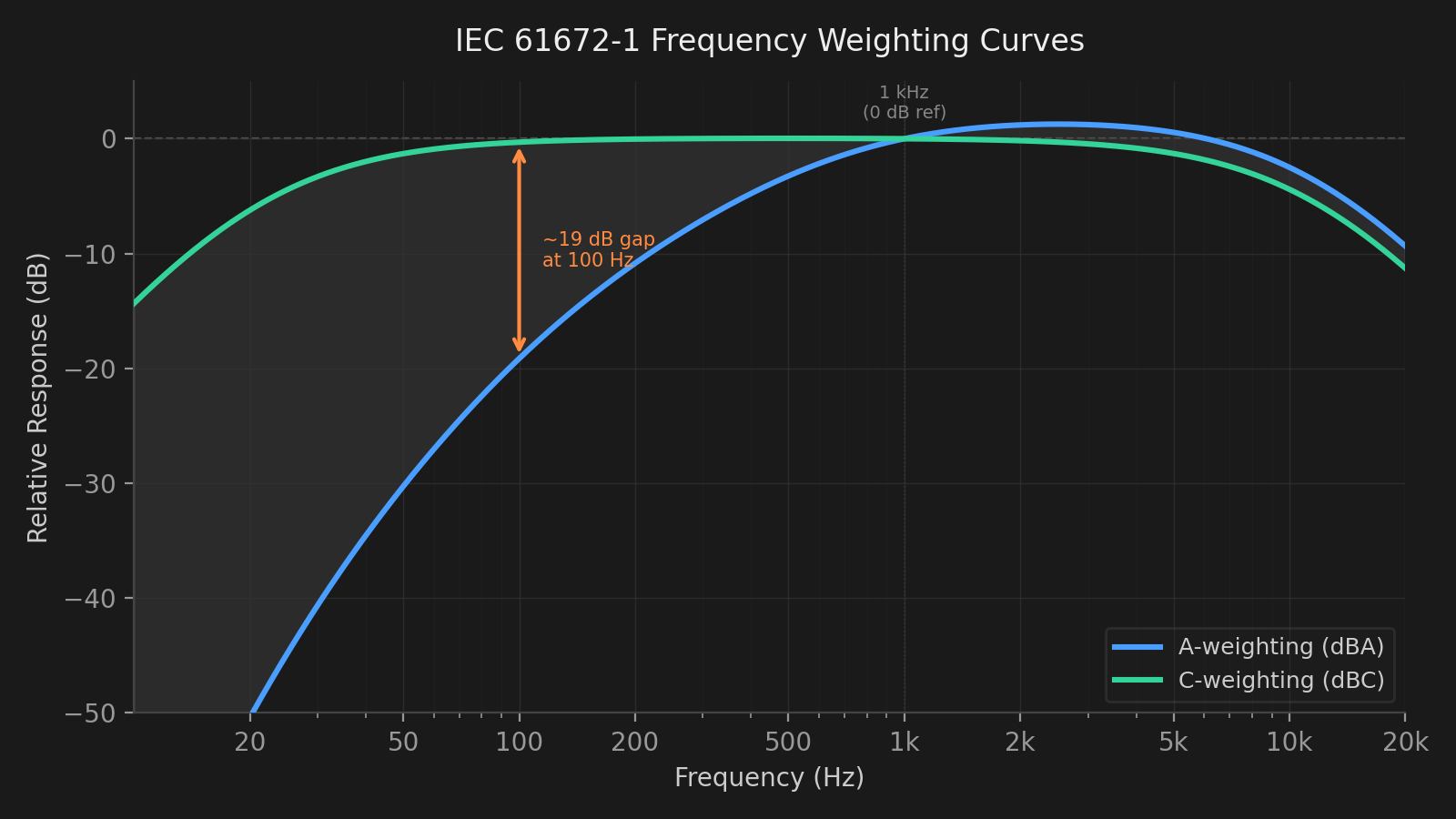
IEC 61672-1 A-weighting vs C-weighting. A-weighting de-emphasises bass; C-weighting stays flat. The gap between the two readings indicates how much low-frequency energy A-weighting is missing.
What does the dBC − dBA gap indicator mean?
When the C-weighted reading is significantly higher than the A-weighted reading, it means substantial low-frequency energy is present that A-weighting is filtering out. Audita shows a gap indicator in the menu bar popover:
Gap > 6 dB (caution): notable low-frequency content present. Gap > 10 dB (warning): significant bass energy that A-weighting alone would underreport.
This matters most when mixing bass-heavy music, working with subwoofers, or tracking heavy kick drums and sub-bass content. In these situations, A-weighting gives you a false sense of safety - you may feel like the levels are manageable while the physical energy reaching your ears is substantially higher.
What is Conservative dose mode?
Standard NIOSH dose uses A-weighted SPL only. But when the C-weighted level is significantly higher than the A-weighted level, the physical energy hitting your ears is greater than A-weighting alone suggests. Conservative mode uses max(dBA, dBC) for dose accumulation at each tick - whichever weighting gives the higher reading drives the calculation.
For mid-range content (speech, acoustic instruments), dBA ≈ dBC and behaviour is unchanged. For bass-heavy content, the C-weighted level will be higher and dose will accumulate faster - a more protective posture.
There is no formal NIOSH or OSHA standard for this approach. It's a maximum-protection option. Enable it in Settings → Safety.
Sessions & DAW detection
How does auto-session detection work?
A session starts when the first tracked DAW launches and ends when the last one quits - opening multiple DAWs at once keeps a single session running. Disable it (or switch to manual Start / End Session) in Settings → DAWs. More on the session lifecycle in the guide →
My DAW isn't being detected. What do I do?
First confirm that auto-session detection is enabled in Settings → DAWs. If your DAW isn't in the built-in list of 15, you can add its bundle ID manually. To find a DAW's bundle ID:
Why doesn't a session appear in history after I worked for a while?
Sessions with less than 0.1% dose are excluded from history - this filters out sessions where the microphone wasn't meaningfully active (e.g. you opened your DAW without playing audio at a measurable level). Make sure audio is actually playing through your monitors before starting a session, and that your calibration offset is correct so SPL readings are in the expected range.
How do I read the weekly chart?
The seven bars represent the last seven calendar days, oldest on the left, today on the right. Each bar height is normalised to the highest day - the tallest bar fills the available space, and shorter bars scale proportionally. The number above each bar is that day's total dose as a percentage of the daily limit. Bar colours follow the same Safe / Caution / Warning / Over-exposed thresholds used by the menu bar icon.
The Daily avg header is the arithmetic mean of all seven days' dose percentages - on a typical day this week, how much of your daily budget did you use?
The EU weekly header is the EU L_EX,w - the weekly noise exposure level from ISO 9612 and EU Directive 2003/10/EC, expressed in dBA and directly comparable to the 85 dBA daily criterion. Below 80 dBA is green; 80-85 dBA is orange; ≥ 85 dBA is red, meaning weekly exposure is unsustainable at that pace.
Does Audita have widgets?
Yes. Audita 1.3 adds six desktop widgets (macOS 14 and later): On Target (whether you're holding your reference level), Today's Dose, Latest SPL, Safe Streak, Weekly Exposure, and an Overview tile. Right-click the desktop or open Notification Center, choose Edit Widgets, and find Audita. They show the data Audita publishes, so they stay in step with the menu bar. They refresh about once a minute rather than in real time, because macOS limits how often a widget can redraw; for a live reading use the menu bar or floating panel. See the guide for details.
Peak monitoring
What are the peak impulse thresholds?
The thresholds come from EU Directive 2003/10/EC, which mandates C-weighted peak measurement for impulse monitoring:
| Threshold | EU action level | Meaning |
|---|---|---|
| 135 dBC | Lower action value | Hearing protection must be available |
| 137 dBC | Upper action value | Hearing protection must be worn |
| 140 dBC | Absolute ceiling | No exposure permitted |
These matter because transient sounds can cause mechanical damage to cochlear hair cells regardless of cumulative dose. Peak notifications are rate-limited to one per 30 seconds to avoid spam during intense sessions (e.g. drum tracking).
What is the 115 dBA instantaneous ceiling?
The 115 dBA limit is the maximum permissible instantaneous A-weighted level per EU Directive 2003/10/EC. Unlike the C-weighted LCpeak thresholds that target impulsive bass-heavy events, this limit applies to any sudden A-weighted spike. Audita counts the number of ticks in each session where this threshold is exceeded and shows a badge in the session history - even a count of 1 warrants attention, as this level is capable of causing immediate cochlear damage.
Leq & Ln statistics
What is Leq?
Leq (equivalent continuous level) is the energy-average of all sound levels measured over a given time window. It answers the question: what single steady level would carry the same total acoustic energy as the actual fluctuating signal? The formula is Leq = 10 · log₁₀(mean(10^(Lᵢ/10))), where each Lᵢ is an individual A-weighted SPL reading. Unlike an arithmetic average, Leq is dominated by the loud moments - a few loud seconds pull the Leq up significantly more than many quiet ones.
Audita shows Leq over three rolling windows: 1 minute, 10 minutes, and 30 minutes. These update live in the menu bar panel.
How does Leq relate to the dose percentage?
Your dose is computed using the same energy-averaging formula, but applied across the whole day. The Leq windows give you a shorter-term view of the same thing - Leq(1 min) shows the level of the last minute, Leq(10 min) of the last ten minutes, and so on. If Leq(10 min) is consistently above 85 dBA, your dose is accumulating faster than the NIOSH 8-hour limit.
What are L10, L50, and L90?
L10, L50, and L90 are statistical percentile levels computed over the last 30 minutes of A-weighted SPL readings. They describe the distribution of levels in a session, not just the average.
L10 is the level exceeded 10% of the time - it captures your loud peaks. If L10 is high, you're spending meaningful time at elevated levels.
L50 is the median level - exceeded exactly 50% of the time. This is your typical working level.
L90 is the level exceeded 90% of the time - it represents the background noise floor of your room. If L90 is already at 60-65 dBA, that's a significant constant exposure even before you play anything.
A healthy session has a clear gap between L10 and L90, indicating dynamic range. When all three values are close together, the environment is consistently loud without much variation.
Why do the Leq windows show "-" when I first start?
Leq(1 min) needs 1 minute of data, Leq(10 min) needs 10 minutes, and Leq(30 min) / Ln percentiles need 30 minutes. The display shows a dash until the required window is filled. This is intentional - showing an estimate from only a few seconds of data would be misleading.
Standards
Why NIOSH and not OSHA?
Both are US occupational noise standards, but NIOSH is more protective. OSHA uses a 5 dB exchange rate and a 90 dBA criterion level - parameters designed for heavy industry decades ago. NIOSH uses a 3 dB exchange rate and an 85 dBA criterion, which aligns with current audiological research and is the basis for EU Directive 2003/10/EC. For audio professionals who sit at moderate-to-high levels for long stretches, NIOSH is the right standard to use.
Is Audita a replacement for a professional sound level meter?
No. Audita gives useful, science-based awareness of your exposure levels during everyday work - and that awareness alone can meaningfully reduce long-term risk. A calibrated, certified sound level meter (IEC 61672 Class 1 or 2) is required for formal occupational health compliance assessments. Treat Audita as a practical daily monitoring tool, not a regulatory instrument.
Companion apps
Does Audita work with Lyra?
Yes. Lyra is our keyboard-driven volume control for Universal Audio Apollo interfaces. After running Audita's target-level calibration in Settings → Audio, click "Send to Lyra…" - Audita hands the position to Lyra by writing the live Apollo monitor level into one of three reference slots, tagged with the name and dB SPL value you picked. Recall the position later with Ctrl+F10 / F11 / F12 in Lyra. The slot displays as e.g. "Mix - 85 dB SPL" in Lyra's menu and HUD instead of a generic percentage.
The integration uses Lyra's lyra://reference/{n}/save URL scheme, so even if Lyra is closed, macOS launches it on demand. Requires Lyra 1.4 or later. If Lyra isn't installed, Audita shows a small link to the product page in place of the button - no nags or interruptions.
Troubleshooting
Notifications aren't appearing.
Check System Settings → Notifications → Audita. If Audita isn't listed, relaunch the app - it requests notification permission on every launch. Make sure the alert style is set to Alerts or Banners, not None. If they disappeared after an update, reset permissions and re-grant them:
Relaunch Audita and grant notification permission when prompted.
The Sparkle update prompt isn't appearing.
Sparkle caches its "already checked" state. To force a fresh check:
Relaunch Audita, then use menu → Check for Updates…