Lyra · User Guide
Lyra, key by key.
Lyra maps F10 / F11 / F12 to the monitor volume of a Universal Audio Apollo. This page covers all of it: setup, the menu, shortcuts, reference levels, pairing, widgets, troubleshooting. The full lyra:// URL scheme reference lives on a separate page.
1. Quick start #
- Connect your Apollo and make sure UA Console (or just UA Mixer Engine) is installed.
- Launch Lyra. Grant Accessibility permission when prompted - Lyra needs it to intercept F10 / F11 / F12 globally.
- Once the menu shows "Connected: <your Apollo>", press F12 / F11 / F10 to raise / lower / mute monitor volume.
- Add modifiers for more: ⇧ for fine steps, ⇧F10 for DIM, ⌥F10 for Mono, ⌃F10/⌃F11/⌃F12 to jump to a saved Reference Level.
That's the whole app. Everything below is detail.
2. First launch & Accessibility permission #
Lyra intercepts F10 / F11 / F12 globally using a CGEventTap. This is the same mechanism macOS itself uses to handle media keys, and it requires Accessibility permission.
On first launch:
- Lyra shows the macOS system Accessibility dialog. Click Open System Settings.
- In System Settings → Privacy & Security → Accessibility, find Lyra in the list and toggle it on.
- If Lyra isn't in the list yet, click + at the bottom and add it from
/Applications. - Relaunch Lyra after enabling the toggle.
Lyra polls the permission state in the background, so it will start the key handler the moment you grant access - no second relaunch required after the first.
Resetting Accessibility for testing
If the system gets into a weird state (rare, but possible after reinstalls), clear the TCC entry:
tccutil reset Accessibility com.headroom.LyraThen relaunch Lyra to re-trigger the prompt.
What about all my keystrokes?
Lyra only reads three keys (NX_KEYTYPE_MUTE, NX_KEYTYPE_SOUND_DOWN, NX_KEYTYPE_SOUND_UP) - the system-defined media-key events. It does not log, store, or forward anything. It also stops intercepting whenever your Apollo isn't reachable, so when the interface is unplugged your F-keys behave like normal volume keys again.
4. The dropdown menu #
Click the icon to open the menu. Sections, top to bottom:
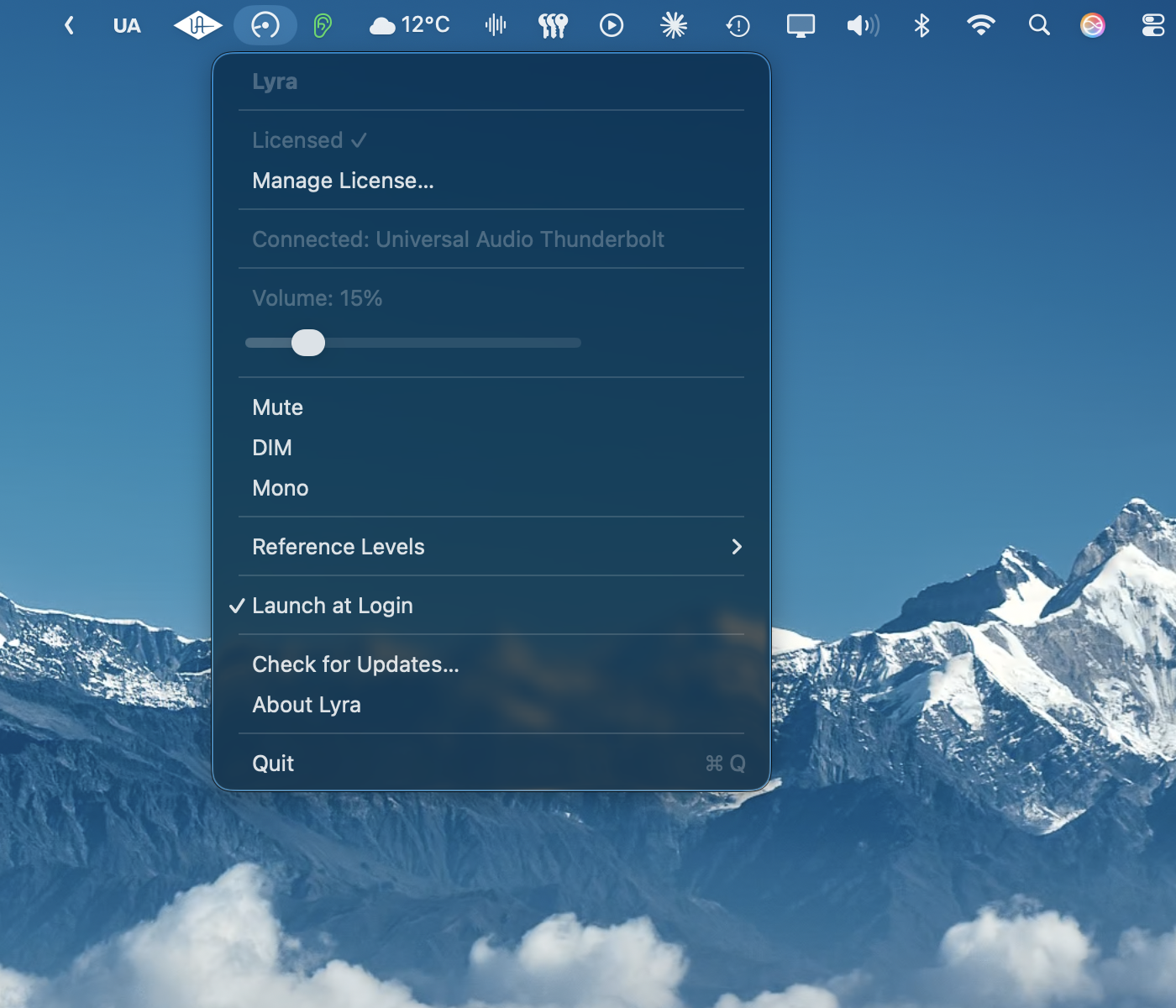
License status
"Licensed ✓", "Trial - N days left", or "Trial expired". Hover for a tooltip.
Buy Lyra - $9.99
Visible until you activate a license. Click to open the Lemon Squeezy checkout.
Enter License Key… / Manage License…
Opens the license window in entry or management mode depending on whether you're licensed.
Device status
Three possible states:
- "No compatible interface detected" - no Apollo on the system right now.
- "<name> - UA Mixer not running" - Apollo is plugged in via Thunderbolt, but the daemon isn't reachable. A Start UA Mixer Engine action appears below - click it to start the daemon (see UA Mixer Engine).
- "Connected: <name>": Apollo present, Mixer Engine reachable. Lyra is fully active. While ALT speakers are playing, the name ends in · ALT 1 or · ALT 2.
Volume label & slider
The slider mirrors the Apollo's tapered 0.0-1.0 monitor level. Drag it for direct control; the percentage updates as you go. Shows "Volume: Muted" when mute is engaged, "Volume: N% - DIM" when DIM is engaged.
Mute / DIM / Mono
Three toggles with checkmarks. DIM uses the Apollo's hardware DIM (attenuation amount is whatever you've configured in UA Console - typically −20 dB). Mono uses MixToMono - sums L+R for mono-compatibility checks.
Speakers
Appears on Apollos with ALT speaker outputs. Main, ALT 1 and (on rack Apollos) ALT 2, with a checkmark on the speakers playing now and their ⌃⌥1 / ⌃⌥2 / ⌃⌥3 shortcuts. If ALT is turned off in UA Console, the section reads ALT speakers off and shows where to turn it on. Interfaces without ALT outputs (Apollo Solo, Arrow) don't show the section at all. See ALT speakers.
Reference Levels submenu
Nine items: three jump actions (with their Ctrl+F-key shortcuts shown inline), three "Save current as…" actions, three "Rename…" actions. With ALT speakers on, each speaker set gets its own three slots under a heading, and Save and Rename act on the speakers playing now. See Reference Levels for the full workflow.
Pass F-Keys to macOS
Toggle. While checked, F10 / F11 / F12 go to macOS and control the system output device, the way they would without Lyra. The connection, menu and slider keep working; only the keys are handed back. Useful when you want to adjust a different output for a moment, or to compare Lyra's volume pill with the system one side by side. Resets to off when Lyra relaunches.
Launch at Login
Toggle. Registers Lyra via SMAppService (macOS 13+). Reflects the live system state - if you flip it in System Settings, the checkmark in Lyra's menu follows.
Settings…
Opens Lyra's Settings window (also available via Cmd+,). Holds the v1.6 Automation toggles plus General prefs (HUD on/off and style, volume step).
Check for Updates… / About Lyra / Quit
Sparkle update check, About window, and quit.
5. Keyboard shortcuts #
All shortcuts work globally and are intercepted before any other app sees them - but only when Mixer Engine is reachable. When it isn't, the F-keys fall through to whatever the system would otherwise do (usually nothing on a UA-only setup).
| Shortcut | Action |
|---|---|
| F12 | Volume up - one step |
| F11 | Volume down - one step |
| F10 | Mute / Unmute |
| ⇧F12 | Volume up - fine step (½) |
| ⇧F11 | Volume down - fine step (½) |
| ⇧F10 | DIM - toggle Apollo hardware DIM |
| ⌥F10 | Mono - toggle L+R sum to mono |
| ⌃F10 | Jump to Reference Level slot 1 |
| ⌃F11 | Jump to Reference Level slot 2 |
| ⌃F12 | Jump to Reference Level slot 3 |
| ⌃⌥F10 / F11 / F12 | Jump to ALT 1's slot 1 / 2 / 3 (switches to ALT 1) |
| ⌃⌥⇧F10 / F11 / F12 | Jump to ALT 2's slot 1 / 2 / 3 (switches to ALT 2) |
| ⌃⌥§ | Next speakers: Main, ALT 1, ALT 2 (the key left of 1; ⌃⌥` on US keyboards) |
| ⌃⌥1 / 2 / 3 | Main / ALT 1 / ALT 2 speakers |
The last four rows need ALT speakers turned on in UA Console. Without them, ⌃⌥ and ⌃⌥⇧ with F10 to F12 jump to the Main slots, and ⌃⌥ with § or a digit stays with whatever app you're in. Lyra claims those keys only while ALT is on and the Mixer Engine is connected.
Handing the keys back
Pass F-Keys to macOS in the menu lets the three keys reach the system output device again until you uncheck it. Lyra also steps aside automatically whenever UA Mixer Engine is not reachable.
About the step size
Lyra uses a default step of 1/16 of full range (~6.25%). Shift halves it to ~3.125% for fine adjustments - the same pattern macOS uses for built-in volume keys.
About the Fn key
Depending on your macOS keyboard settings, you may need to hold Fn to send F10/F11/F12 as F-keys (rather than the secondary brightness/expose actions printed on the keys). Change this in System Settings → Keyboard → Function Keys, or use Fn as a permanent modifier.
Ctrl wins
Ctrl+F-keys always do a Reference Level jump, even if Shift or Option are also held. This lets you hold Ctrl from a prior chord and the jump still works. With ALT speakers on, Option and Shift choose which speakers' slots.
6. Volume HUD #
Whenever the monitor level changes - from F-keys, the menu slider, the Apollo's hardware knob, UA Console, or a lyra:// URL - Lyra shows a small horizontal pill just below its menu bar icon.
Two styles (macOS 26 and later; Settings → General → HUD style):
- System style (default). The same shape as the macOS volume control: a clear-glass capsule with the connected Apollo's name on the first line and a tick-marked level slider below it. The glass takes its colour from the wallpaper behind it, in Light and Dark mode alike. When you jump to a Reference Level, the name line shows the slot name (e.g. "Mix") or the calibrated label (e.g. "Mix - 85 dB SPL") instead of the device name and the pill stays up longer so you can read it. The label sticks for ~2.5 seconds and clears immediately if you turn the knob to a different position. While the pill is up, Lyra's menu bar icon is highlighted the way the Sound item is.
- Compact pill. The single-row pill from earlier versions: speaker glyph and level bar in dark glass, growing to fit a Reference Level name. On macOS 12 to 15 this is the only style.




Both styles tint the level bar amber while DIM is active and dim it while muted.
Disabling the HUD
As of v1.6, the HUD has an in-app toggle in Settings → General → Show volume HUD overlay. Flip it off and the pill stops appearing immediately.
On v1.5 and earlier, set the showHUD UserDefault and restart Lyra:
defaults write com.headroom.Lyra showHUD -bool falseSet it back to true (or delete the key with defaults delete com.headroom.Lyra showHUD) to re-enable.
7. Reference Levels #
Lyra has three monitor presets, each stored as a tapered position (0.0-1.0) plus a user-renamable name. Defaults are Quiet (25%), Mix (50%), Loud (75%).
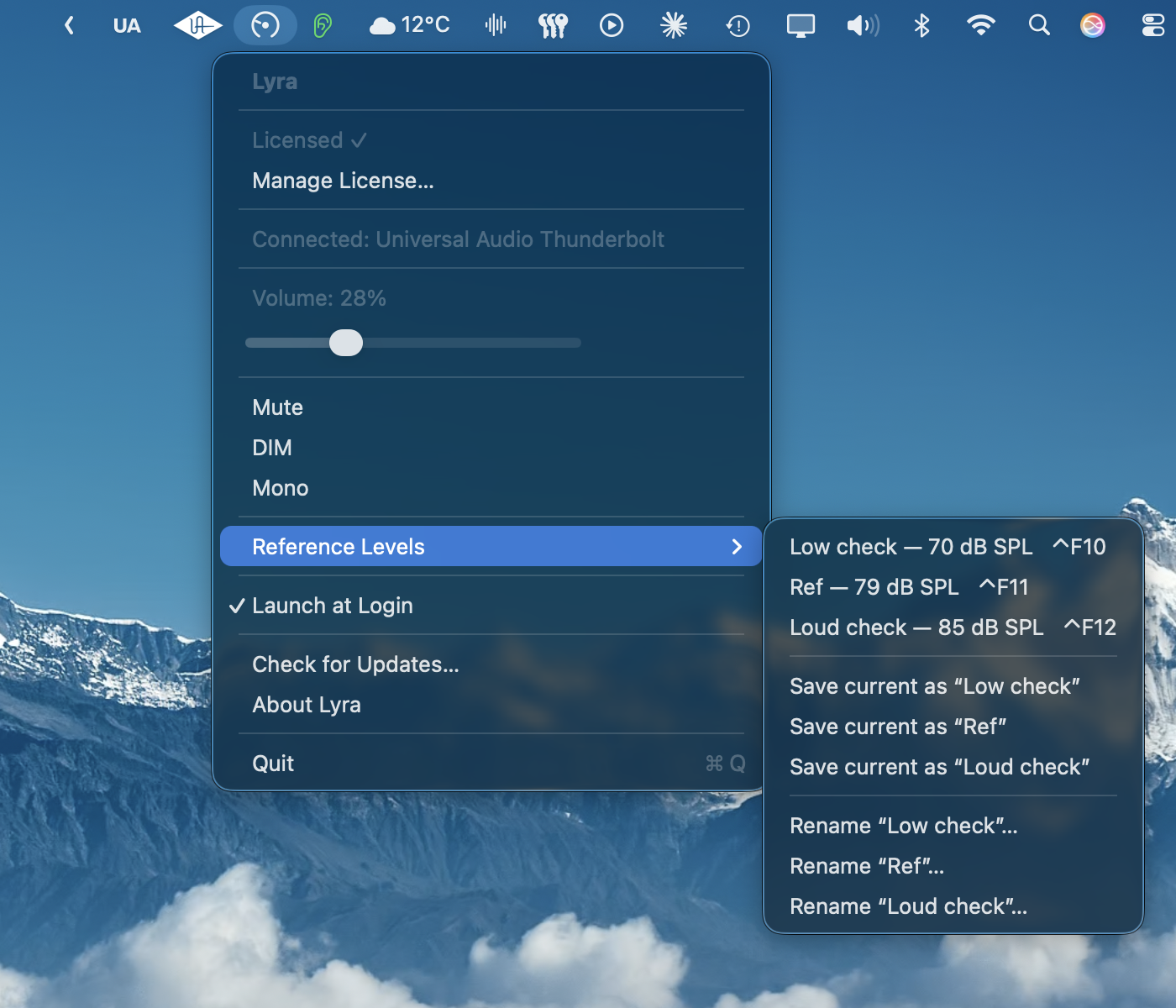
Jumping to a slot
Three ways:
- Keyboard: ⌃F10 → slot 1 · ⌃F11 → slot 2 · ⌃F12 → slot 3.
- Menu: Reference Levels submenu → click the slot's name.
- URL:
open lyra://reference/2(slots are 1-indexed in URLs).
Jumping is a one-shot - Lyra writes the stored tapered value straight to the Apollo's CRMonitorLevelTapered, the same parameter the hardware knob and Console's monitor section read. No ramping, no faders, no smoothing. The HUD pops up with the slot's name (or calibrated label) for ~2.5 seconds.
A checkmark appears on the jump item whenever the current live volume matches the slot's stored value (within ~0.5%). So if you turn the knob to exactly Mix, the menu shows Mix as checked.
Saving the current position to a slot
Adjust the monitor to where you want it (knob, F-keys, slider - anything works), then Reference Levels → Save current as "<slot name>". The slot now stores that exact tapered position; the next Ctrl+F-key jump will land there.
Calibration data is cleared on overwrite. If the slot previously had a measured dB SPL value attached (from Audita - see below), manually saving over it clears the SPL value, because the prior measurement was tied to the old level and no longer applies. The menu and HUD revert to showing a percentage until you re-calibrate.
Renaming a slot
Reference Levels → Rename "<slot name>"… opens a small modal with a text field. Keep it short - names appear in the menu and the HUD pill. Common names: K-14, K-20, Mix, Quiet, Cinema, Late night, 79 dB.
Cycling
lyra://reference/cycle advances to the next slot in order (1 → 2 → 3 → 1). Useful for a single Stream Deck button or a Shortcut that toggles between presets. With ALT speakers on, it cycles the slots of the speakers playing now.
8. ALT speakers #
Apollos with ALT monitor outputs can switch the monitor bus between your Main speakers and one or two alternate pairs: ALT 1 on the Twin family, ALT 1 and ALT 2 on the rack Apollos. Lyra reads how many your interface has, switches between them, and keeps a separate set of Reference Levels for each pair.
Turning ALT on
ALT outputs are off until you set them up in UA Console: Settings → Hardware → ALT Count. Lyra picks up the change while it runs. Until then the Speakers section of Lyra's menu reads ALT speakers off with the same hint.
Switching speakers
- Menu: Speakers → Main / ALT 1 / ALT 2.
- Keyboard: ⌃⌥1 Main, ⌃⌥2 ALT 1, ⌃⌥3 ALT 2. ⌃⌥§ (the key left of 1; ⌃⌥` on US keyboards) steps to the next pair.
- URL:
lyra://alt/toggle,lyra://alt/set?speakers=1. - Shortcuts: Switch Speakers, Cycle Speakers.
- Widgets: the speaker button on Monitor Toggles and Control Panel.
Switching in UA Console, or with the Apollo's front-panel ALT button where it has one, shows up in Lyra too. Every switch pops the HUD with the device name and the pair, e.g. Apollo Twin X · ALT 1, and the menu bar icon carries a small 1 or 2 while an ALT pair is playing.

The monitor level, Mute, DIM and Mono follow whichever pair is playing, the same as the Apollo's own knob. Each ALT pair's trim (±30 dB) stays in UA Console.
Reference Levels per speaker set
Each pair has its own three slots:
| Keys | Slots |
|---|---|
| ⌃F10 / ⌃F11 / ⌃F12 | Main slots 1 / 2 / 3 |
| ⌃⌥F10 / ⌃⌥F11 / ⌃⌥F12 | ALT 1 slots 1 / 2 / 3 |
| ⌃⌥⇧F10 / ⌃⌥⇧F11 / ⌃⌥⇧F12 | ALT 2 slots 1 / 2 / 3 |
The HUD names an ALT slot with its pair, e.g. Quiet · ALT 1; Main slots show the slot name alone. Recalling another pair's slot switches to those speakers and sets the level in one step. When the new level is lower, Lyra lowers the level before switching; when it's higher, it switches first. No pair ever plays above its own starting or target level.

Save current as… and Rename… in the menu act on the pair playing now. Your existing slots become the Main slots. ALT slots start at Quiet / Mix / Loud.
9. Audita pairing - calibrated dB SPL slots #
Audita is the Headroom SPL meter for macOS. After running Audita's target-level calibration - speaker at known distance, pink noise at known level, measure with the meter - Audita knows what dB SPL your monitor system produces at any given monitor knob position.
Click "Send to Lyra…" in Audita to write that calibrated level into one of Lyra's three slots. Audita opens a sheet:
- Slot picker - 1, 2, or 3 (Ctrl+F10 / F11 / F12 respectively).
- Name - defaults from Audita's K-System target (e.g. K-14 = 79 dBA → "K-14"). Edit freely.
- SPL readout - read-only, the value about to be stored.
When you confirm, Audita fires lyra://reference/{n}/save?name=…&dBSPL=… and Lyra:
- Reads the live Apollo monitor level (so the slot reflects exactly what Audita just measured against).
- Stores tapered + name + dBSPL together.
- Pops the labeled HUD as confirmation -
Mix - 85 dB SPL.
From that point on, the slot displays as Mix - 85 dB SPL in:
- The menu (
Mix - 85 dB SPL ⌃F11) - The HUD pill on every Ctrl+F-key jump
- Anywhere else the slot's display label is used
The dB SPL value is metadata - Lyra doesn't re-measure or verify it. It's the number you actually think in once your room is calibrated. If you change anything in the signal chain (different speaker, different distance, different room treatment), re-run Audita and re-send the slot.
On ALT speakers, a slot sent from Audita goes to the slots of the pair playing now, because that's the pair Audita measured. Calibrate each pair on its own.
Don't have Audita? The slot still works - it just shows a percentage instead of a measured dB SPL value. Audita is the calibration layer; Lyra is the recall layer.
10. URL scheme (lyra://) #
Lyra registers a custom lyra:// URL scheme so any tool that can fire a URL can drive it - Stream Deck, Keyboard Maestro, Apple Shortcuts, BetterTouchTool, AppleScript, open from the shell, other apps (Audita).
Try it from Terminal:
open "lyra://reference/2"
open "lyra://volume/set?tapered=0.4"
open "lyra://mute/toggle"
Unknown URLs are logged to the console and silently ignored - they won't crash or interrupt anything.
Reference Levels
| URL | What it does |
|---|---|
lyra://reference/1 | Jump to slot 1 |
lyra://reference/2 | Jump to slot 2 |
lyra://reference/3 | Jump to slot 3 |
lyra://reference/cycle | Advance to the next slot |
lyra://reference/{1|2|3}/save?name=Mix&dBSPL=85 | Write a slot. Lyra reads the live Apollo level for the tapered value. dBSPL optional. |
lyra://reference/{n}/save?name=Mix&dBSPL=85&tapered=0.5 | Same, but with an explicit tapered override. |
save is the URL Audita uses; you can use it from your own scripts too. If you omit name, the slot's existing name is kept. If you omit dBSPL, any existing calibration value on the slot is preserved (only an explicit value will replace it - URLs can't clear calibration).
ALT speakers. Without speakers, a jump or a save uses the slots of the pair playing now and never switches speakers. Add speakers=main, speakers=1 or speakers=2 to name the pair: lyra://reference/2?speakers=1 jumps to ALT 1's slot 2 and switches to ALT 1. A save with speakers writes that pair's slot without switching.
ALT speakers
| URL | What it does |
|---|---|
lyra://alt/toggle | Next speakers: Main, ALT 1, ALT 2 (same as ⌃⌥§) |
lyra://alt/set?speakers=main | Main speakers. Also speakers=1 (ALT 1) and speakers=2 (ALT 2). |
Both reply with speakers and alt_available. If the interface has no ALT outputs, or the pair is off in UA Console, they fail with error_code=unsupported and a message saying where to turn it on.
Volume
| URL | What it does |
|---|---|
lyra://volume/set?tapered=0.5 | Set absolute level. tapered is 0.0-1.0 - same scale as CRMonitorLevelTapered. |
lyra://volume/up | Step up one full step (default 1/16). |
lyra://volume/up?fine=1 | Step up by half - Shift equivalent. |
lyra://volume/down | Step down one full step. |
lyra://volume/down?fine=1 | Step down by half. |
Toggles
| URL | What it does |
|---|---|
lyra://mute/toggle | Toggle mute (same as F10) |
lyra://dim/toggle | Toggle DIM (same as Shift+F10) |
lyra://mono/toggle | Toggle Mono (same as Option+F10) |
All action URLs require Lyra to be running and your Apollo to be reachable (Mixer Engine connected). If the Mixer Engine isn't up, volume / toggle URLs are silently dropped - Lyra never queues or replays them. Pass x-error=… (see below) if you want a structured failure callback instead of a silent drop.
Reads (v1.5)
Three endpoints return live state via the x-success callback. They have no effect on their own - they only fire when the caller supplies an x-success URL.
| URL | Returns (appended to x-success) |
|---|---|
lyra://volume/get?x-success=… | tapered, db |
lyra://reference/current?x-success=… | slot (1-3), slot_name, slot_tapered, slot_dbspl if calibrated. Slot keys are absent when no slot matches the live volume. Also speakers (main, 1, 2) and alt_available; slots are those of the pair playing now. |
lyra://state?x-success=… | All of the above, plus muted, dim, mono, mixer_connected, device_connected, device_name, volume_step. |
db may be absent for a fraction of a second on first launch - Lyra waits for the first CRMonitorLevel push from the Apollo before it can answer. After that it stays in sync with the hardware knob.
x-callback-url (v1.5)
Any endpoint - read or action - accepts two optional callback URLs so you can chain Lyra into a wider workflow (Shortcuts, Drafts, Stream Deck multi-actions, …):
| Param | Fires when |
|---|---|
x-success | The endpoint completed. Returned values are appended to this URL as query items. Action endpoints also append result=ok plus a small status object (e.g. muted=true). |
x-error | The endpoint failed. Lyra appends error_code and error_message. Common codes: mixer_disconnected, invalid_slot, invalid_argument, device_not_found, unknown_endpoint, unsupported (the interface lacks the feature, e.g. ALT speakers). |
Example - chain "set volume to 0.4 and then run a Raycast script":
lyra://volume/set?tapered=0.4&x-success=raycast://script/run?id=announce-mixAfter Lyra finishes the set, it opens:
raycast://script/run?id=announce-mix&db=-12.34&result=ok&tapered=0.4000(Lyra appends its return params to whatever was already in your x-success URL.)
Example - read the current state and feed it into a Shortcut:
lyra://state?x-success=shortcuts://run-shortcut?name=LogMonitorThe Shortcut receives the full state dictionary as URL query items - use Get value from URL for each key.
The full URL reference - every endpoint, every return field, worked examples for Shortcuts, Stream Deck, Keyboard Maestro and AppleScript - lives on the API reference page.
11. Shortcuts, Siri & Focus Filters (App Intents) #
On macOS 13 (Ventura) and later, Lyra exposes an App Intents bundle: thirteen intents covering every action you can drive from the URL scheme, plus structured reads. They show up in the macOS Shortcuts app, in Spotlight (pre-wired App Shortcuts for the most-used ones), in Siri (via a named Shortcut), and in Focus Filters (e.g. switch to reference slot 2 when Mixing Focus engages).
On macOS 12 (Monterey), Lyra runs identically except this section is hidden. The Shortcuts integration requires macOS 13+ because App Intents itself does.
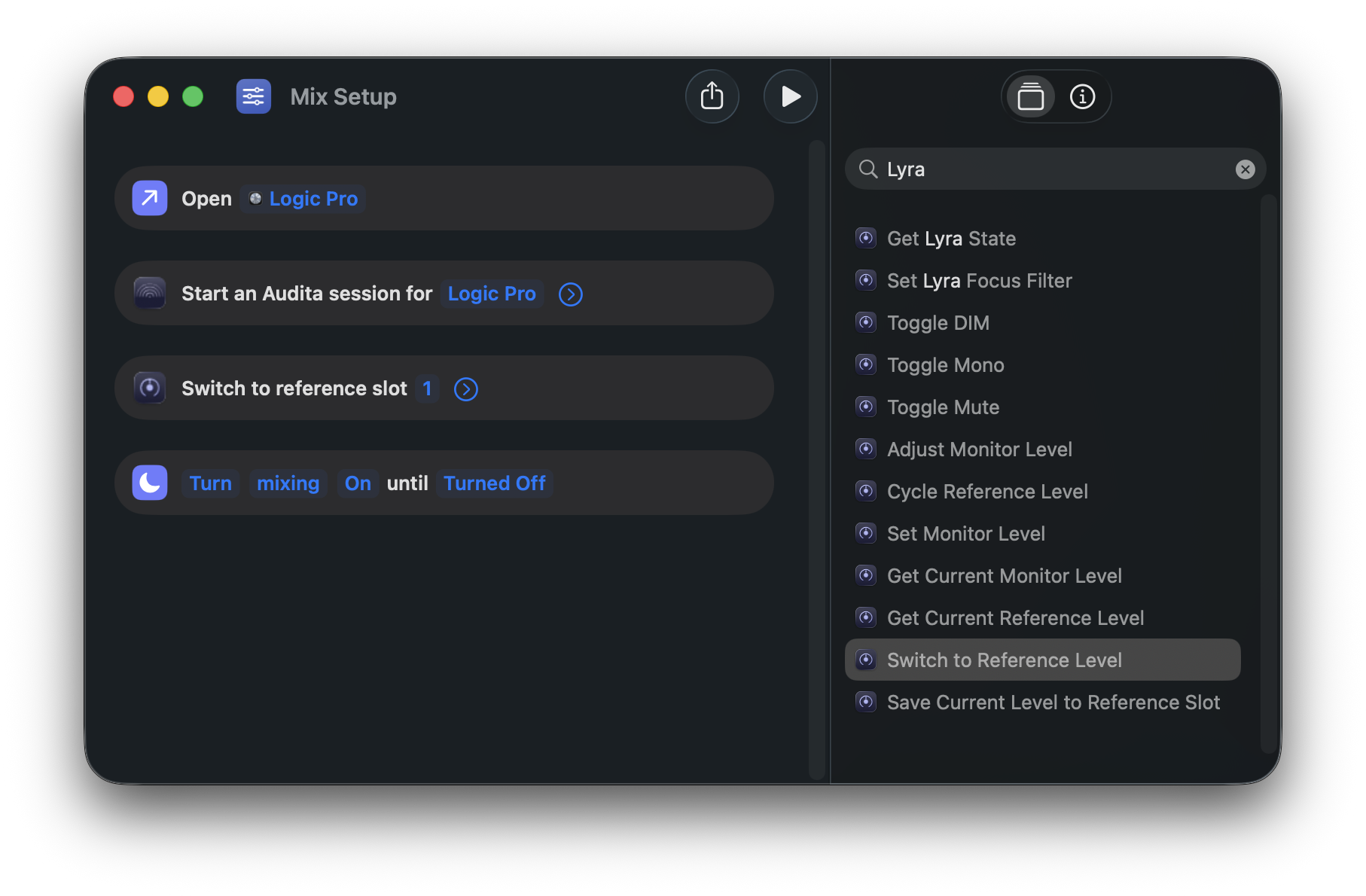
The full reference - all thirteen intents with parameters and return values, the App Shortcuts list, the Siri-via-named-Shortcut workflow, and the Focus Filter setup - lives in the Automation API reference.
12. Widgets #
Lyra ships four interactive widgets in the macOS widget gallery (v1.6+). Open Notification Centre (click the date/time, or swipe right with two fingers from the right edge of the trackpad), scroll to the bottom, click Edit Widgets, and search for Lyra.
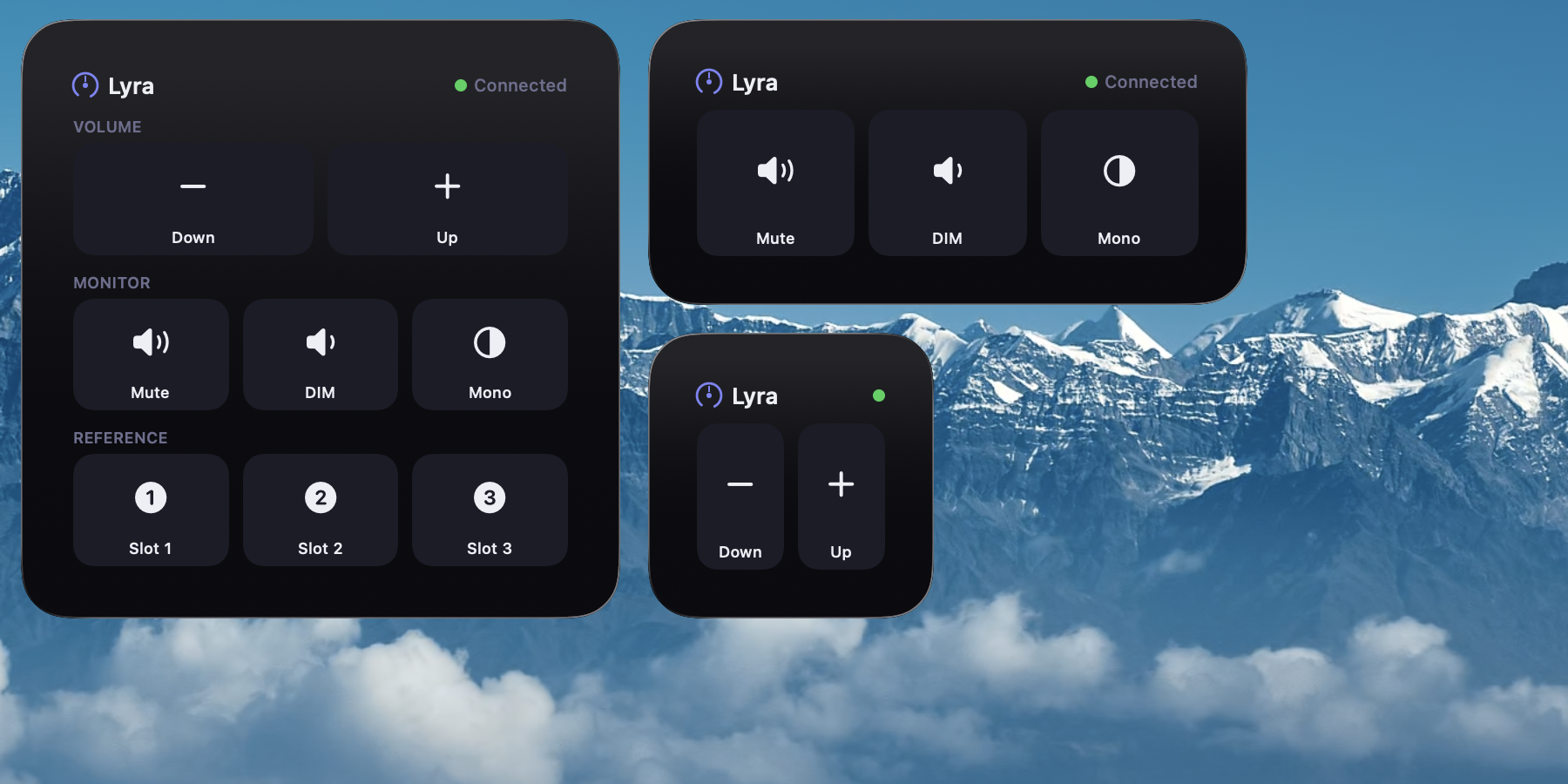
Lyra's widgets on the desktop - the Control Panel (left), plus the Monitor Toggles and Volume widgets.
| Widget | Buttons | Sizes |
|---|---|---|
| Lyra - Control Panel | Volume, Mute / DIM / Mono (+ Speakers), Slots 1-3 (all in one) | Large |
| Lyra - Monitor Toggles | Mute, DIM, Mono (+ Speakers) | Medium |
| Lyra - Volume | Volume down, Volume up | Small or Medium |
| Lyra - Reference Levels | Slot 1, Slot 2, Slot 3 | Medium |
Every widget carries a small Lyra header - the menu-bar knob mark, the "Lyra" wordmark, and a live connection dot (green when the Mixer Engine is reachable, red when it isn't). The small Volume widget shows the dot alone to save space; the larger widgets add a "Connected" / "Offline" label.
Each tap fires the matching lyra:// URL, so the actual action runs in Lyra's main process. Lyra has to be running - it's a menu bar app, so just having it launched is enough, no window needed.
The widgets reflect live state: the Mute and Mono buttons fill with the accent colour when active, the Reference Levels widget highlights the slot you're currently on, and every button dims when Lyra isn't connected to the Mixer Engine. State updates a moment after each tap, once the Apollo echoes the change back to Lyra.
With ALT speakers on in UA Console, Monitor Toggles and Control Panel add a Speakers button that shows the pair playing now and steps to the next one. The slot buttons then recall the slots of the pair playing now.
Volume buttons step by Lyra's Volume step preference (set in Settings), the same as F11 / F12. Reference slot buttons honour your stored slot names and dB SPL calibrations exactly like the menu's Reference Levels submenu.
macOS 14+ required. The widgets use interactive buttons that aren't available on earlier macOS. On macOS 12 and 13, Lyra runs identically - the widget gallery entries are simply absent.
13. UA Mixer Engine and UA Mixer Helper #
Lyra controls the interface through the background apps that come with UAD Console: UA Mixer Engine for Apollo interfaces and UA Mixer Helper for Volt interfaces. UAD Console's own window doesn't need to be open.
Lyra reads and changes the monitor section only: volume, mute, DIM, mono and the speaker set (ALT). Changes made elsewhere, such as the hardware knob or UAD Console, show up in Lyra's icon, menu and HUD within about 100 ms. Lyra doesn't change, patch or add files to UA software.
On Apollo models other than the Twin X, the monitor output sits elsewhere; Lyra finds it when it connects.
Starting the background apps
If the menu says the UA Mixer isn't running, click Start UA Mixer Engine. Lyra opens UA Mixer Engine without a window (UAD Console on older installs), and UA Mixer Helper when a Volt is connected. The menu then shows Connected with the interface's name.
Reconnection
If a background app stops (UAD Console quits, the Mac sleeps), Lyra retries the connection every 5 seconds and picks it up when the app returns. When an interface is unplugged, Lyra stops trying and waits; when it's back, the connection resumes. A Volt that is switched off and on is found again within a few seconds.
Lifecycle automation (opt-in)
Two opt-in toggles in Settings tie the UA background apps to your interfaces:
- Auto-start UA background apps when an interface connects. Off by default. Lyra opens UA Mixer Engine and UA Mixer Helper when an Apollo or Volt comes online, the same way as the Start UA Mixer Engine menu item.
- Auto-quit UA apps when the last interface disconnects. Off by default. About seven seconds after the last Apollo or Volt disconnects, Lyra quits UA Mixer Helper, UA Mixer Engine, UAD Console and UAD Meter & Control Panel. If an interface reconnects in that time, nothing is quit, so a short sleep or reconnection is safe.
Each automation has a paired Show a notification when this happens sub-toggle (on by default). The banner says what Lyra just did. macOS asks for notification permission the first time Lyra posts one.
14. Settings #
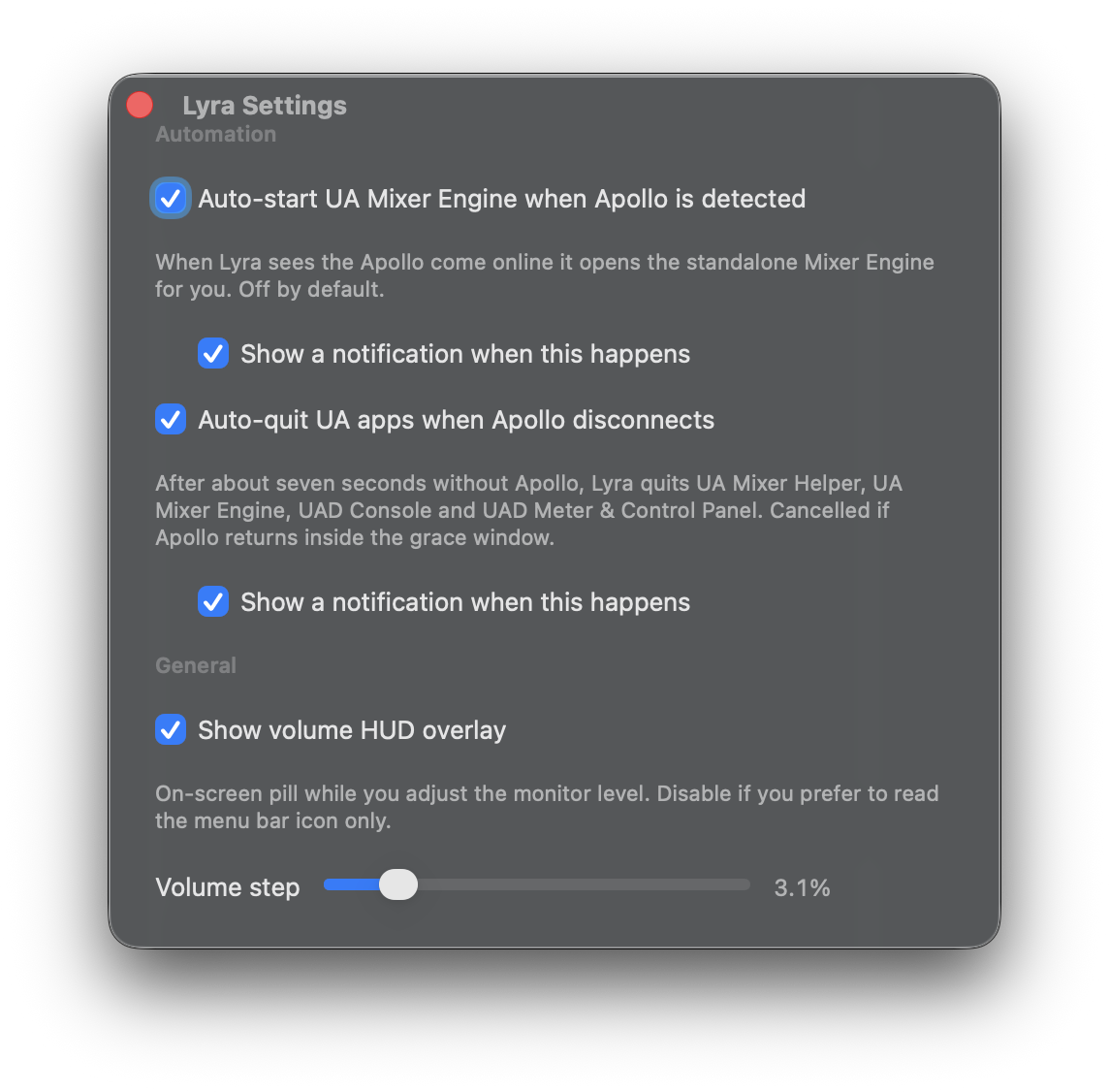
Open with Cmd+, or Settings… in the menu. Three sections.
Interface
- Interface. Which connected interface Lyra controls, the same choice as the menu's Interface submenu. Lyra controls one interface at a time: with an Apollo and a Volt connected, the Apollo until you pick another one here or in the menu. Your pick is remembered. Greyed out with one interface connected.
Automation
- Auto-start UA background apps when an interface connects. Opens UA Mixer Engine and UA Mixer Helper when an Apollo or Volt comes online. Off by default. Same launch path as the manual Start UA Mixer Engine menu item.
- Show a notification when this happens. On by default. Banner posts as soon as Lyra starts one of them. Only active when the parent toggle is on.
- Auto-quit UA apps when the last interface disconnects. Quits UA Mixer Helper, UA Mixer Engine, UAD Console, and UAD Meter & Control Panel about seven seconds after the last Apollo or Volt disconnects. Off by default. Cancelled if an interface reconnects in that time.
- Show a notification when this happens. On by default. Banner posts only if at least one UA app was actually closed; no noise when none of those apps were running.
General
- Show volume HUD overlay. The on-screen pill that appears next to the menu bar icon when the level changes. On by default. See Volume HUD.
- HUD style (macOS 26 and later). System style matches the macOS volume control: device name above a tick-marked slider, in clear glass. Compact pill is the single-row pill from earlier versions. Takes effect on the next level change.
- Volume step. How much each F11/F12 press moves the monitor level. Default is about 3.1%; Shift halves it (the "fine" step). Range: ~1.6% to 12.5%.
Settings persist across launches in the standard macOS preferences. Changing the volume step takes effect immediately - no relaunch needed.
15. Trial & licensing #
Lyra is $9.99, one-time purchase, via Lemon Squeezy.
Trial
The first launch starts a 7-day free trial with full functionality - every feature, no nags, no watermarks. The trial start date persists across reinstalls. After 7 days Lyra shows a hard-lock window on launch and refuses to run until you activate a license.
The hard lock only fires at launch - if you're already running Lyra when the trial expires, nothing happens until your next restart.
After your trial: short test sessions
As of v1.6, if your trial has ended and you're testing a build before committing to buy (a fix you reported, a feature against your gear), the hard-lock window offers a Test for 5 minutes button. Click it and Lyra runs normally for five minutes, then locks again. You get two sessions per day - the counter resets at local midnight. The limit is intentionally narrow: it's a verification tool, not a workaround.
Buying
Click Buy Lyra - $9.99 in the menu (or the Buy button on the website). Lemon Squeezy emails you the license key after checkout.
Activating
Menu → Enter License Key… opens the activation window. Paste your key and click Activate. Activation requires an internet connection. Once activated, Lyra works fully offline.
Two-machine limit
Each license can be active on up to two Macs. To free a slot, open Lyra on the machine you want to release, Menu → Manage License… → Deactivate, then activate on the new Mac.
Lost your key?
Check the Lemon Squeezy confirmation email. If you can't find it, email hello@headroomstudio.dev with the address you used at checkout.
Validation
Lyra silently re-validates your license on each launch. If activation has been revoked (refund, deactivation, abuse), the local credentials are cleared and the app drops to trial / expired state. Network failures are silently ignored - the offline case is benefit-of-the-doubt.
16. Updates #
Lyra ships with Sparkle (the standard macOS auto-update framework). The app checks headroomstudio.dev/lyra/appcast.xml every 24 hours; when a higher build number is found you'll see an update prompt at the next launch (or sooner if a check is in flight).
To check on demand: Menu → Check for Updates…
Updates are signed with EdDSA - Sparkle verifies the signature against the public key embedded in Lyra before installing. If the signature doesn't match the download is rejected.
Release notes: headroomstudio.dev/lyra/releases.html.
17. Launch at login #
Menu → Launch at Login registers Lyra with SMAppService (macOS 13+). The checkmark always reflects the actual system state - if you flip the toggle in System Settings → General → Login Items, Lyra's menu follows.
On macOS 12 the menu item is hidden (SMAppService is 13+ only). Use the legacy Login Items pane in System Settings if you're on Monterey.
18. Troubleshooting #
F-keys do nothing
- Accessibility permission. Open System Settings → Privacy & Security → Accessibility and verify Lyra is in the list and toggled on. The toggle changing colour isn't enough - make sure the row says "On".
- Mixer Engine connected. Open Lyra's menu. If it says "<device> - UA Mixer not running", click Start UA Mixer Engine. Lyra doesn't intercept F-keys while the daemon isn't reachable, so the keys behave normally until it connects.
- Fn key requirement. If your keyboard is set to "F1, F2, etc. keys as standard function keys" → off, you need to hold Fn for F10-F12 to act as F-keys at all. Either toggle the setting in System Settings → Keyboard → Function Keys, or hold Fn when pressing.
Lyra doesn't appear in the Accessibility list
Quit and reopen System Settings. This is a known macOS bug - the new entry sometimes doesn't show until the prefpane is reloaded. If Lyra still doesn't appear, use the + button at the bottom to add it manually from /Applications/Lyra.app.
"No compatible interface detected"
Lyra looks for any output device whose name contains "Universal Audio", "Apollo", or "UA ". Open Audio MIDI Setup and check that your Apollo appears in the device list. If it does but Lyra still doesn't see it, check the device name - older driver versions use slightly different strings. Lyra logs all detected devices to the system console on launch ([Lyra] === AUDIO DEVICES ===) - that's the fastest way to see exactly what names CoreAudio is reporting.
"UA Mixer not running"
Click Start UA Mixer Engine in the menu. This launches the headless UA Mixer Engine.app if it's installed, falling back to UA Console. Either should make Lyra connect within a few seconds. If neither path works, opening UA Console manually always starts the daemon as a side-effect.
Volume jumps in big steps
The default step is 1/16 of full range (~6.25%). Hold ⇧ with F11/F12 for half steps. As of v1.6 the step size is configurable in Settings → General → Volume step (range ~1.6% to 12.5%) - drag the slider to a step that suits your gain staging. Power users can still drive lyra://volume/set?tapered=… for any precision they want.
HUD doesn't appear
Make sure you haven't disabled it: defaults read com.headroom.Lyra showHUD should return 1 (or no value, which defaults to enabled). If you previously set it to false:
defaults delete com.headroom.Lyra showHUDThen relaunch Lyra.
Sparkle won't show an update prompt
Reset Sparkle's "I already checked / I already skipped that version" state:
defaults delete com.headroom.LyraRelaunch, then Menu → Check for Updates… to force a fresh check. This also resets other preferences (HUD setting, saved target device, etc.) to factory defaults.
License says invalid even though I just bought it
Wait 30 seconds and try again - Lemon Squeezy occasionally needs a moment to propagate. If it still fails, double-check that there's no leading/trailing whitespace in the key you pasted (the activation field trims, but it's worth a look). Otherwise email hello@headroomstudio.dev with the key and order number.
Trial says expired but I just installed
The trial start date persists across reinstalls, so reinstalling won't reset it. If you genuinely just installed Lyra for the first time and it's reading as expired, email hello@headroomstudio.dev.
19. What Lyra doesn't do #
Out of scope, in case any of these are dealbreakers:
- Headphone (HP) volume. The HP LEVEL knob on Apollo Twin X is a hardware-only analog control. It produces no events on the UA Mixer Engine protocol; there's nothing to read or write. Lyra controls only the Monitor (speaker) output.
- Per-app or system volume. Lyra changes the interface's monitor level, full stop. macOS's per-app volume and the CoreAudio output volume scalar are untouched.
- Cue / line / aux outputs. Lyra controls the monitor output only. Cue outputs and aux faders aren't part of Lyra's scope.
- Other brands. Lyra works with Universal Audio Apollo and Volt Gen 2 interfaces only. It does not work with RME TotalMix FX, MOTU CueMix, Focusrite Control, etc.
- More than three Reference Levels. Three slots map onto Ctrl+F10/F11/F12 and that's the design. If you need more positions, drive Lyra from a Stream Deck or Shortcut via
lyra://volume/set?tapered=…- your launcher can hold any number of presets. - Configurable shortcuts. F10/F11/F12 (and the modifier variants) are fixed. Use Karabiner-Elements or BetterTouchTool to remap, or fire
lyra://URLs from any tool of your choice.
20. Reporting bugs & feedback #
Email hello@headroomstudio.dev with what happened, what you expected, and ideally what's in the Console.app logs filtered by Lyra (Lyra prefixes every log line with [Lyra] or [AudioManager] so it's easy to grab the relevant slice).